Navigation
- index
- modules |
- next |
- previous |
-
 Python Dev Guide »
Python Dev Guide »
Installing the Shotgun Python API in a general-purpose Python environment has a few advantages:
To install the Shotgun API:
Open a Command Prompt or Terminal.
Enter the following command to confirm that a stand-alone version of Python 2.7x is installed correctly:
python
Enter the following to quit Python:
exit()
Enter the following to install the API:
pip install git+git://github.com/shotgunsoftware/python-api.git
After the installed completes, enter:
python
And then inside the interpreter enter:
import shotgun_api3
If no errors are displayed, the API is installed correctly.
To install the FoundrySG tools:
Note
Make sure the login credentials used have managerial permissions in Shotgun.
When you next start Hiero or Nuke Studio you should see the FoundrySG menu in the top menu bar.
On startup the Foundry to Shotgun toolset menu is visible as FoundrySG:
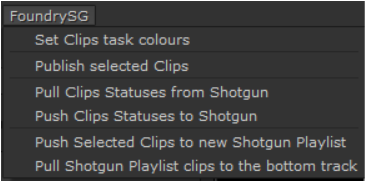
The following functions are supported:
Takes your selected clips and for each of them matches the department token. See taskListColours() in the foundrySG_Example.py example file. If it finds a match it colors it accordingly.
Publishes selected clips to Shotgun by making a movie of each and checking if the project exists on SG. The example then checks these exist and creates them if necessary:
Sequence Shot Task Version
The movie files are then uploaded against the correct Version.
Tries to find the corresponding Shotgun versions to match the local clips. If successful it then pulls the SG shot/task status and applies the corresponding equivalent to each clip.
Takes the status tags applied to clips on the timeline, tries to find an equivalent for Shotgun and updates the shot/task on SG.
Takes your selection of clips, requests a name for a new playlist, then publishes a list of clips as an SG Playlist.
Requests the name of a valid and existing SG Playlist, queries it and attempts to load the corresponding footage playing it in it’s own bin in the Nuke Studio project. It then places the clips in order on the lowest track.
Note
Be sure to have a clear track at the very bottom of the current sequence, otherwise the playlist clips overwrite existing clips.
Python Dev Guide »