 Searching Tips
Search is based on keyword.
Ex: "Procedures"
Do not search with natural language
Ex: "How do I write a new procedure?"
Contact Support
Selecting Objects and Faces
Watch this short video to learn how to select faces and objects in the Hydra Viewer.
Selecting Faces
To select faces on your geometry:
| 1. | In the Viewport, click an object. |
| 2. | Click the Select Faces  button to enable the Face Selection mode button to enable the Face Selection mode  . . |
Your object displays in a blue color showing that the Face Selection mode is enabled.
| 3. | Select faces on your object using the marquee tool. |
Your object displays the selected faces in an orange color.
| 4. | Hold Ctrl + Shift to select additional faces. |
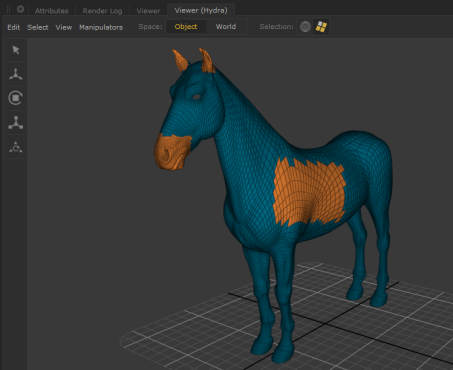
| 5. | Hold Shift and then click and drag on selected faces to invert the selection. |
Deselecting Faces
To deselect faces you can either:
• Deselect some faces by holding Ctrl and dragging your cursor over the selected faces.
OR
• Click in the Viewport to undo your face selection all together.
Selecting Objects
To select an object:
Click the Select Objects  button to enable the Object Selection mode
  and click an object in the Viewport.
To select multiple objects:
| 1. | Click the Select Objects button to enable the Object Selection mode . |
| 2. | In the Viewport, hold Shift and select objects in the Viewport. |
Note: Click in the Viewport to deselect object(s).