 Search Tips
Search is based on keyword.
Ex: "Procedures"
Do not search with natural language
Ex: "How do I write a new procedure?"
Contact Support
Running Scripts on Images
The Image Manager has a right-click option to run scripts on images. This lets you run custom scripts (for example, a Nuke or ImageMagick transform) on the images.
To run a script on an image:
| 1. | Right-click on the image and select Run Script from the dropdown menu. |
The Run Image Script dialog box displays.
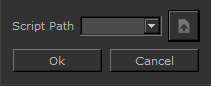
| 2. | Type in the script command or select a script from the dropdown list. The list holds the last 10 scripts that were run. |
Use the $FILENAME variable for the name of the image file.
Tip: Mari runs the script command and then loads the $FILENAME file. So all commands must run in place on $FILENAME.
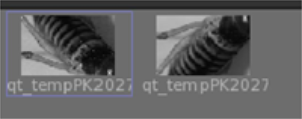
Mari runs the script, then loads the resulting image into the Image Manager. Initially, the previous version of the image also appears in the Image Manager.
|
|
|
The initial image to the left, and the modified image to the right. |
Tip: You can run scripts on multiple images at once.
Experiment: Run some basic scripts on your images. For example, try:
/usr/bin/convert $FILENAME -flop $FILENAME - to flip the image horizontally.
/usr/bin/convert $FILENAME -blur 10 $FILENAME - to apply a slight blur.