 Search Tips
Search is based on keyword.
Ex: "Procedures"
Do not search with natural language
Ex: "How do I write a new procedure?"
Depth Masks
The depth mask masks out areas on the model depending on how deep they are in the scene (that is, how far from the render camera). This lets you set start and end values and quickly mask out the region between them.
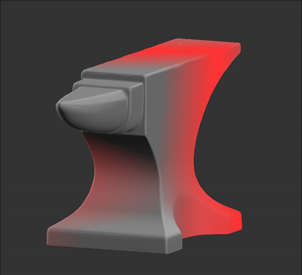
Using depth mask to mask out the far part of the object.
To turn the depth masking on, set the options under Depth Mask:

• Start - is how far through the scene the masking begins. This is a proportion of the entire scene in the project, including all objects, lights, and so on.
• End - is how far through the scene the painting is completely masked.
• Falloff - sets how quickly the masking falls off between the start and end points. The interaction between the three settings can be subtle - you may need to play around with different settings to get the effect you want.
When enabled, the  icon displays in the status bar.
Tip: For details on creating new channels, see Channels.
Experiment: Experiment with the masking options. Create a channel to use as a mask, then use it to control where you can paint on the model. Try setting the falloff options for the edge mask to minimum and maximum values. Try setting the falloff options so that the forward facing areas are masked and the oblique areas are paintable.
Sorry you didn't find this helpful
Why wasn't this helpful? (check all that apply)
Thanks for your feedback.
If you can't find what you're looking for or you have a workflow question, please try Foundry Support.
If you have any thoughts on how we can improve our learning content, please email the Documentation team using the button below.
Thanks for taking time to give us feedback.