 Search Tips
Search is based on keyword.
Ex: "Procedures"
Do not search with natural language
Ex: "How do I write a new procedure?"
Blurring Paint on a Layer
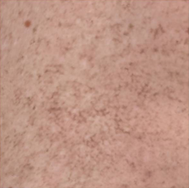
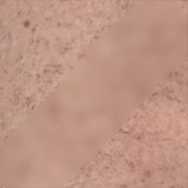
The Blur tool lets you apply a blur effect directly to the surface of your channel. You can use the Blur tool the same way as any other Mari brush, to apply a normal blur effect to any part of the surface.
|
|
| Texture before blurring. | After blurring. |
Tip: If you want to blur large areas of the surface, you may want to use the blur filters instead. These apply a controlled blur to entire patches. Mari includes several blur filters, including a controllable Gaussian blur. For details, see Filtering Images and Paint.
To use the Blur tool on paint:
| 1. | Start Mari and open your project. |
| 2. | Select a layer with some paint on it. |
| 3. | Select the Blur tool  . . |
| 4. | Click and drag to blur your paint. |
Experiment: Experiment with different brush settings to see how this affects the final result. Particularly, try changing the brush:
-size
-shape
-opacity (affects the strength of the blur).
Sorry you didn't find this helpful
Why wasn't this helpful? (check all that apply)
Thanks for your feedback.
If you can't find what you're looking for or you have a workflow question, please try Foundry Support.
If you have any thoughts on how we can improve our learning content, please email the Documentation team using the button below.
Thanks for taking time to give us feedback.