 Search Tips
Search is based on keyword.
Ex: "Procedures"
Do not search with natural language
Ex: "How do I write a new procedure?"
Running Scripts on Images
The Image Manager has a right-click option to run scripts on images. This lets you run custom scripts (for example, a Nuke or ImageMagick transform) on the images.
To run a script on an image:
| 1. | Right-click on the image and select Run Script from the dropdown menu. |
The Run Image Script dialog box displays.
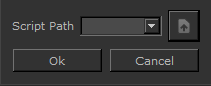
| 2. | Type in the script command or select a script from the dropdown list. The list holds the last 10 scripts that were run. |
Use the $FILENAME variable for the name of the image file.
Tip: Mari runs the script command and then loads the $FILENAME file. So all commands must run in place on $FILENAME.
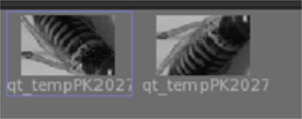
Mari runs the script, then loads the resulting image into the Image Manager. Initially, the previous version of the image also appears in the Image Manager.
Tip: You can run scripts on multiple images at once.
|
|
|
The initial image to the left, and the modified image to the right. |
Run some basic scripts on your images. For example, try:
• /usr/bin/convert $FILENAME -flop $FILENAME - to flip the image horizontally.
• /usr/bin/convert $FILENAME -blur 10 $FILENAME - to apply a slight blur.
Sorry you didn't find this helpful
Why wasn't this helpful? (check all that apply)
Thanks for your feedback.
If you can't find what you're looking for or you have a workflow question, please try Foundry Support.
If you have any thoughts on how we can improve our learning content, please email the Documentation team using the button below.
Thanks for taking time to give us feedback.