 Search Tips
Search is based on keyword.
Ex: "Procedures"
Do not search with natural language
Ex: "How do I write a new procedure?"
Painting Through an Image or Gradient
Paint Through is closely related to clone stamping. The Paint Through tool lets you drag an image from the Image Manager and hover it over your model. As you paint, Mari applies the area of the image underneath your brush to the model. It's like clone stamping, except that you're always cloning directly from the preview onto the model below it.
|
|
|
|
|
Unpainted model. |
Image overlaid, painting through. |
The result. |
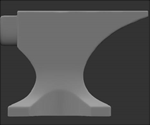
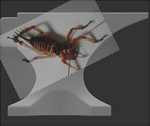
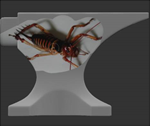
As you paint, you can move the source image around, rotate it, and resize it.
Tip: If you paint off the edge of the image, no clone data is available. You can choose to tile the source image. If this is on, when you paint off the edge, Mari repeats the image (so you always have source data).
Use the ; (semicolon) key to toggle source image tiling on and off.
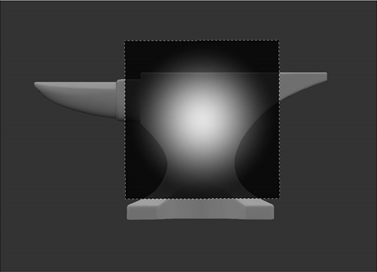
You can also use the Gradient tool to paint through a linear or radial color gradient instead of an image. For example, the following illustration shows a radial gradient being stamped onto the model:
Sorry you didn't find this helpful
Why wasn't this helpful? (check all that apply)
Thanks for your feedback.
If you can't find what you're looking for or you have a workflow question, please try Foundry Support.
If you have any thoughts on how we can improve our learning content, please email the Documentation team using the button below.
Thanks for taking time to give us feedback.