Search Tips
Playing Animation
To play back animation:
| 1. | If it's not displayed, open the Play Controls Toolbar by right-clicking on any toolbars and selecting Play Controls. |

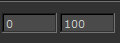
| 2. | Set the desired frame range. This plays only a subset of the animation. |
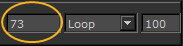
| 3. | To skip to a particular frame, type the frame in the frame box. |
| 4. | Set the playback mode in the dropdown. This can be: |
• Loop - keeps looping through the animation (start to finish).
• Bounce - keeps looping back and forth through the animation (start to finish, then backwards back to the start).
• Stop - plays the animation once and stop.
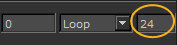
| 5. | Set the frame rate. |
| 6. | Use the play controls to play through the animation: |
|
Button |
Effect |
Shortcut key |
|
|
Moves back one frame. |
Ctrl/Cmd+Left |
|
|
Moves back to the first frame. |
Ctrl/Cmd+Down |
|
No button |
Moves to the last frame. |
Ctrl/Cmd+Up |
|
|
Plays forward. |
None. |
|
|
Stops playing. |
None. |
|
|
Moves forward one frame |
Ctrl/Cmd+Right |


You can also pull the timeline control back and forth to move through frames: