Search Tips
Opening Shelves
| 1. | Start Mari and open your project. |
| 2. | If the Shelf palette is not already open: |
• from the View menu, select Palettes > Shelf, or
• right-click in the toolbar area and select Shelf from the dropdown menu.
The Shelf palette displays.
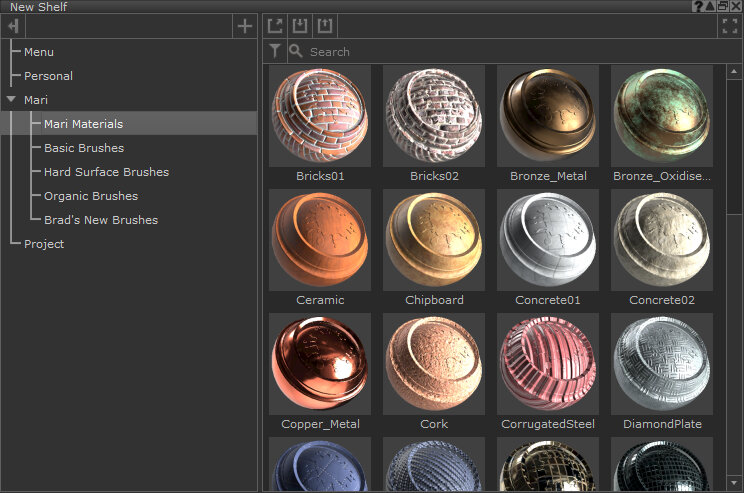
The Mari Shelf palette.
Video: To display the Shelf quick palette when painting, press and hold K.
This video shows the workflow using Mari 3. Even though the Mari 4 workspace is different, the workflow remains the same. To have a look at the main UI differences, see Mari 3.3 vs 4.0.
Tip: The default layout in Mari has the Shelf palette already open.
As described above, the Shelf starts with seven default shelves: Menu, Personal, Basic Brushes, Hard Surface Brushes, Organic Brushes, Brad's New Brushes, and Project. The Menu and Personal shelves are empty when you first start Mari. The Project shelf only displays when you have a project open (and is empty when you start a new project).