Search Tips
Crash Reporting in Mari
If you experience a crash in Mari, the Crash Report Manager will appear. This manager enables you to send the crash report to Foundry, or save it for your own use. Sending the crash reports to Foundry can help the development team identify issues that users encounter, and hopefully address them.
Mari uses Sentry for handling crash reports. Sentry enables you to easily submit crash reports without sharing any sensitive project information.
You can also find this window at any point by going to Help > Manage Crash Reports.
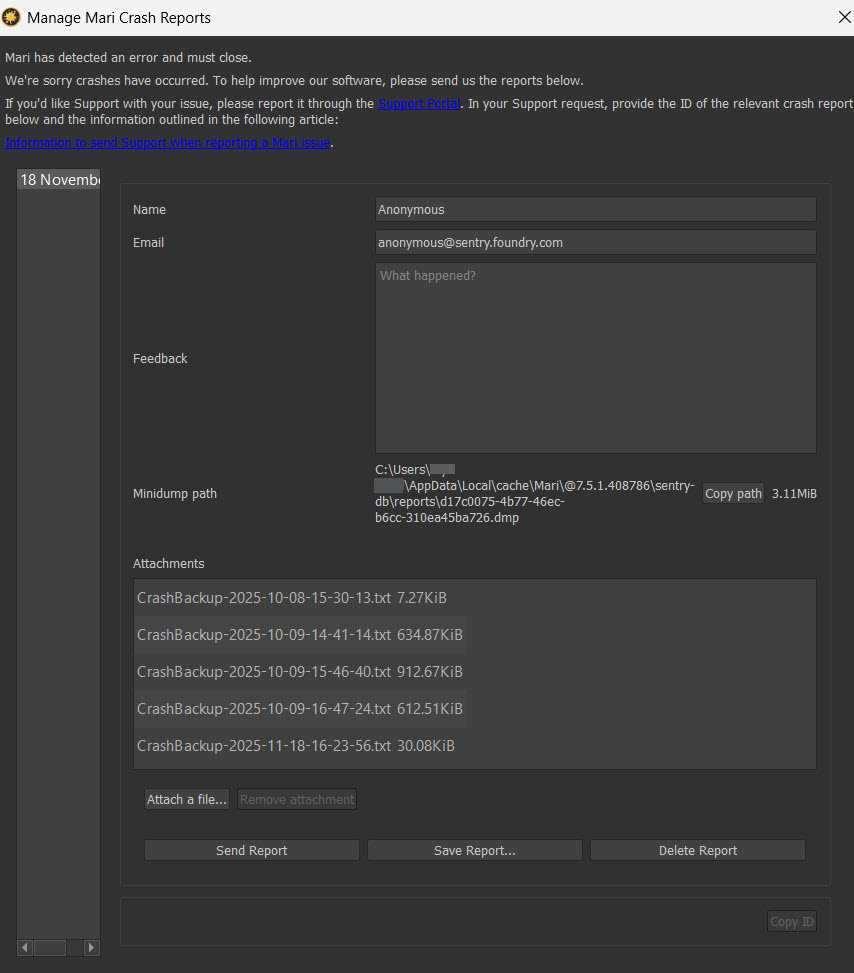
• Name and Email - You can enter your name and email here, or leave the anonymous options. Entering your name and email is helpful if you wish to reach out to Foundry to discuss the crash, as it identifies crash reports that you sent.
• Feedback - Here you can give information about what happened when Mari crashed.
• Minidump path - You can copy the minidump path to access the crash report file. If you want to contact Foundry directly, you should send this file with your message. This is also helpful if you are working on a machine without internet, as you can send the file to Foundry when you next go online.
• Attachments - Use Attach a file… to attach any supporting documents that give additional information about the crash. By default Sentry includes a censored report as an attachment.
Tip: Additional information, such as screenshots, system reports, or a Mari Archive can all be helpful information depending on the crash. To find out more about information you can add to your crash report, go to Q100090: Information to send Support when reporting a Mari issue.
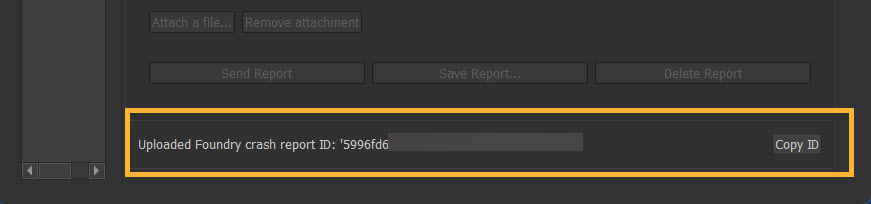
• Send report - This button sends the crash report to Foundry. Once you have sent the report, the crash report ID will appear at the bottom of the window. You can copy this ID for future reference, for example if you wish to reach out to Support.
• Save Report… - this option opens a file browser and saves the report to your machine. Once you have sent and closed the Crash Report Manager, the report is removed from Mari. Ensure to save your report before you sent it if you want it for future reference.
Note: Crash reports should be sent before any further crashes occur, as the folder for DMP files has an 8MB size limit, which if reached will automatically start deleting older reports.
• Delete Report - deletes the crash report.
Note: If you don’t want the Crash Report Manager to appear when Mari crashes, you can completely disable the display of the Issue Reporter when a crash occurs in Mari. This can be helpful if your machine isn’t connected to the internet so you cannot send the report to Foundry.
To do this, set the environment variable MARI_NO_CRASH_PROMPT=1
.
Crash reports will still be saved however, and can be accessed in Mari under Help > Manage Crash Reports. From here you can save the report and send it to Support if you require assistance.
Note: For more information on using crash reports when contacting Foundry Support, go to Q100729: Managing and sending Mari Crash Reports to Foundry.