Search Tips
Adding a mask to a node
You can add a specialized mask port to any node in your graph.
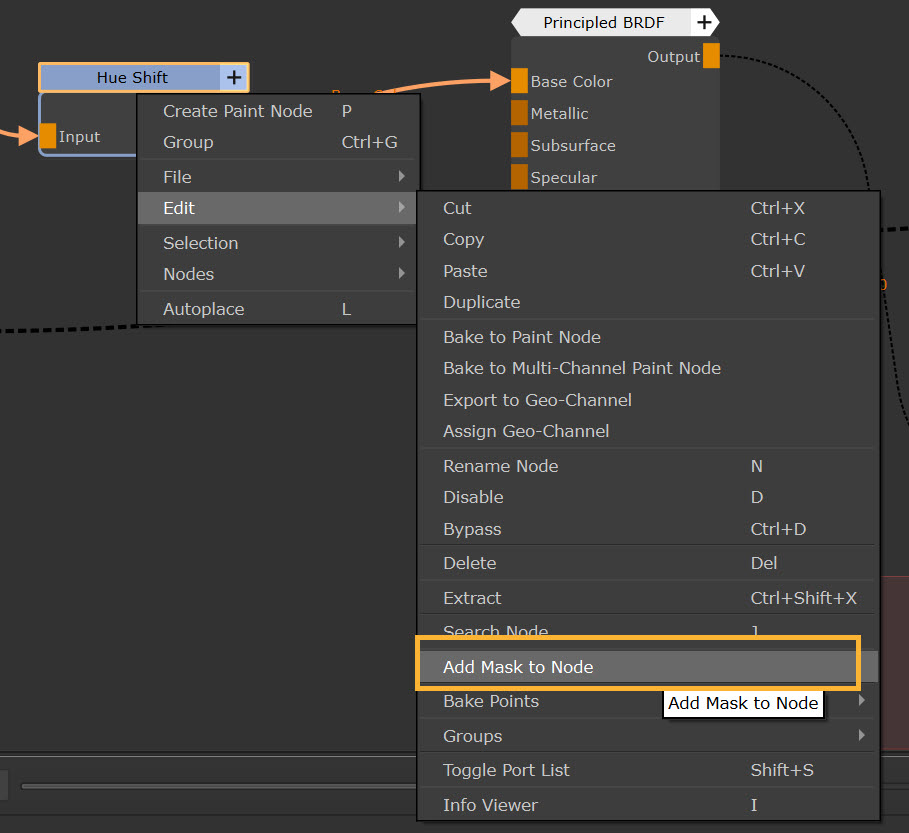
To do this, go to your Node Graph and Right-Click > Edit > Add Mask to Node.
Mari automatically wraps your node selection in a group node with a dedicated Mask input. It also adds a Mask Intensity parameter to the node.
Mask to Node example
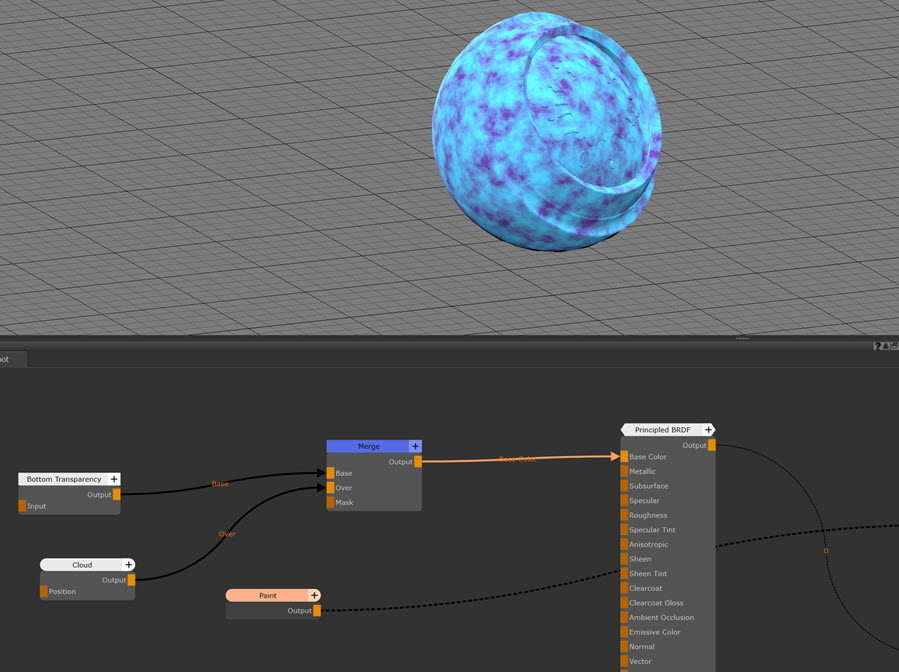
In this example we have a model with a cloud texture on it. Let’s say we want to have two different color hues that create a polka dot pattern across the model.
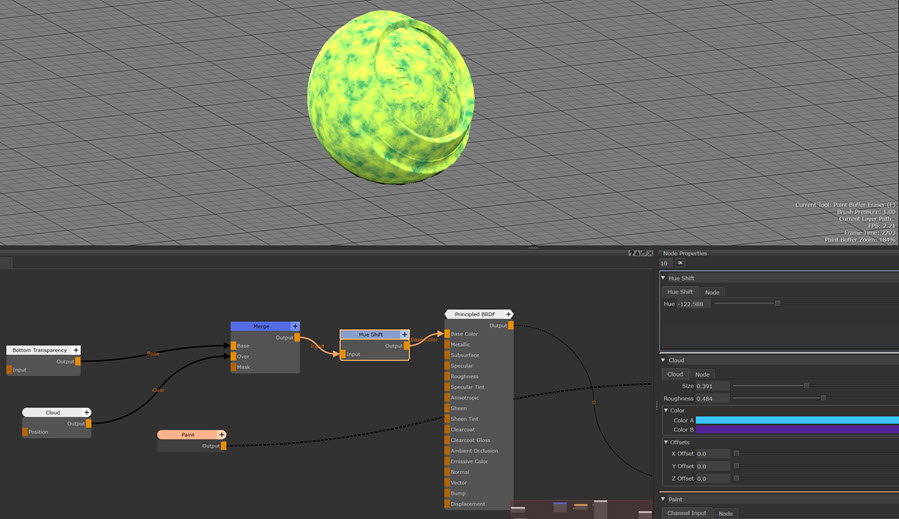
To choose the secondary color scheme, let’s add a Hue Shift node and choose our selected color.
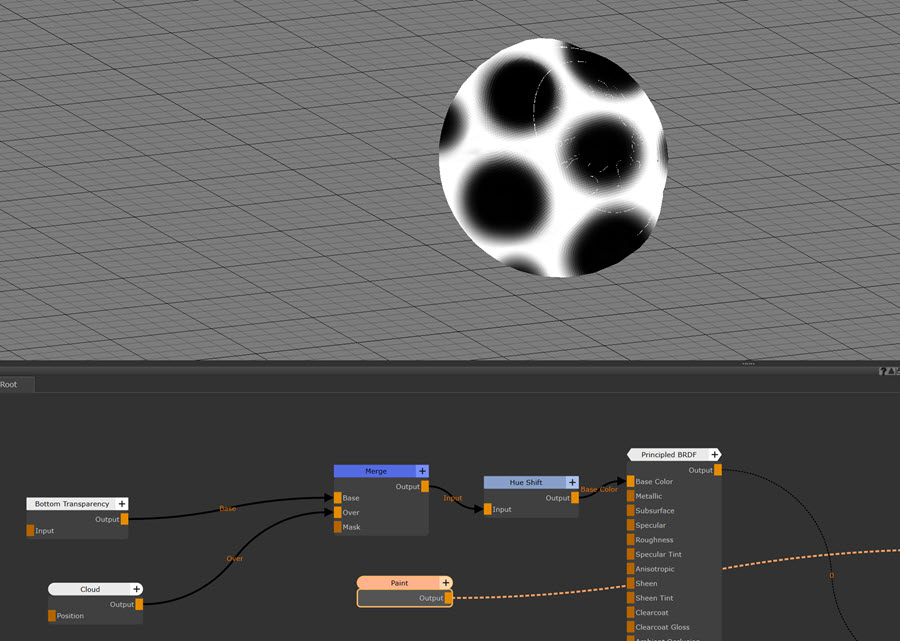
Next we use a Paint node to define the mask we want to apply to the model.
To apply the mask to the Hue Shift node, right click on the node and select Edit > Add Mask to Node.
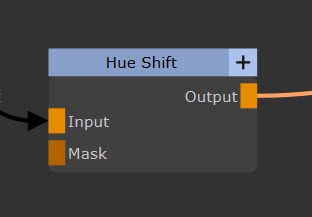
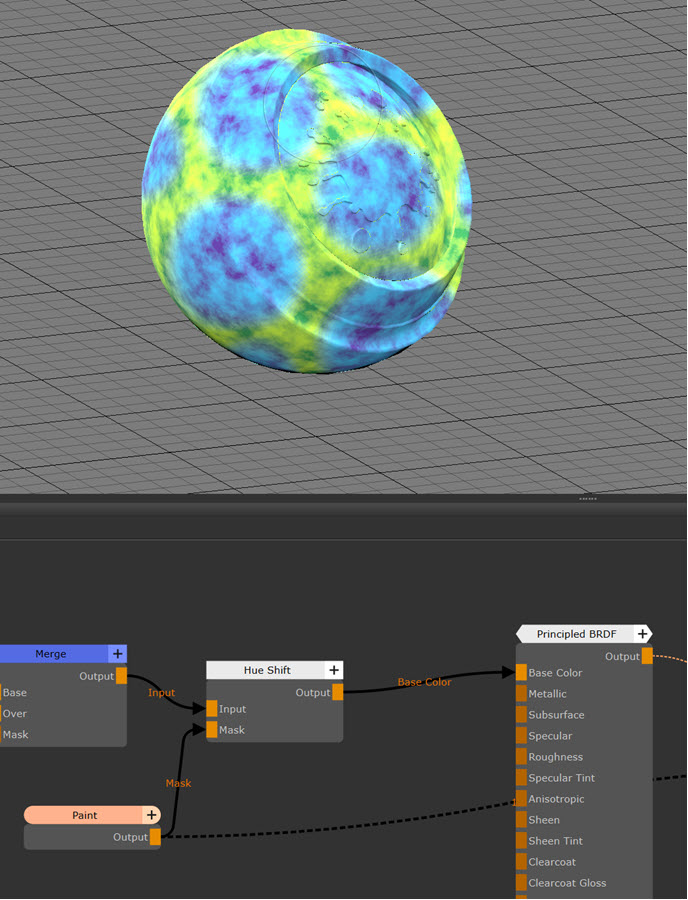
Now we can just plug in the paint node into the Mask input and we get our final look: