Search Tips
Creating a mask from a selection
Creating a mask from an active selection or existing selection group gives you fine-tuned control to paint on and apply specific effects to certain sections of your model.
To create a mask from a selection:
| 1. | If you want to use an existing selection group, right-click the selection group you want to make a mask from. Otherwise, select the desired areas you want to mask using the Select tool in the canvas, and then right-click in the canvas. |
| 2. | In the context menu, select Mask > Create mask from Selection. |
| 3. | Define the Size and Depth of the mask. |
| 4. | You will need to enter either a Paint node or a Geo-Channel node option to be able to create the mask |
• If you want to create a Paint node for the mask, enter the name of the node in the text input.
• Define whether the mask should be assigned a Geo-Channel (you can either create a new Geo-Channel or select an existing one). If you choose an existing Geo-Channel, the Geo-Channel image set will be overwritten with the new mask.
| 5. | Click Ok. |
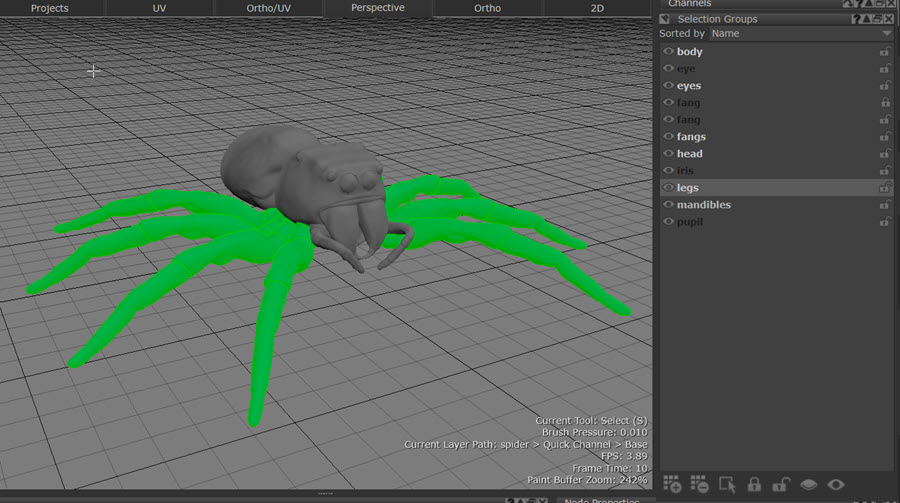
Mask from the selection group:
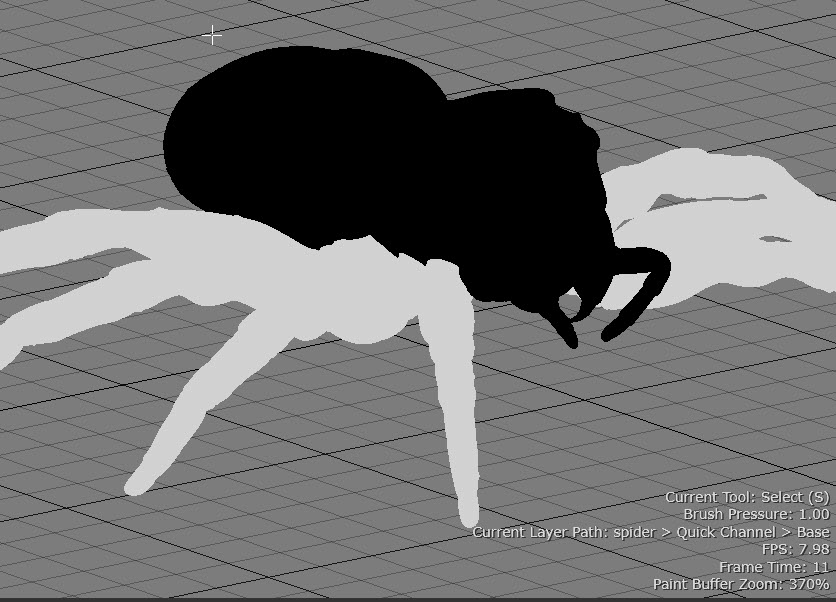
Now you have a mask, you can plug it into a specific effect you want to create for that selection group, or tweak the Geo-Channel and it will apply to the selection group to achieve a consistent look.