Search Tips
Managing unused images
When working on a project where you’re trying out lots of different images for textures, your Image Manager can get bloated with lots of images that make it difficult to navigate. You can easily check image-usage and clear out unused images in the Image Manager.
If the image isn’t used anywhere, and you want to remove it from your Image Manager:
| 1. | Right-click in the Image Manager |
| 2. | In the context menu that appears, click the Remove Unused Images option. |
| 3. | Mari identifies and deletes images not currently referenced by Nodes, Brushes, the Multi-Paint Palette, Environment Light, the Image Color Picker, or the Canvas background. |
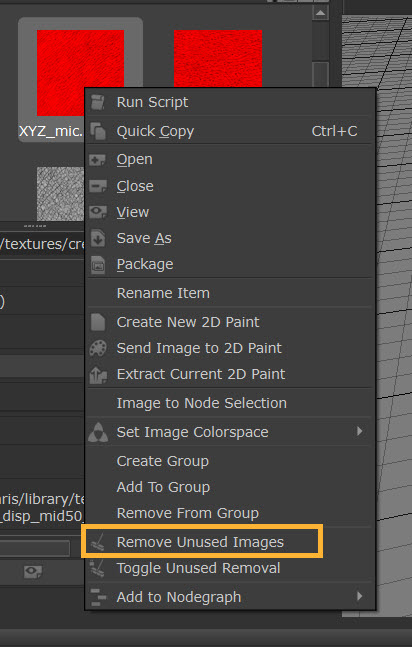
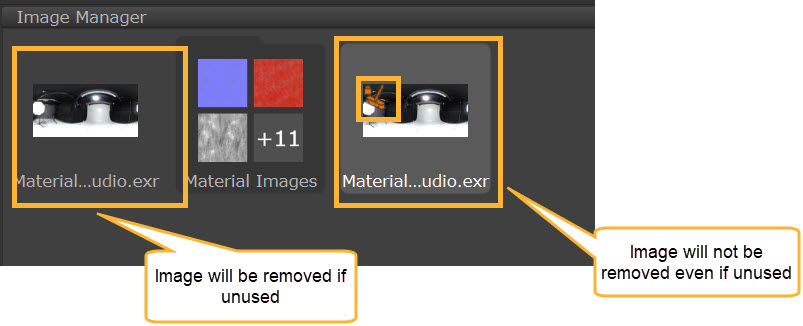
There may be instances where you aren’t currently using an image in your Image anywhere, but want to keep the image in the Image Manager for future use. To save this image from being removed by the Remove Unused Images action, right-click on the image and activate the Toggle Unused Removal setting. When active, the image will be protected from being removed, even if it isn’t currently in use.
If an image is protected from being removed, an orange icon will appear on the image:
Note: To prevent data loss, Mari will automatically preserve images derived from Image Write nodes in 2D Paint mode.
Checking image use in nodes
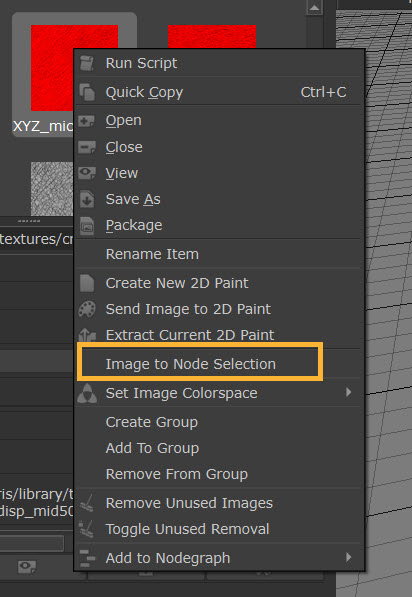
Mari also enables you to check if a specific image is used in any nodes in your current node graph. Use the right-click context menu to select the Image to Node Selection option. All nodes that utilize the image as a parameter will be selected and focused in the Node Graph.
Note: This search function is limited to the active Node Graph view. If the image doesn't get highlighted in your current Node Graph, it may still be used in other Node Graphs in your project.