Search Tips
Creating ID Masks from Selection Groups
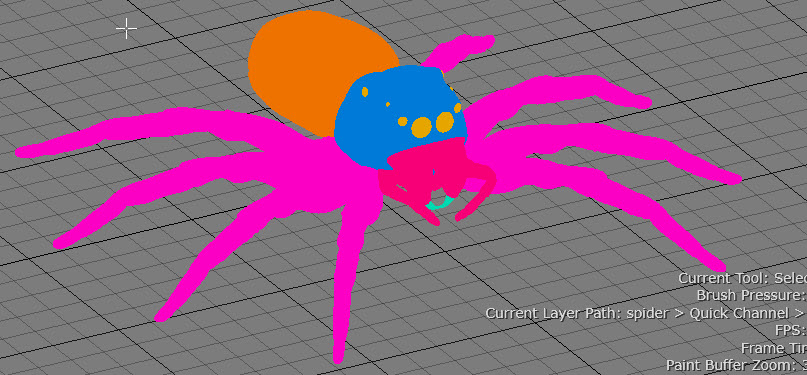
You can automatically generate ID masks from existing selection groups. This doesn’t require manual polygon painting or baking, and is useful for Mari's Color Mask workflow.
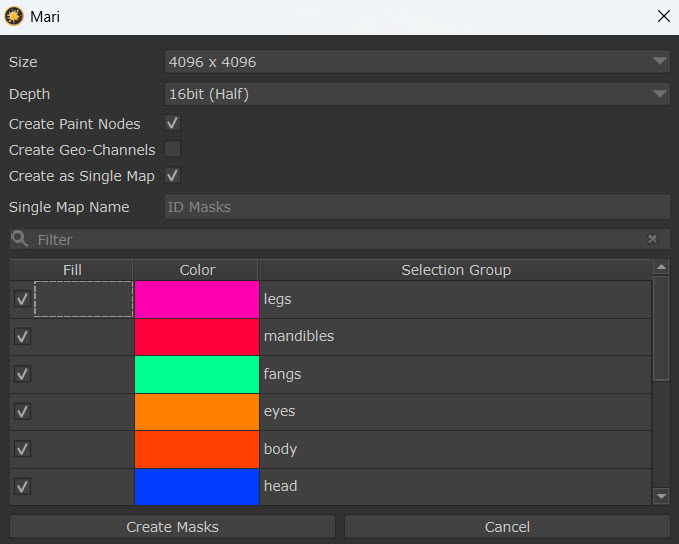
To create ID Masks for your selection group(s):
| 1. | Right-click on the Canvas and go to Mask > Create ID Masks from Selection Groups. |
| 2. | Define the size and depth of the masks. |
| 3. | Define whether you want to create an associated paint node and Geo-Channel with the color masks. |
| 4. | Select whether to Create as Single Map. Choosing this option will mean that every selection group you choose will be grouped in one map, although each selection group will still maintain its unique color ID. You can also name the map, and that name will appear on the paint node. |
If you do not check this option, an individual color map will be created for each selection. the corresponding nodes will be named after the selection groups.
| 5. | All of the selection groups have an associated color. You can edit this color by clicking on it, which will open up the color picker dialog. The color ID is stored with the selection group. Select the selection groups you want to bake out as color maps. You can use the search bar to find a specific selection group from a long list. |
| 6. | Click Ok and the paint nodes will appear in the node graph. |
If a polygon belongs to more than one selection group, it’ll be colored with the last one in the list to get rendered of that selection.