Edges to Curves
The Edges to Curves mesh operation lets you create Spline curves, Polylines, Bezier curves, or B-spline curves from edges on an existing mesh, selected through selection operators.
Using Edges to Curves
Before adding the Edges to Curves mesh operation, add a mesh to your scene. You can do this in the Mesh Ops tab, in the Mesh Operations list, or add a mesh with the traditional modeling tools.
Once you've added a mesh, follow these steps:
| 1. | Above the Mesh Operations list, click Add Operator, and under Mesh Operations > Edge, double-click Edges to Curves. |
| 2. | Expand the Edges to Curves item in the stack to reveal its Selection input. |
| 3. | Click (Add Selection), and in the Preset Browser, under New, double-click Select by Border. |
This selects the border edges of your mesh and applies the Edges to Curves operation to them.
Note: Alternatively, you can choose the Select by Index selection type, and in Edges selection mode, define your selection in the 3D viewport, or edit the Properties of the selection operation. For more information on selection types, see Procedural Selection.
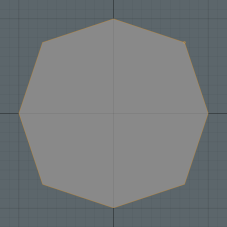
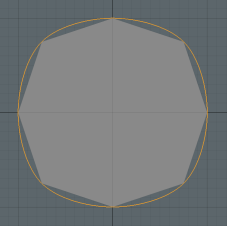
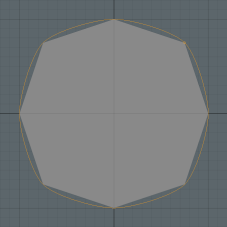
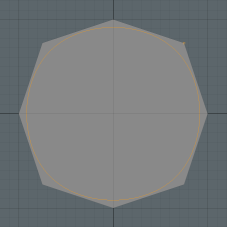
The Edges to Curves operation uses a polyline curve type by default, but you can change this in the Properties panel. In addition to Polyline, you can select Spline, Bezier, or B-Spline curve types:
|
|
|
|
|
|
Polyline Curve Type |
Spline Curve Type |
Bezier Curve Type |
B-Spline Curve Type |
Properties
You can customize the Edges to Curves mesh operation by editing the following settings:
|
Edges to Curves |
|
|---|---|
|
Curve Type |
Select the type of curve you would like to use. The following options are available: • Polyline - This option works well with the Pen Generator tool. • Spline Curve - Smoothed curve that works well with the Path Generator tool. Also matches subdivision surfaces more closely. • Bezier Curve - Linear curve that works with the Path Generator, but matches cage edges more closely. • B-Spline Curve - This type of curve works well with Catmull-Clark subdivision surfaces. |
|
Curve Mode |
Select the curve mode. The following options are available: • Single Curve - Creates a single curve running through the edges you've selected. This only works with edge selections that have a distinct start and end point, or closed loops. Overlapping edge selections, branching, and multiple edge loops are currently not supported. • Curve Per Edge - Creates a two point curve along each selected edge. This has no limitations about what can be selected, but it does not create a continuous curve, so it doesn't work well with things like the Sweep Effector or Path Constraints. |
|
Bezier Tangent Weight |
This option is only available if the Curve Type is set to Bezier Curve. In addition to having points for each point of the edges you've selected, a Bezier Curve has two surrounding control points, which define how the curve enters and exits the point. The further the control points are from that middle point where the curve goes through, the more the curve heads in the direction of the control point before it bends back towards the next point in its path. The Bezier Tangent Weight option controls how close or far those control points are from the middle point that the curve is passing through. At 0%, you get straight lines between points, and at 100% you get a more rounded curve. |
Using Edges to Curves in the Schematic
Once you have a mesh in your scene, you can add the Edges to Curves mesh operation to it, using the Schematic viewport.
| 1. | Go to the Setup layout. |
| 2. | In the Schematic viewport, click Add..., then under Mesh Operations > Edge, click Edges to Curves. |
| 3. | The mesh operation is added to your scene, and automatically gets connected to your mesh item in the Schematic. |
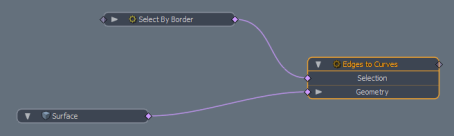
| 4. | To define the selection for the Edges to Curves operation, click Add... again, and select Mesh Operations > Selection > Select By Border. |
| 5. | Connect the Select By Border operation to the Selection input of the Edges to Curves node. |