Search Tips
3D Viewport
The 3D Viewport is where you can see the currently-loaded 3D USD scene. It is visible on most workspace tabs so you have access to preparing and playing back the scene. You can also view any displays and cameras within the project.
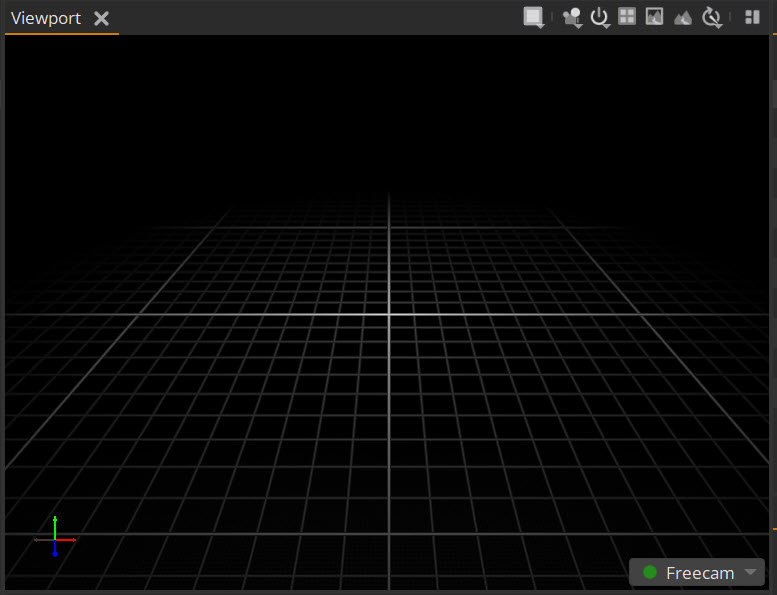
There are different tools in the Viewport that enable you to edit and manage your viewing options. These are displayed as icons at the top-right corner of the Viewport.
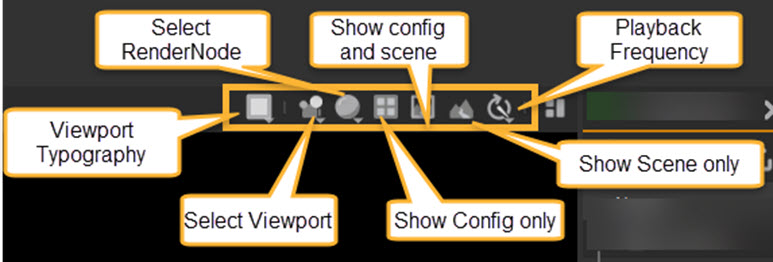
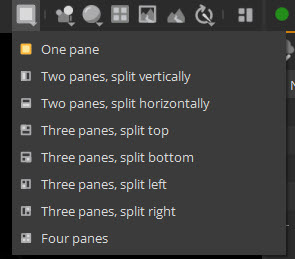
• Viewport Typography - defines how many panes are displayed in the Viewport.
• Select Viewport - Change views between a Viewport camera or any other camera within the project. The available cameras will appear as a dropdown menu from the icon. Alternatively, you can change the camera from the dropdown at the bottom-right of the Viewport.
• Select RenderNode - Changes the Viewport between Solid, Wireframe and Visualization mode:
Solid: Shows all display as gray.
Wireframe: displays all meshes within the scene as wireframe.
Visualization: Shows accurate camera projections and overrides on any displays in the project.
• Show Config only - only shows the hardware config (displays and cameras) in the Viewport.
• Show config and scene - shows both the hardware config and the USD scene.
• Show Scene only - displays the USD scene only.
• Playback frequency - defines the frequency of the playback in the Viewport.
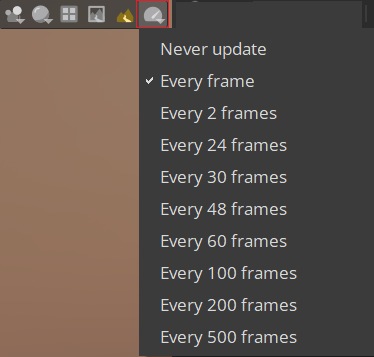
Tip: This feature is useful when using very high resolution images to prevent the NukeStage Editor machine performance from slowing down during playback.