Search Tips
Hardware
Nuke Stage is Windows only and runs on the typical virtual production hardware used by other virtual production solutions.
There is no need for specialist media servers or bespoke equipment. Nuke Stage is designed to run on commodity hardware in line with specifications below.
For synchronization between RenderNodes, Nuke Stage utilizes the hardware based sync solution from NVIDIA.
Hardware Requirements
Machines and Equipment
• Control machine - you’ll need a Control machine to install and operate the Nuke Stage editor application, with Windows 10 or 11. The Control machine can be a lower specification than the RenderNodes but for the best performance in preparing and editing content it is recommended to match them.
• Relay machine - a “Relay” process runs in the background, which does all the network communication between the RenderNodes and the Nuke Stage Editor, and receives and distributes the tracking data. This network communication can be the same machine as the Control machine or a different one.
• RenderNodes - you’ll need machines to run the RenderNodes, see requirements below.
• Tri-/Bi-level sync generator.
RenderNodes
• RenderNodes should use Windows 10 or 11.
• An NVIDIA Quadro Sync II card is needed for every RenderNode. For single RenderNode setups, where sync isn’t needed, these are unnecessary.
• GPUs for each RenderNode that are compatible with Quadro sync. A list of compatible GPUs can be found on the NVIDIA Quadro Sync page. For high resolution image playback and compositing please use a high-end GPU such as an A6000.
• All RenderNodes should have identical specifications, including GPUs.
Drivers
• Latest drivers from NVIDIA, version R538.95 or later. There are known issues with R538.78 and previous versions.
SSD
• PCI-e 4.0 chipsets with M.2 connected SSDs with PCI-e 4.0 transfer speeds will provide a maximum possible image sequence bandwidth of 7.877 GB/s.
PCI-e 5.0 chipsets with M.2 connected SSDs with PCI-e 5.0 transfer speeds will provide a maximum possible image sequence bandwidth of 15.754 GB/s.
• For very high resolution playback (> 7.5GB/s throughput) a PCI-e 4.0+ x16 M.2 SSD RAID array can be configured with uniform load balancing across the array. This option can be used to accommodate higher image sequence bandwidth requirements.
Note: These maximums are based on the PCI-e specifications - maximum throughputs are not guaranteed.
Note: It’s important to put your image sequences on your fastest drives, and avoid putting them on external or cloud drives. Ensure the drives with your image sequences can transfer at PCI-e 4.0+ speed to prevent performance issues.
Network
• All machines on the same network with Relay ideally connected directly to RenderNodes. Cat 6 ethernet cables or higher are recommended.
• If content is stored on a shared network then 40GbE / 100GbE is recommended.
Machine Mitigations
When multiple Nuke Stage processes run on the same machine, they do not share resources. This means that the capabilities of the machine they are running on will be reduced. There are mitigations you can put in place to prevent this.
Bandwidth mitigations
• In the Nuke Stage Editor, there is a Playback Frequency button ( ) found at the top right of the 3D Viewport. Increasing the number of frames between image processing updates decreases the Editor’s bandwidth. This allows other applications, such as the RenderNode, to use more of the bandwidth.
• Closing all viewport tabs in the Editor will force the editor to stop using up bandwidth completely.
Memory capacity mitigations
By default, each application will attempt to take 80% of the machine’s available physical memory for its image sequence cache. When you have multiple applications running, more memory will be allocated than the system can actually provide. This will force the system into paging, which will greatly reduce performance.
You can use the following mitigations to prevent this:
• You can balance the amount of memory alloys itself by using the NUKESTAGE_IMAGECACHE_CAPACITY environment variable. Real numbers less than 1.0 and more than 0.0 will set a maximum allocation as a percentage of available physical memory. Numbers 1.0 or more will set an absolute maximum allocation in GBs.
• If you need more granular management than a system environment variable, NUKESTAGE_IMAGECACHE_CAPACITY can be set on a per-process basis using the env argument on the launcher config files.
Note: When you are running multiple processes on a single machine, ensure the sum of all image cache maximum capacities is less than the system’s expected available memory. This is particularly important when playing back large sequences.
Synchronization
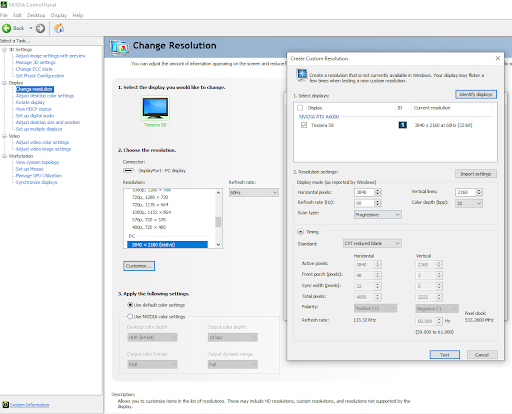
For Synchronization, please ensure you have a correctly configured Extension Display Identification Data (EDID) on all RenderNodes. This means you should use a resolution marked as (native) or alternatively create a custom resolution using a native one via the Customise button and then change the frequency and resolution to what’s needed. More information on EDIDs can be found on NVIDIA Help.
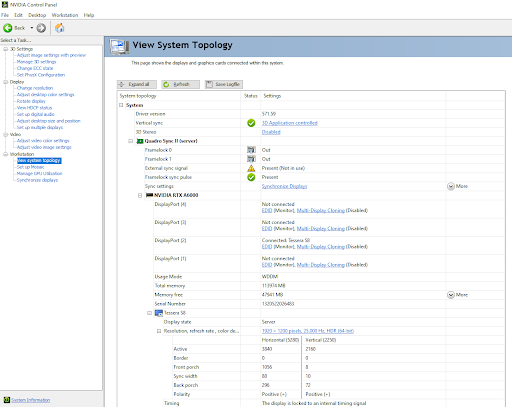
For Sync, you will also need to ensure each Window Output in Nuke Stage is created with Borderless enabled and ensure the Output fills the full monitor resolution. For validating Sync in Nuke Stage you can use the RenderNode Sync debug mode. See Debug Views.
Asset Management
To ensure synchronization of data between RenderNodes, the Nuke Stage build and assets need to be present on the Stage Editor and RenderNode machines on identically named drives and in mirrored folder structures. Files should be available under the exact same paths on all machines.
Note: Put assets on SSDs rather than network drives to prevent playback issues.
Other Devices
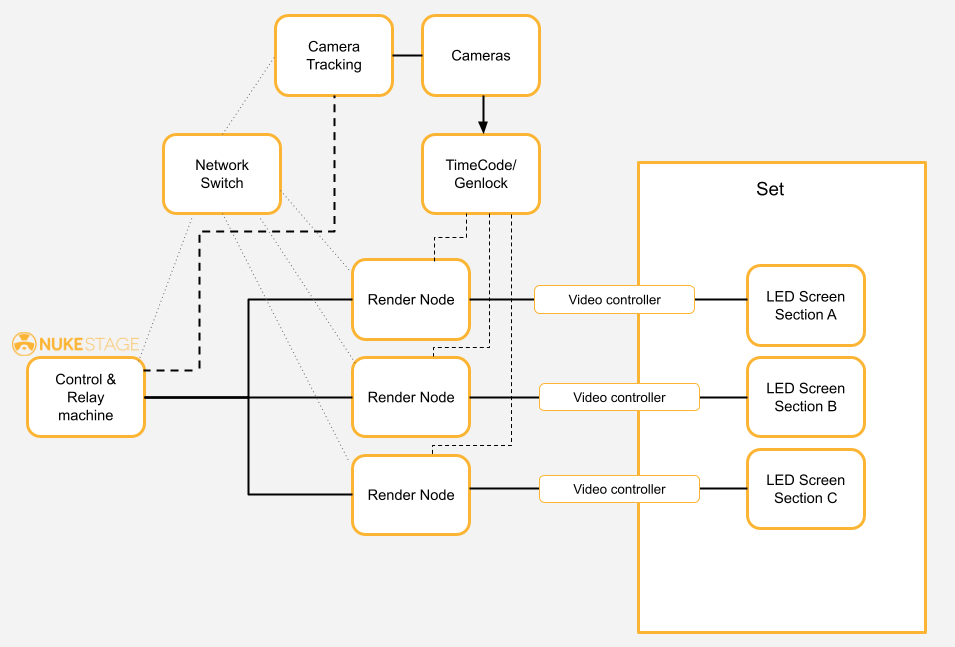
For a full virtual production set up, you’ll need further equipment, based on your own production requirements, such as:
• LED Screens
• LED Processor/ Video Controller
• Cameras
• TimeCode
• Genlock (Tri-/Bi-level sync generator)
• Tracking System
Basic Setup Example
Here is an example of how you can use Nuke Stage alongside the above required hardware, plus your own configurations of devices for a full virtual production set up: