Search Tips
Creating content for Nuke Stage
When preparing assets and content for Nuke Stage, there are different steps to bear in mind to ensure that you don't run into any issues when loading and playing your content in Nuke Stage.
For information on exporting content from Nuke into Nuke Stage, go to USD Export from Nuke.
Performance
Large data files can cause lags and playback issues in real-time, so there are ways you can prepare your scene in Nuke that will prevent you running into performance issues in Nuke Stage.
• When using images on geometry in Nuke (both static and animated), use Data Windows wherever possible. Using a Data Window instead of the Display Windows ensures that only your needed data will be rendered, meaning you won't have unnecessarily large data files.
• You can do this by using the Crop node in your tree graph.
• Alternatively, use the autocrop option in the StageUSDExport node. The animated bbox option will also need to be enabled if there are any sequences that contain changing Data Window boxes (such as an animation of flying birds).
Note: If you enable the autocrop option, the export might be slower whilst the autocropping takes place. But it will ensure you aren't exporting large files with unnecessary data.
• When using a GeoSphere with a latlong image for background surrounding sky, there will be a section a the bottom which you can often crop out (leaving the Display Window as it is) if the camera will never view that area for the shoot.
• If doing this, leave a small buffer area to raise or lower the horizon line.
Note: There is a known issue when exporting a GeoSphere with spherical textures on them, where a seam line will appear on the texture in Nuke Stage. A solution for this is to create a Sphere directly in Nuke Stage, and add a Texture Override for it to read in your sky image.
• In Realtime playback, it is helpful to keep the polygon numbers as low as possible to prevent the geometry from becoming too heavy. However ensure that there are enough polygons when you're projecting textures, so they are aligned in the way you expect them to be.
When using the GeoProjectUV node on geometry, make sure the geometry is subdivided enough so that the texture lines don't show as warped in a zigzag way. A GeoCube Rows/Columns property set to 10 x 10 is usually sufficient, but might differ per case. If this property is set too high, there is a level of diminishing returns in how much the texture is changing vs how heavy the geometry is becoming.
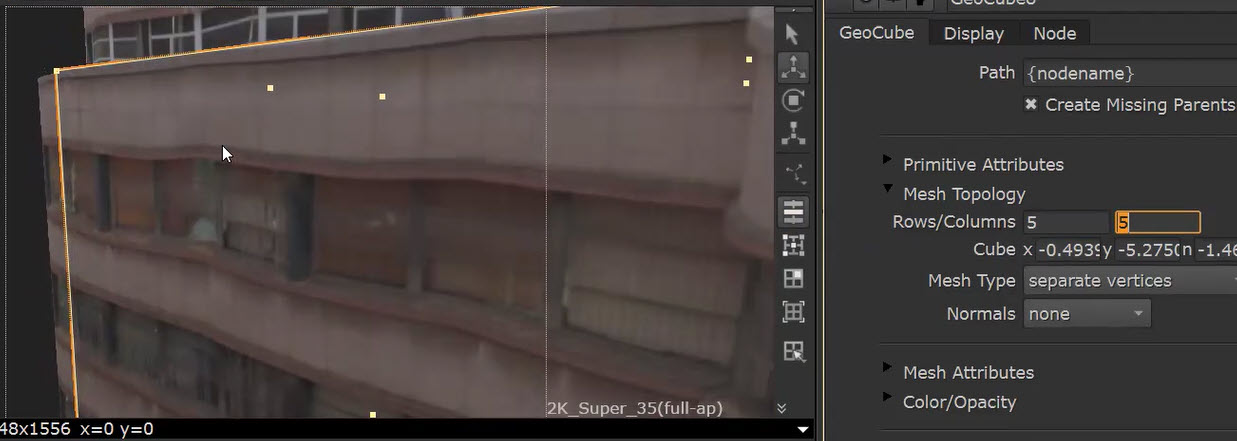
The Rows/Columns property set to 5 x 5, resulting in a warped zig zag effect on the texture.
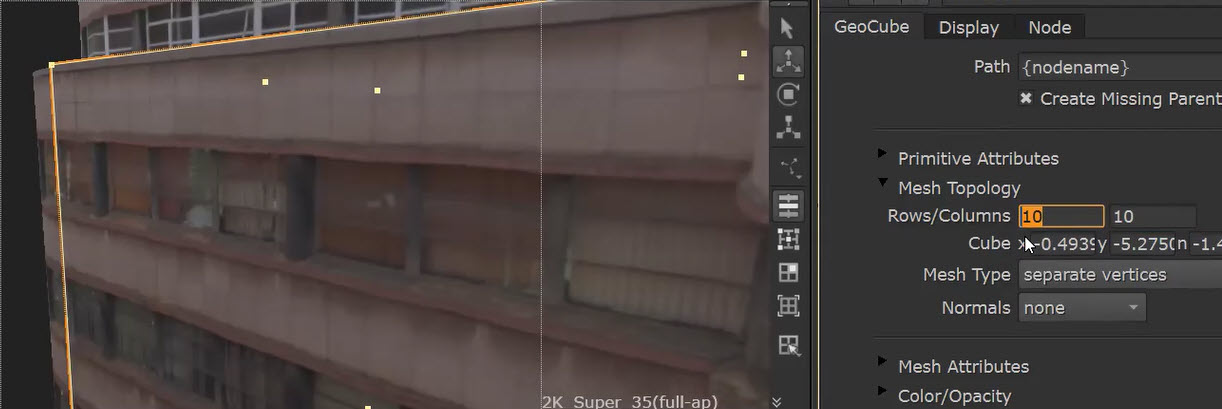
The Rows/Columns property set to 10 x 10, resulting in a more accurate mapping.
Note: Make sure your texture size is set to the highest value in Nuke's Preferences > Viewer > Texture size to prevent blurry images.
Organization
The Scene Graph in Nuke Stage displays all the USD prims in your scene. For big, complex scenes this can contain a large number of prims, and so there are steps you can take whilst working in Nuke to organize your scene in Nuke Stage.
• Use GeoXform nodes at the top of any node tree where multiple Geo nodes are used in order to create a single shape.
• When this is opened in Nuke Stage, a parent level will be created in the Scene Graph, nesting the GeoMaterials underneath it. This will therefore show less items on the highest level of the Scene Graph, which is helpful for readability.
• A parent transform is also created, so you can move the object of grouped GeoMaterials at once in Nuke Stage.
• You can rename the GeoXform node to something that represent the object when shown in Nuke Stage.
• The name of the last node in any geo input image tree is shown in the USD material file path. Rename the node if you want to specify what it's for (i.e. Building_04).
Note: NoOp nodes currently do not work for this purpose.
Unsupported nodes
The following Nuke nodes are not supported in Nuke Stage.
• Project3DShader
• BasicSurface
• Avoid Time nodes that act on geometry and image parts of the graph.
Color
Nuke Stage uses OCIO for its color workflow.
• In the Nuke project properties panel, make OCIO the default color settings (either built-in configs or your own).
Nuke Stage workflow
• Nuke Stage only supports a rgba channel set in a Read node. If you want to bring masks into Nuke Stage that you've created in Nuke in order to drive changes (e.g. grading), these must be written out separately from the exporter. Write them out with a Write node in a B44 EXR rgba channel set.
• You can add Camera nodes to the Nuke graph GeoScene nodes to use as reference cameras in Nuke Stage. This can be helpful for preferred shot layouts. The camera in Nuke Stage only takes USD from import, so they cannot be exported as FBX files for this purpose.