Search Tips
Nuke Stage VP Operator Manual
Introduction
This manual is designed to cover the technical requirements and setup steps for Nuke Stage for pre-production and on-set use. It also covers checks and debugging steps you can complete during your setup, as well as on-set.
Setup and Pre-Production
Hardware Requirements
Nuke Stage is Windows only and runs on the typical virtual production hardware used by other virtual production solutions.
There is no need for specialist media servers or bespoke equipment. Nuke Stage is designed to run on commodity hardware in line with specifications below.
For synchronization between RenderNodes, Nuke Stage utilizes the hardware based sync solution from NVIDIA.
Machines and Equipment
• Control machine - you’ll need a Control machine to install and operate the Nuke Stage editor application, with Windows 10 or 11. The Control machine can be a lower specification than the RenderNodes, but for the best performance in preparing and editing content it is recommended to match them.
• Relay machine - a “Relay” process does the network communication between the RenderNodes and the Nuke Stage Editor. The Relay receives and distributes the tracking data. This Relay Process can run on the same machine as the Control machine or a different one. Ensure that your Relay machine is connected to the relevant tracking Network.
• RenderNodes - you’ll need machines to run the RenderNodes, see requirements below in the RenderNodes section.
Note: It is advised not to run a RenderNode from the same machine as the Control Machine or Relay machine. Similarly, don’t run multiple RenderNode processes from one machine. This is due to RenderNodes not sharing resources, and so having multiple on one machine will divide the memory and processing power. Each RenderNode should be the primary active window on its machine to ensure sync and performance.
• Tri-/Bi-level sync generator.
RenderNodes
• RenderNodes should use Windows 10 or 11.
• A NVIDIA RTX PRO Sync (previously called NVIDIA Quadro Sync II) card is needed for every RenderNode. For single RenderNode setups, where sync isn’t needed, these are unnecessary.
• GPUs for each RenderNode that are compatible with Quadro sync. A list of compatible GPUs can be found on the NVIDIA Quadro Sync page. For high resolution image playback and compositing, use a high-end GPU such as an A6000.
• All RenderNodes should have identical specifications, including GPUs.
Drivers
• Latest drivers from NVIDIA, version R538.95 or later. There are known issues with R538.78 and previous versions. This is important for optimal RenderNode stability and performance.
SSD
• PCI-e 4.0 chipsets with M.2 connected SSDs with PCI-e 4.0 transfer speeds will provide a maximum possible image sequence bandwidth of 7.877 GB/s.
PCI-e 5.0 chipsets with M.2 connected SSDs with PCI-e 5.0 transfer speeds will provide a maximum possible image sequence bandwidth of 15.754 GB/s.
• For very high resolution playback (> 7.5GB/s throughput) a PCI-e 4.0+ x16 M.2 SSD RAID array can be configured with uniform load balancing across the array. This option can be used to accommodate higher image sequence bandwidth requirements.
Note: These maximums are based on the PCI-e specifications - maximum throughputs are not guaranteed.
Note: It’s important to put your image sequences on your fastest drives, and avoid putting them on external or cloud drives. Ensure the drives with your image sequences can transfer at PCI-e 4.0+ speed to prevent performance issues.
Network
• All machines on the same network with Relay ideally connected directly to RenderNodes. Cat 6 ethernet cables or higher are recommended.
• If content is stored on a shared network then 40GbE / 100GbE is recommended.
Other Requirements
For a full virtual production set up, you’ll need further equipment, based on your own production requirements, such as:
• LED Screens
• LED Processor/ Video Controller
• Cameras
• Timecode source - Can receive timecode on Blackmagic hardware to ensure same timecode is used across set. Internal system timecode can also be used. Ensure that the machine running the Relay process is connected to receive the timecode.
• Genlock (Tri-/Bi-level sync generator)
• Tracking System
Playback Formats
Nuke Stage utilizes B44 encoded EXRs and Notch LCs for playback. The two playback formats supported have different strengths.
• B44 EXRs will give colour guarantees associated with the OpenEXR format, including reliable HDR support. However they are significantly bigger files than Notch. This means playback of high resolution EXRs relies on being able to read data quickly from disk, so fast hard drives and a high PCI-e version are important.
• Notch files are much smaller than B44 EXRs, so can run on hardware with slower reading from disk, although it is still important. However note that Notch isn’t able to give the same colour guarantees associated with EXR.
Image Processing
Below is an example of a machine and storage setup to illustrate Nuke Stage’s caching strategy and image processing.
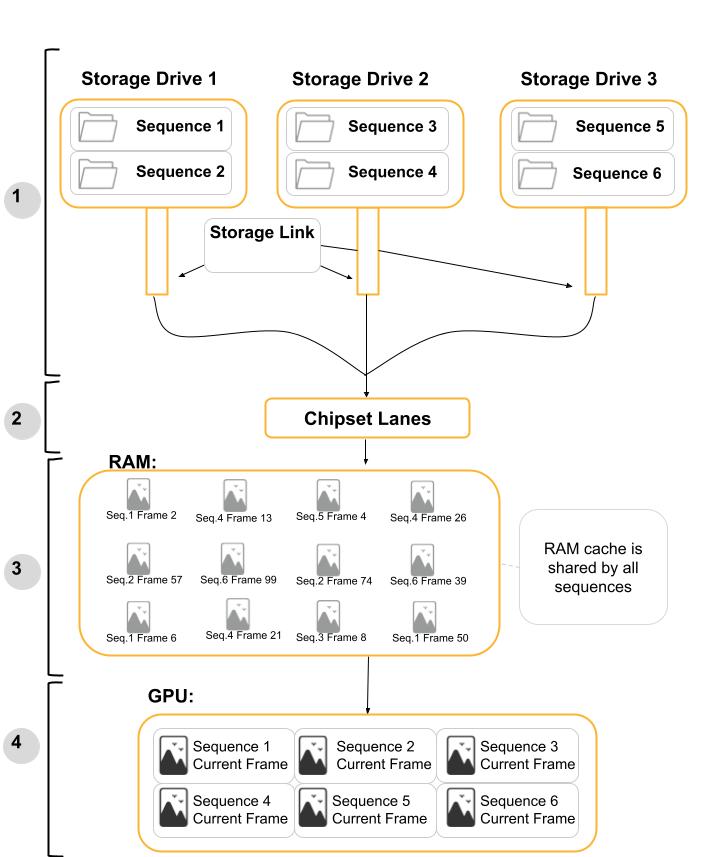
| 1. | Storage: A motherboard can have any number of storage devices connected to it (max capacity will depend on the specific board). In this example there are three storage drives which hold a total of six folders of content. Storage drives need to be able to store all content used during playback. The read speed of the storage drive should be enough for the project's content to be streamed. |
Storage Link: Ensure the link throughput is enough for the desired read speeds from the storage device. Note that the type of storage connection used between a motherboard and a storage drive can be a limiting factor for throughput.
| 2. | Chipset Lanes: The chipset PCI-e lanes will vary depending on your motherboard. On some motherboards, the lanes may be shared across M2 slots and PCI-e expansion ports. Connecting multiple high-throughput devices may affect total system throughput. Check your motherboard documentation for specifications of your setup. |
| 3. | RAM: Nuke Stage has a single global cache in RAM, per application (RenderNodes, Relay, Nuke Stage Editor). This means that every frame of every sequence is stored within the RAM. |
Note: If multiple applications exist on the same machine, they will not share a cache between themselves. The cache defaults to 80% of available system memory the first time the cache is used. This can be overridden with the NUKESTAGE IMAGECACHE_ CAPACITY environment variable. Real numbers less than 1.0 and more than 0.0 will set a maximum allocation as a percentage of available physical memory.
The cache is global in order to manage complex usage patterns simply. The caching strategy is Least Recently Used (LRU) - when a frame that is not in the cache is requested, and the cache is full, the frame which was used least recently is removed from the cache.
| 4. | GPU: A single slot is allocated on the GPU for each sequence being used by playback - there is no caching. For each playback frame, all images are uploaded to the GPU, and are decoded and composited. |
Production Setup Steps
Once you have built your machine setup using the hardware requirements, these are the steps needed to get Nuke Stage up and running for your production.
Installations
| 1. | Install Nuke Stage on all machines in the setup. This includes RenderNodes, Relay, and control machine. All machines must be on Windows 10 or 11. |
During this step, ensure the following:
- Don’t have multiple RenderNodes on one machine, or a RenderNode on the same machine as the Editor. This will affect the memory and processing power, causing issues with RenderNode performance.
-
All machines must have Nuke Stage installed on the same drive at the same file path.
-
On each machine, navigate to Windows Service and check that NukeStageListener.exe is running. Check that it is set to Automatic.
Note: You will need to distribute content to all of your RenderNodes, e.g. through FreeFileSync. This is so all of your content is on the same drive at the same path on each machine
| 2. | Install latest GPU drivers on all of your RenderNodes. Select the Production Branch / Studio option for maximum reliability. |
| 3. | Install latest NVIDIA RTX PRO Sync drivers on all of your RenderNodes. |
- In the NVIDIA Driver Utility, disable the prePresentWait mode for OpenGL. If the NVIDIA driver utility has not been run on the RenderNode before, this option will be disabled by default. If there is any chance it has been enabled, it can be disabled by running the below command from the command line with administrator privileges.
configureDriver.exe --delete 10
Windows Configurations
| 1. | Run Windows updates on all machines. |
- Once you have completed this step, it is recommended to disable further updates to prevent disruptions and issues when using Nuke Stage.
Note: It is recommended to remove all Firewall settings from machines, as they can block communication on the network. If you can’t disable all firewall settings, it is suggested to make exceptions for Nuke Stage executables.
| 2. | Ensure that all machines have static IPs so they can access the network. |
| 3. | Ensure that any assets you are using in your project are on the same letter drive and directory on each machine. |
| 4. | In Windows Settings > System > Power & Battery, set the Power Mode on all machines to Best Performance. |
| 5. | In Windows Settings > System > Power & Battery, it is recommended to turn sleep mode and screen off to Never. |
Licensing Setup
Each RenderNode you have in your setup will require a license. RenderNodes fetch floating licenses from a license server when they run.
| 1. | Request licenses from Foundry licensing team. |
| 2. | Install Foundry Licensing Utility (FLU) on the control machine (does not have to be installed on RenderNodes). |
| 3. | Install licenses - for full steps on how to do this, go to the Nuke Stage Docs Licensing page. |
| 4. | Set the license server location in Nuke Stage Editor. |
- Go to Edit > Preferences > Licensing > License Server.
- Define the IP address and port.
Note: The default settings (127.0.0.1:4101) are set up for a server located on the same machine as the Nuke Stage Editor. If the server is located on a different machine, these will need to be adjusted.
| 5. | Validate that the licenses have successfully been installed. Do this by: |
- Connecting to the Relay and Any RenderNodes in Nuke Stage Editor.
- If a RenderNode has successfully obtained a license, you will see a success message in the Editor’s Log panel and Notifications panel. The current license status of each RenderNode will also appear in the Network panel.
RenderNode Connection Debugging
If you are experiencing errors with RenderNode connectivity, and it cannot obtain a license, check the following:
• Check the Error messaging in the Launcher RenderNode Log.
• Check the RenderNode IP address in the Launcher is correct.
• Check that NukeStageListener.exe is running in Windows Services.
• Run the Render process in Powershell.
• If it launches manually on a machine, then it is a network issue.
• If it doesn’t launch manually on a machine, then it could be a hardware issue.
Network Checks
• Ensure the RenderNode can communicate with the license server through network access. You can check that the RenderNode is on the network by pinging the IP address in CMD.
• Ensure a firewall isn’t preventing communication over the network. You may need a firewall exemption for the RenderNode application.
• Check that the listener is listening on port 3000, as it should by default.
• If it is listening on port 3000, check you have added the port to the Launcher GUI command.
• Check you have 192.168.1.1:3000 in the Launcher's Host address.
• Go to Windows Services and right click on NukeStageListener.exe and restart the Process (by clicking Stop Process and then Start Process).
License Checks
• Check that a valid license server is installed on the defined machine.
• Check you have sufficient floating licenses for each RenderNode.
• Check the correct NIC address is used in the Foundry Licensing Utility - if it isn't, a new license will need to be created. Contact Foundry Support.
• Force the RenderNode to try and fetch a license again by clicking the Retry button [ ] in the Network panel.
Once completing these steps, you can also try to reboot your machine. If you do reboot your machine, make sure that the NukeStageListener.exe process is still running.
If you are still unable to connect your RenderNodes to a license after completing these steps, reach out to Foundry Support.
Synchronization Setup
| 1. | Connect genlock source to the NVIDIA pro sync cards on each RenderNode to provide a reference timing signal for all RenderNodes. You can use either daisy-changing or direct configuration. |
| 2. | Configure the EDID File: |
For virtual production workflows with a display processor (e.g., Brompton), proper usage of Extension Display Identification Data (EDID) ensures that all RenderNodes output compatible timing and resolution.
A common approach is to use a native resolution that matches the processor’s input specifications. To do this:
- Open the NVIDIA Control Panel, and navigate to Display > Change resolution.
- Select the resolution marked as (native) in Resolution > PC.
- Click Apply to ensure the native resolution is currently the active resolution.
Using a native resolution is the safest approach, but frequently this native resolution won’t match the desired frequency for the setup. In this case, a Custom Resolution is needed. To create this, follow the below steps in order:
In the NVIDIA Control Panel, navigate to Display > Change resolution.
Select the resolution marked as (native) in Resolution > PC.
Ensure the native resolution is currently the active resolution by clicking Apply.
Click the Customise button, found under the Resolution list.
Click Create Custom Resolution in the resulting popup.
Adjust the refresh rate (Hz) to the value needed.
Use CVT timings, or CVT-RB (reduced blanking) if available.
Click Test and then select Yes in the resulting popup to save the configuration.
The new frequency should then appear in the available list for the resolution. Finally, ensure the new EDID is active by selecting it and clicking Apply.
Additionally, when configuring EDIDs ensure the following:
• The Display Dimensions values in the EDID have to be non zero.
More information on EDIDs can be found on NVIDIA Help.
| 3. | Configure the System Topology settings: |
- Open the NVIDIA Control Panel, navigate to Workstation > View System Topology.
Each RenderNode should show that the vertical sync is set to 3D Application controlled.
Framelock sync pulse set to present.
| 4. | Configure the display synchronization: |
If the RenderNode is receiving genlock directly through a BNC cable, complete these steps in order:
In the NVIDIA Control Panel, navigate to Workstation > Synchronize Displays.
Ensure that the timing server is selected to be On this system.
Click Server Settings.
Make sure that the source is selected to be An external house sync signal. If everything is set up correctly, the Sync frequency in this pop up should be the frequency set by your house clock. If the frequency set for your display resolution does not match the house signal, you will be unable to select the external house sync signal. In this case, go back to the Change Resolution section and follow the steps to ensure the display resolution is correct.
Click Ok and then Apply.
If the RenderNode is instead receiving sync indirectly through the NVIDIA card’s framelock port, complete these steps:
In the NVIDIA Control Panel, navigate to Workstation > Synchronize Displays.
Set the timing server to On another system.
Click Ok and then Apply.
| 5. | Export display EDID by going to NVIDIA Control Panel > View System Topology > Manage EDID > Export. Save the EDID as a file. |
| 6. | For each RenderNode, load the EDID file. |
| 7. | Set up Nuke Stage Editor sync settings: |
Output Settings:
- Each Output must be full resolution of the windows display that it is on. This should match the resolution set in the NVIDIA control panel.
Borderless property enabled.
Bring to foreground enabled.
Set Swap Interval to Every Frame.
Enable Framelock enabled.
Display > Output mapping settings:
Check Display is connected to corresponding Output.
Define the resolution of your display in the Region parameter.
On-Set Checks
When you’re on set, you can use the Sync Validation checks to make sure that your sync is performing optimally. If you encounter any issues, you can use the Sync Debugging section to find the source of the issue. If the issue persists, contact Foundry Support.
Sync Validation
Use the following checks to validate your sync performance. If you are encountering any Sync issues, go to the Sync Debugging Checks section below.
Debug Views
| 1. | Go to Setup > Render Debug. |
| 2. | Enable the Visible property. |
| 3. | Set the Overlay property to Sync. |
| 4. | Select either: |
- Lines visible - shows a moving grid around each RenderNode. If all is properly synced, the line should exactly match up with no tearing. The speed, thickness and color of the lines can be configured in the settings.
Strobe enabled - shows rapidly flashing lights. If sync is set up correctly these lights should exactly match at all times. The color, rate and height of the strobe can be configured in the settings. This view can also be used for dialing in the shutter offset of the camera relative to the LED processors.
Warning: The Strobe enabled feature contains imagery with flashing lights and strobe effects that may trigger seizures or cause discomfort in individuals with photo-sensitivity. User discretion is advised.
Network Panel
In Setup > Network, there is information that can give an indication as to whether sync is set up and working correctly.
• Sync Barrier is the amount of time a RenderNode is spent waiting between being ready to start rendering the next frame, and being allowed to do so. Typical values are 1-2ms, and all synced RenderNodes should show values in that range.
• Yield-to-await is the time spent by a RenderNode between starting rendering on a frame, and reporting that it is ready for the next frame. Crucially, this includes time spent waiting for the hardware sync barrier to present the rendered frame, so this will usually be longer than the time spent on just rendering the frame. Typically, the value should be roughly the expected frametime in ms. Possibly the value can be a little larger, because the measured time includes network round-trip between the relay and render node. Values across machines should all roughly match, within ~1ms.
Sync Debugging Checks
• Check the Log panel in the Launcher for any errors that may be affecting sync. There are separate logs for each opened application, and it is advised to check all of them to check for the correct error source.
• In the Nuke Stage Editor, check that Windows are set to run in borderless within the Project Graph Outputs Controls.
• In Nuke Stage Editor, the Output resolution should be the entire resolution of the display. This means that the window can run in borderless full screen. For where a subsection of the full display resolution is needed for an output, this can be set in the Output Mapping Controls.
• Ensure that the drivers for both GPU and Quadro Sync are up to date.
• Ensure EDID (extended display identification data) is set up correctly.
• Check that genlock is connected to the NVIDIA quadro sync cards on each RenderNode.
• Check that NVIDIA sync settings in Windows are correct on each RenderNode according to the NVIDIA documentation. Each should show that the vertical sync is set to 3D Application controlled and the framelock sync pulse is present.
HDR Playback Checks
If you are using HDR playback, you can check the following steps:
• Check the content is in HDR.
• Check that Nuke Stage has HDR mode enabled for each Output.
• Check that Windows is in HDR mode.
• Make sure that any processor in use has HDR mode enabled, and is reading HDR values from the RenderNodes.