Search Tips
Creating Displays and Viewports
Once you’ve got an output to represent a RenderNode, you then need to create a representation of the physical wall by creating displays. The primary way to do this is from within the Display pane of the Output Map panel.
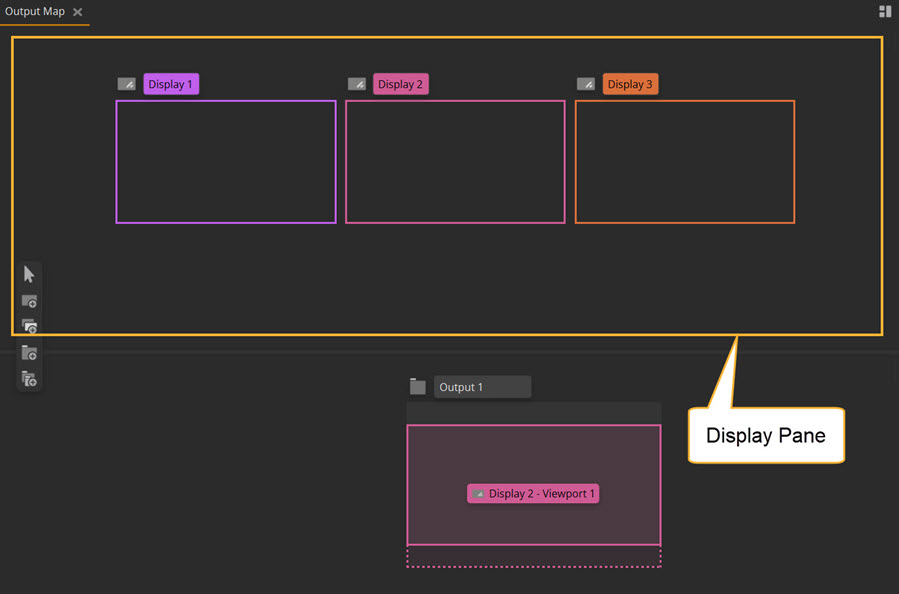
Adding displays
Use the Add display ( ) and Multi-add display (
 ) buttons to create your displays.
Adding a single display
This option creates a single display. Clicking the button () will create a new display. You can click on the display to edit the physical resolution, representative mesh and map the display, which will be covered in the next section Configuring displays.
You can also add a display in the project graph by pressing the + button in Project Graph > Hardware > Displays.
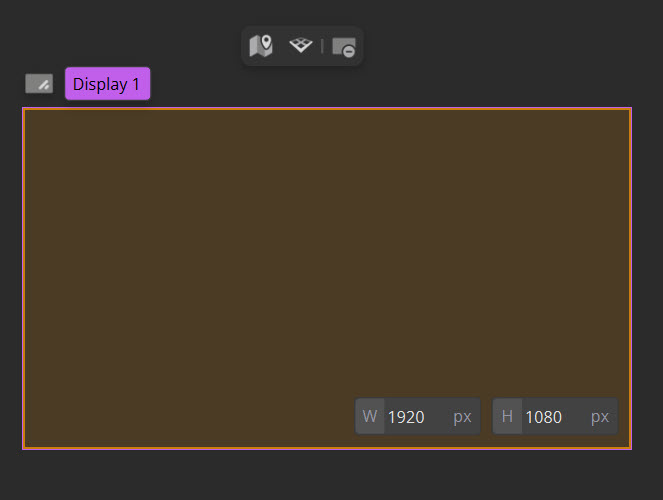
Multi-add display
Using the option to multi-add display function will enable you to create multiple displays at the same resolution.
Click the Multi-add display button () and the multi-add toolbar will appear.

• Add the number of displays you want to add via the text input No. Displays.
• Define the physical resolution of the display through the W and H pixel inputs.
• Press Finish to create the displays, or Cancel to close the toolbar.
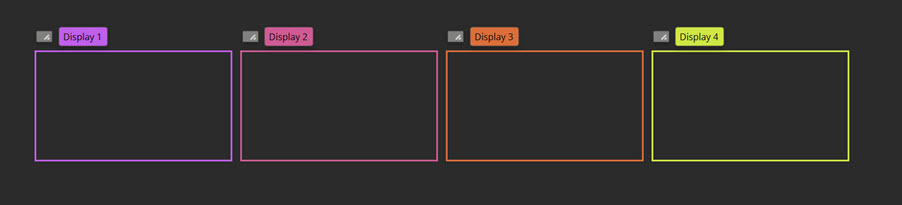
Tip: in Edit > Preferences > Displays per row, you can define how many displays will appear in a row in the Output Map panel before starting a new row.
Configuring displays
Select a specific display (or displays) that you want to edit or configure. A toolbar will appear, giving you options for editing the selected display(s).
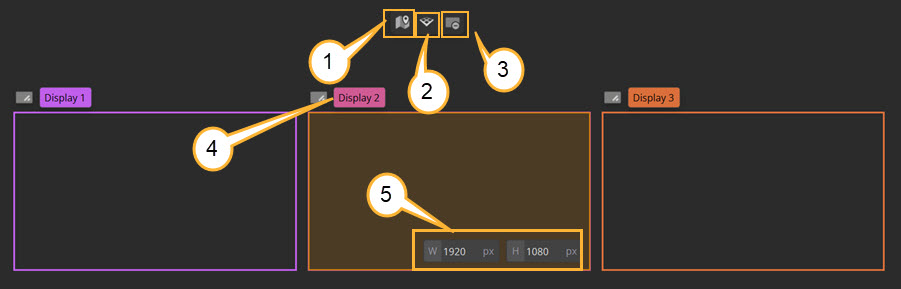
Display pane toolbar:
| 1. | Map to output button ( ) — creates a viewport on the display, mapping the display to an output. ) — creates a viewport on the display, mapping the display to an output. |
| 2. | Assign mesh button ( ) — use this to define whether the displays should configure to a planar, cylindrical or custom mesh. More info in Defining meshes. ) — use this to define whether the displays should configure to a planar, cylindrical or custom mesh. More info in Defining meshes. |
| 3. | Remove displays button ( ) — deletes the selected display(s). ) — deletes the selected display(s). |
| 4. | Rename the display by clicking on the title of the display. |
| 5. | Edit the physical resolution of the selected display. |
Defining meshes
To load a custom mesh FBX file, click a display in the Display pane and click the Mesh configuration button. Select the Custom Mesh option.
Here you can load any existing FBX with sub-meshes, or alternatively create simple planar meshes manually. The scale of the meshes should match the scale within any USD file you may load but for simplicity it’s usually easiest to use meters as the scale.
When using a multi-part custom mesh, a dropdown will appear in the header of the display in the Display pane with each of the sub-meshes.
You can also do these steps in Project Graph > Displays.
Further information about each of the options can be found at Displays controls.
Placing displays in 3D space
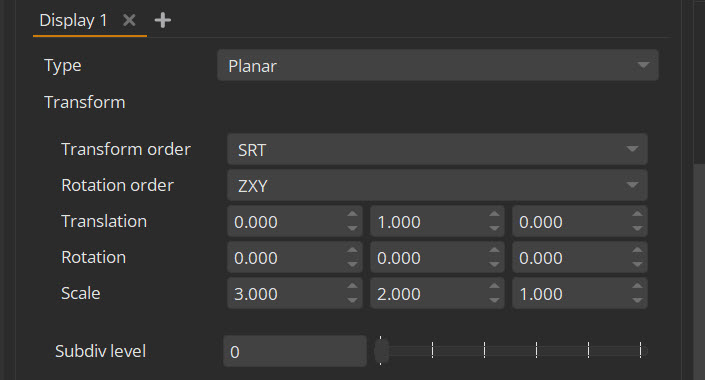
Once each display has been created, you can translate, rotate or scale directly via the display's Properties panel. You can also translate and rotate in the Viewport using the handles if you select the display within the Project Graph, as below. Note that you cannot yet select the display from within the Viewport.
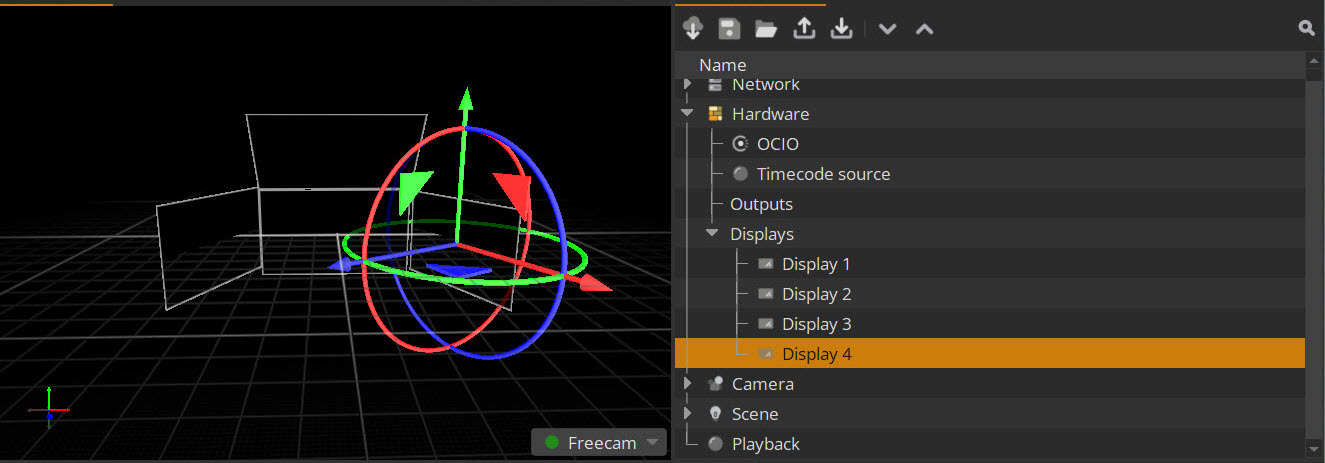
Once the physical wall has an accurate mesh representation, you can set up the output mapping for each display.
Output Mapping
Output mapping defines where on the video outputs your Nuke Stage display will be rendered. There are two ways to set up your output mapping in Nuke Stage. The primary way of doing this is through the Output Map panel.
You can also manually input your output mapping dimensions in the Properties panel. Find out more about this option at Viewports Controls.
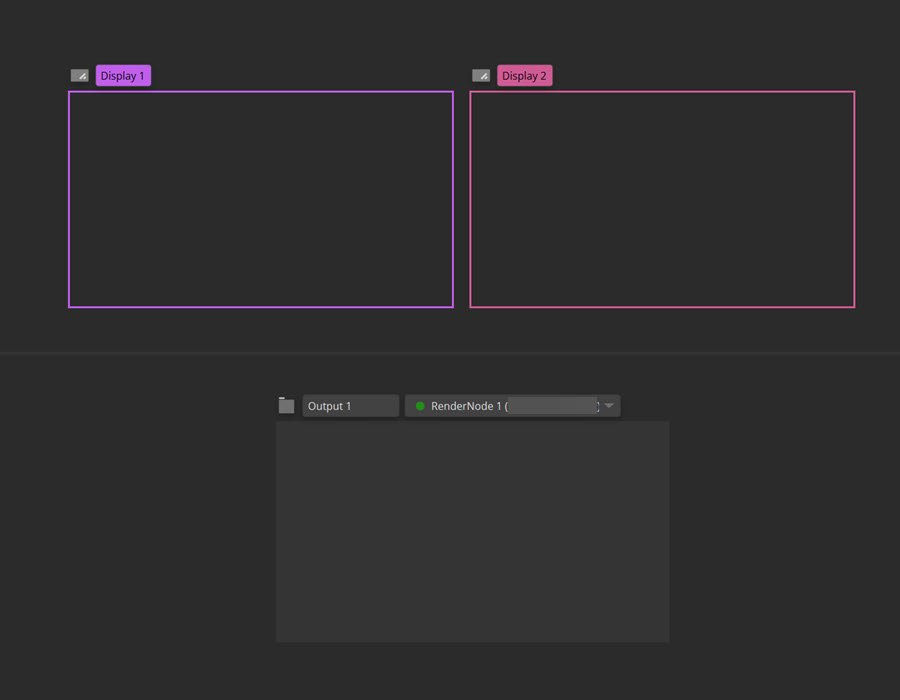
To configure your output mapping in the Output Map panel:
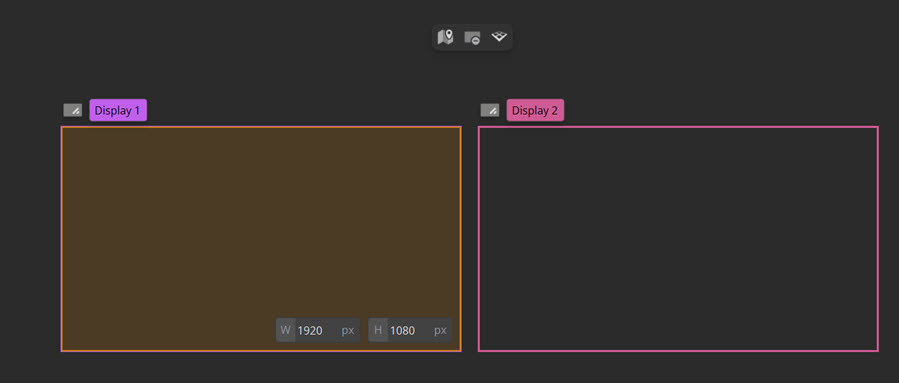
| 1. | Select the display you want to map. When selected, the display highlights orange and the display selection toolbar appears. You can select multiple displays by using Ctrl+RMB over each display you want to select, or drag a marquee selection over multiple displays. |
| 2. | In the display section toolbar, select the Map to output button (). This will map the selected display(s) to the first output in the output panel via the creation of a viewport. |
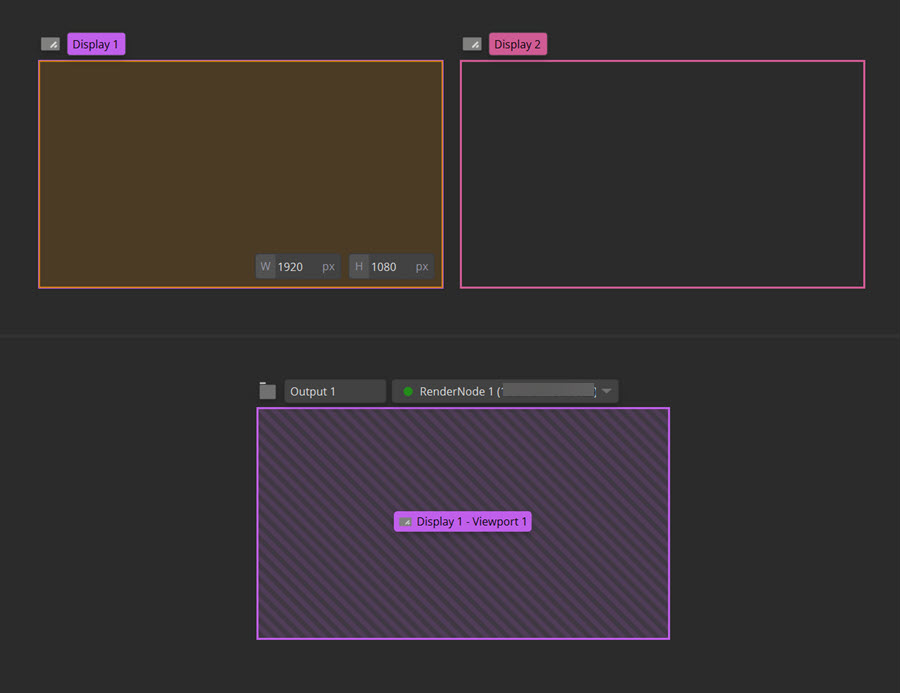
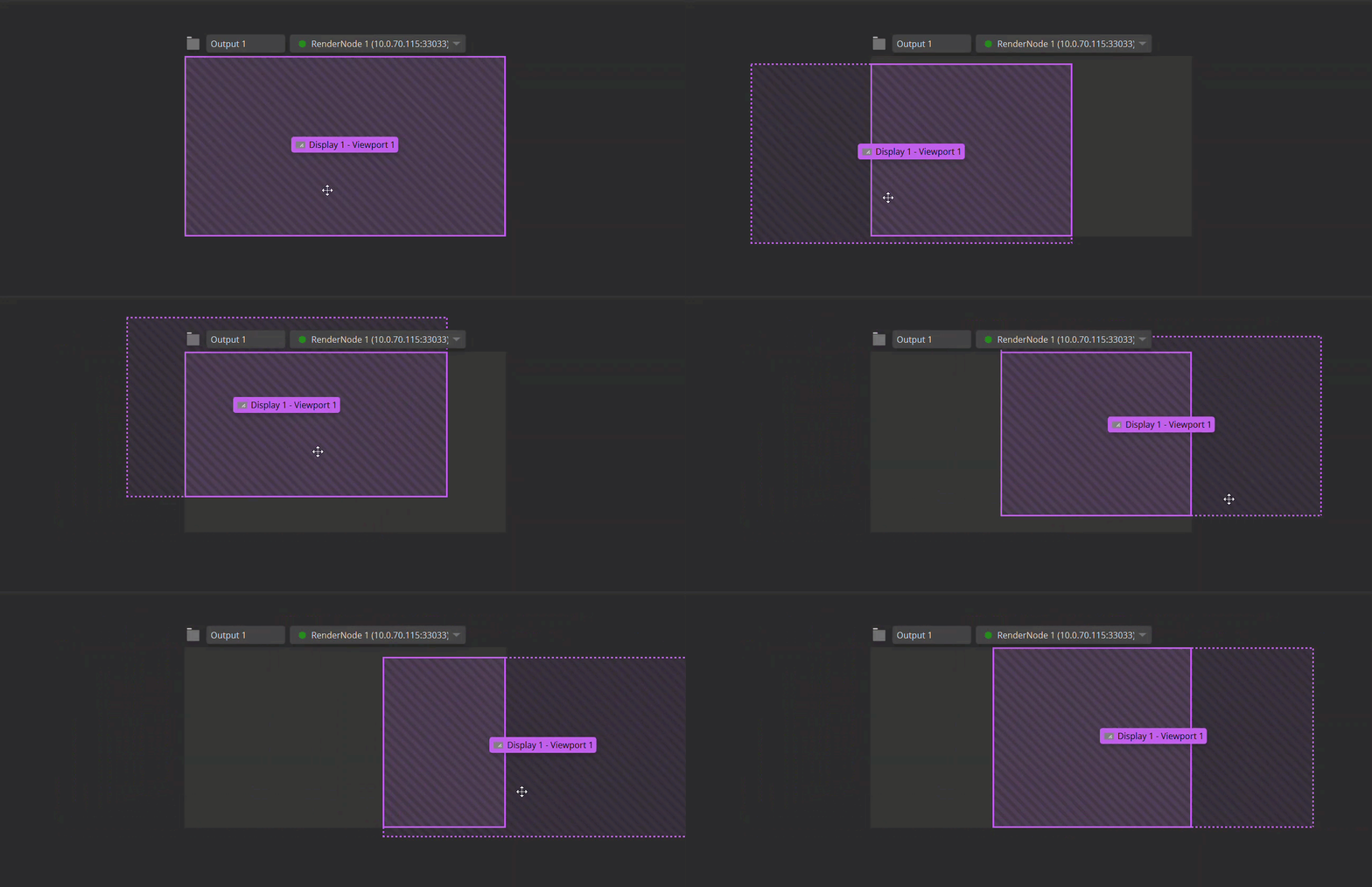
| 3. | From here, you can finalize your mapping by dragging the viewports over the outputs. |
Creating another mapping for the same display will create an additional viewport for that display.
You can also manually input the mapping values in the Project Graph, under Outputs > Viewports.
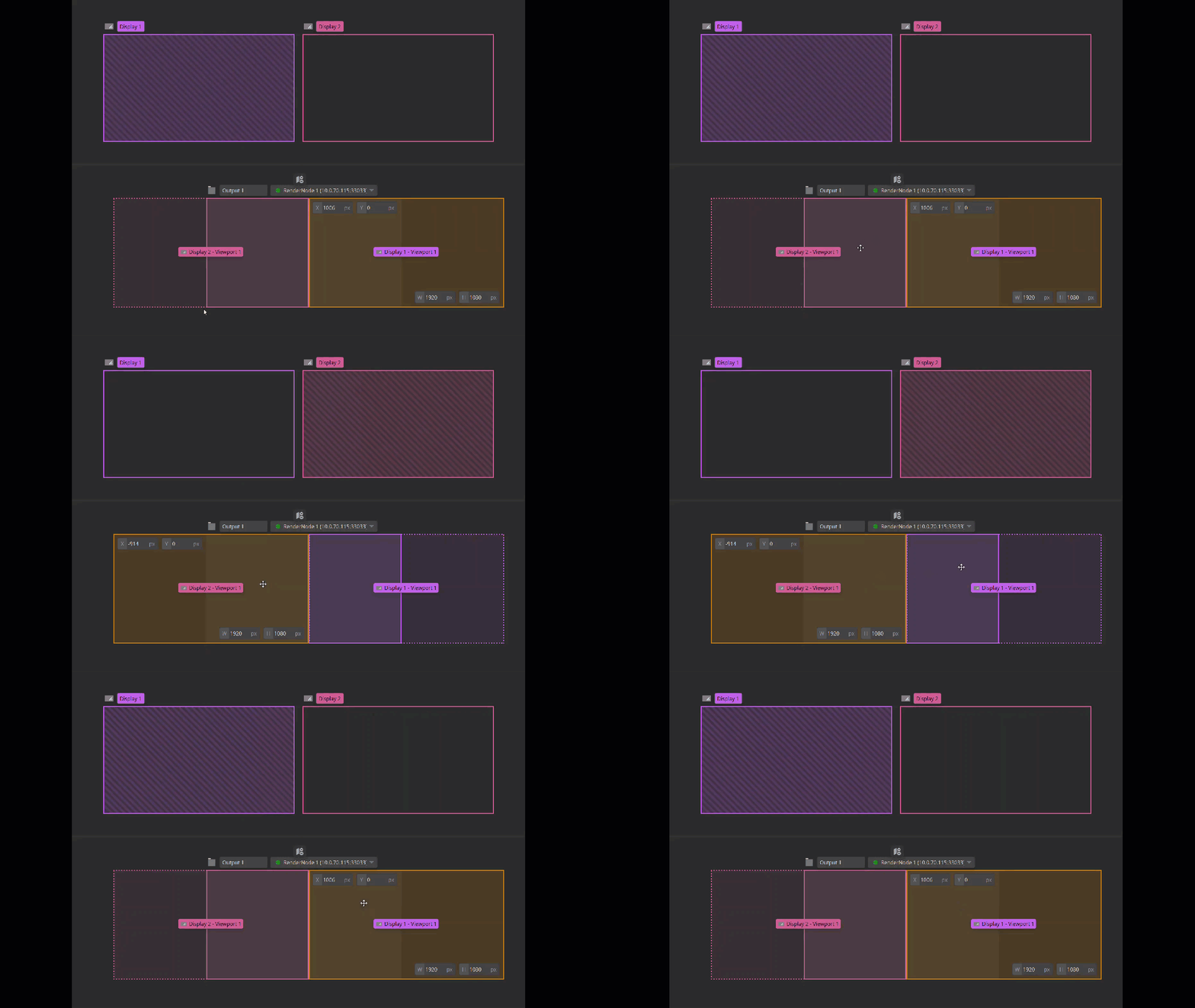
When you select a display or viewport in either the output or display panes, any corresponding windows will also highlight to help you keep track of which displays and viewports are associated with each other.
Note: Before a RenderNode window is connected via output mapping, in the Image Viewer there will be a message stating it’s waiting for connection. This will disappear when it’s connected.
When you select a display, output or viewport, its specific properties will appear in the Properties panel.
You can also use the Unmap viewport button ( ) in the Output pane by selecting the viewport you want to unmap.
Selection controls
To prevent unwanted movement of something in the Output map panel, there are selection controls that enable you to only edit the positioning of specific features. This means you have fine-tuned control of your positioning without needing to be concerned about accidental movement of a different feature.
These controls can be found on the left-hand toolbar in the Output Map panel. Select the arrow icon for the different options to appear.
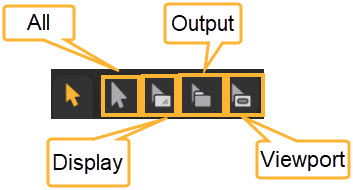
• All — Clicking in the Output Map panel selects displays, outputs and viewports.
• Display — Clicking in the Output Map panel only selects displays.
• Output — Clicking in the Output Map panel only selects outputs.
• Viewport — Clicking in the Output Map panel only selects viewports.
Viewport ordering
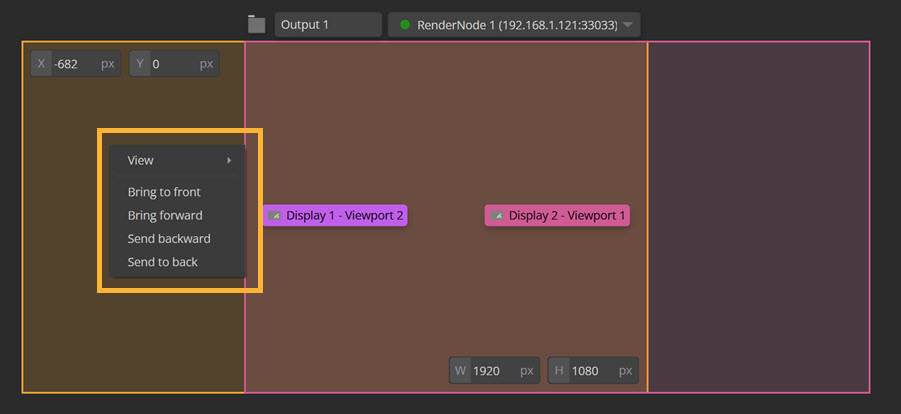
Use the right-click context menu in the Output pane to control the positioning of your viewports. Select the viewport you want to order, and RMB to open up the ordering options. You can also define the ordering position in the Z-index property in the Properties panel for the viewport.
Output mapping Project Graph controls
It is possible to manually set up output mapping via the project graph by inputting the Region position and Region resolution values. Additionally you can edit the following properties:
• Z-index - defines the rendering order of this viewport within it’s currently assigned output.
• The Display-view transform property defines the display-view transform to apply to the current viewport. The working colorspace of the transform is used as source colorspace. If enabled, this property will override the global output transform.
Output mapping example
Below is an example of how to use the Feedmap and Output Map panels together to test mapping images onto your LED wall:
| 1. | Use the Feedmap panel to map images onto your displays. For information on this workflow, go to Feed Mapping. |
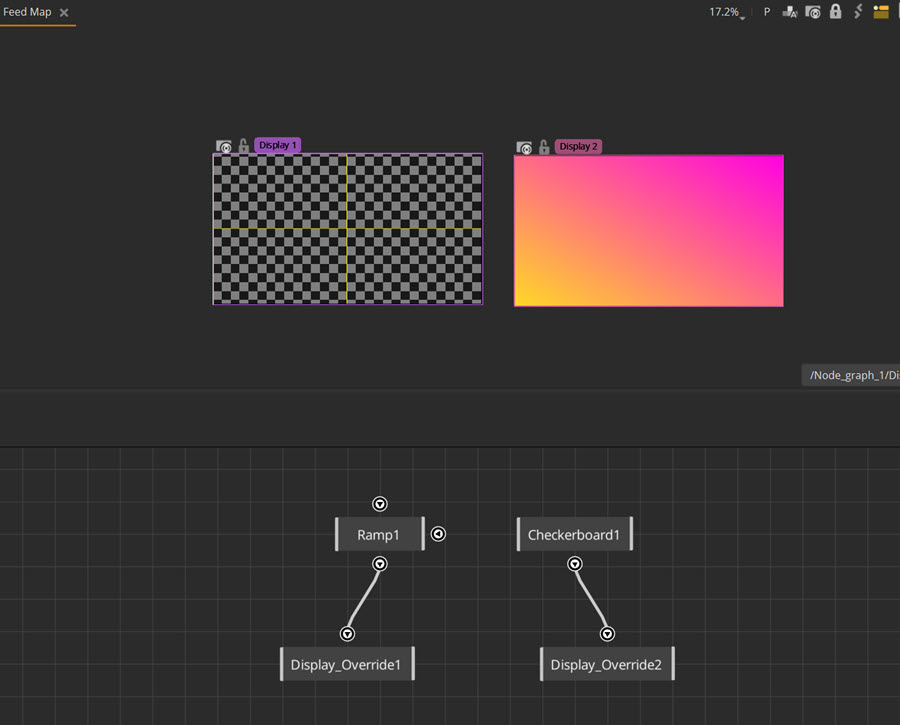
| 2. | In the Output Map panel, organize the placement of your viewports over your output window. Only areas that overlap the output window will be visible on your LED wall. |
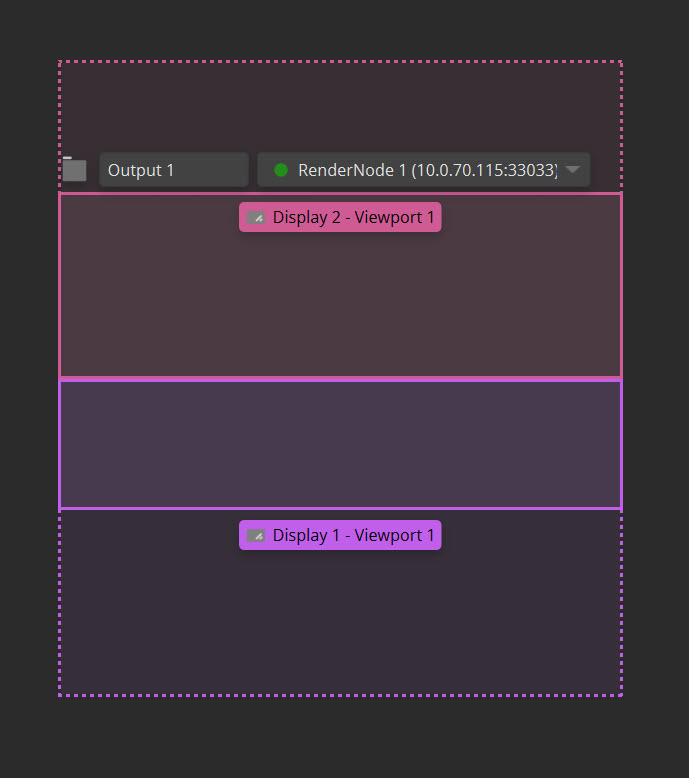
| 3. | In your RenderNode window (and your LED wall) you will see the outputs on your display. |