Search Tips
Display Overrides
Note: Creating and managing display overrides is primarily achieved through the feed mapping panel. See more at Feed Mapping. However, there are manual workflows as described on this page.
Images can be mapped directly to the displays in your project. You can do this by completing the following steps.
| 1. | In Project Graph > Hardware > Displays > [desired display], click on the Manage overrides icon ( ) found to the right of the display. |
| 2. | A context menu will appear with the option to add the override to an existing node graph (if applicable), or to create a new node graph to put the override in. Select the graph you want to put the override in. |
The override will appear in your selected node graph and within the display's properties in the Project Graph. It will automatically be attached to a Colour Bars node for a visual reference.
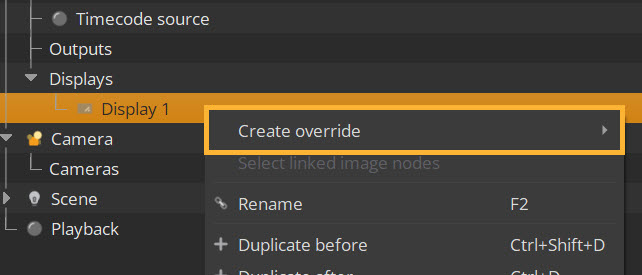
You can also create a display override using the right-click context menu:
| 1. | Right-click on the display you want to create an override for. |
| 2. | Click Create override. |
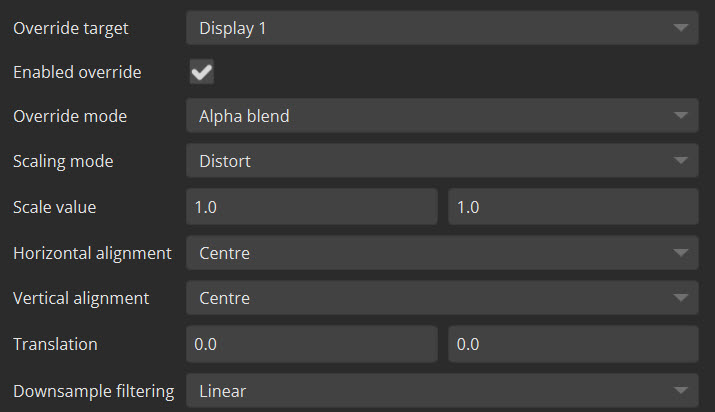
You can adjust the scale, transform and alignment of your override using the parameters in the Properties panel of the Display Override node.
Defining override targets
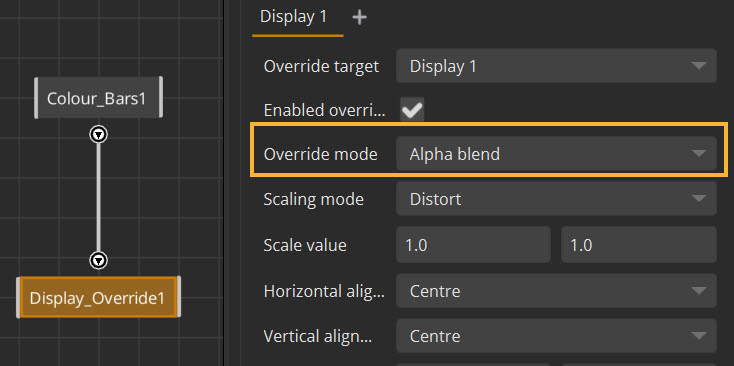
You can define the override target for your display override in the in the Parameters section of the Display Override Properties. Do this by adding a Display using the + icon, and setting the Override target to the desired display. This is helpful if you create a display override directly in the Node Graph without first assigning it to a display, or if you want to change the override target.
You can also have multiple displays as override targets for the same override, by repeating this step. This can be helpful for using one latlong image across adjacent displays. The override node will split the image and send the right sub-region of the image to each of the displays, based on each target's parameters. You can also handle these parameters by using the Feed Map panel. See more at Feed Mapping.
Note: Note: if you create a display override directly in your Node Graph, ensure to update the target in the override’s properties to connect it to a specific display.
Override Mode
Display overrides also enable you to choose to use the alpha value in the image to blend with the pre-existing image on the Display, or to replace it completely. You can do this in the Override mode in the Display overrides properties panel.