Search Tips
Workspace Tabs
The Nuke Stage Editor contains five tabs that enable you to set up, edit and play your scene. These are Setup, Outputs, Scene, Comp, and Sequence.

It is possible to edit these workspaces by adding tabs or moving panels. Click the icon ( ) on the top right hand corner of a panel to edit the layout.
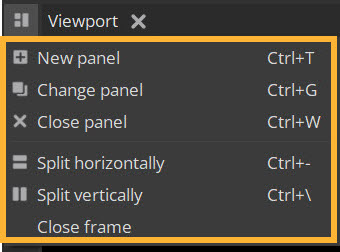
The following sections explain the properties and controls that are included by default in each workspace tab.
Setup tab
Use this workspace to set up your hardware, and debug RenderNodes. By default this tab contains the Network, Log and Python panels.
Connected workflows include:
Outputs tab
The Outputs workspace is where you can set up and configure your outputs and displays for your project, as well as output mapping your viewports.
Connected workflows include:
• Creating Displays and Viewports
Scene tab
The Scene workspace is where you can view and edit a USD Scene in the Scene Graph. In the Scene Graph panel, the Prim name, Type, and Kind of the USD files will be displayed. These can be viewed in the Viewport.
Connected workflows include:
• Loading Your Scene into Nuke Stage Editor.
• Adding Lightcards and meshes to your USD scene.
Comp tab
Use this tab to create and edit node graphs in the Node Graph panel so you can add effects to cameras, displays and USD primitives. You can also edit the Grade panel, and view these images and effects on the Image Viewer. The Comp tab is also where you can configure your Feed mapping, and pixel mapping for grid lighting fixtures.
Connected workflows include:
Sequence tab
Use this Workspace to access the Sequencer panel to add new sequences to your project.
Connected workflows include: