Search Tips
Image Viewer
The Image Viewer panel displays images used within Nuke Stage. You can use the Image Viewer to view the current state of all Outputs from the Node Graph.
It is possible to alter the view of the image in the viewer:
• Click and drag the image with the middle mouse wheel to move it around the viewport.
• Zoom in and out by using the middle mouse wheel. Alternatively go to the zoom level menu in the top-right corner of the Image Viewer for the following controls:
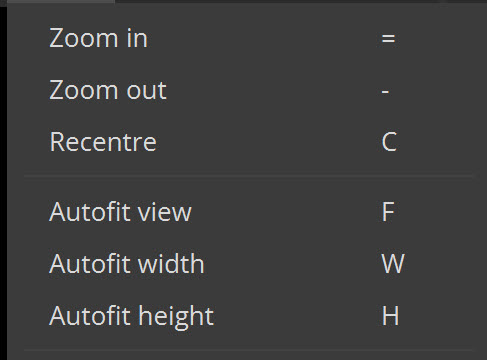
You can also use the hotkeys Ctrl+#(1, 2, etc.) to zoom in by 100%, 200% and so on, and Alt+#(1, 2, etc) to zoom out.
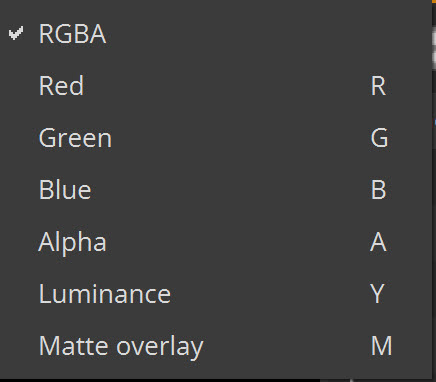
• You can use the RGBA menu to view specific channels, or use the keyboard shortcuts to toggle between them:
• Select the frequency at which we request texture override updates - defines the frequency of the playback in the Viewport.
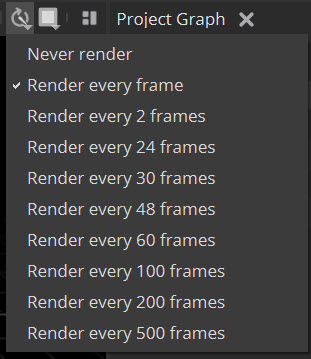
Tip: This feature is useful when using very high resolution images to prevent the Nuke Stage Editor machine performance from slowing down during playback.
• Select viewport topology - defines how many panes are displayed in the Viewport.
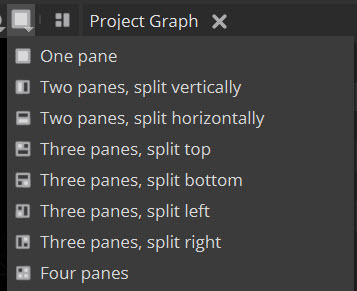
• Change the image in the viewer by clicking on the dropdown list at the bottom right of the panel. Select the camera you want to see to change the view.
Manipulators in the Image Viewer
Selecting certain nodes while visualizing their final output on the Image Viewer will show manipulator controls to edit the properties of that node. You can alter the properties for the following nodes:
• Rectangle — use the manipulator to drag the sides of the Radial node to the desired size. Use the center manipulator to move the position of the node.
• Radial — use the manipulator to drag the sides of the Radial node to the desired size. Use the center manipulator to move the position of the node.
• Lightcard — use the manipulator to drag the sides of the Radial or Rectangle to the desired size. Use the center manipulator to move the position of the node.
• Crop — use the manipulator to drag the sides of the Crop node to the desired size. Use the center manipulator to move the position of the node.
• Transform — use the following controls to edit your image using the transform manipulator:
Translate your image:
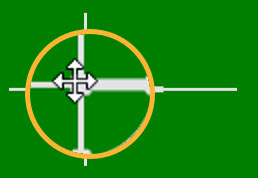
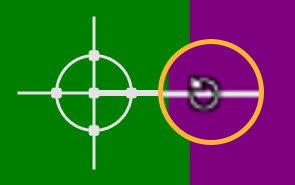
Rotate your image:
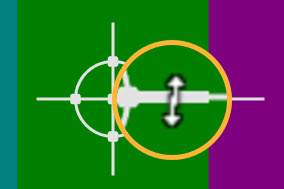
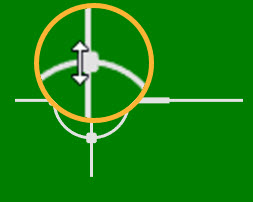
Scale your image on the X or Y axis using the vertical or horizontal arrows:
Scale your image on the X and Y axess using the diagonal arrows:
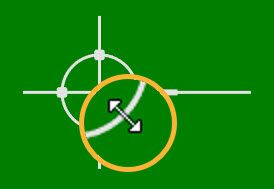
Skew your image: