The Slide Clip tool allows you to move a clip instance in relation to the item before and/or after the target item, without changing its length or timeline output. Activate the Slide Clip tool by clicking the tool or pressing E twice.
The clip instance either side of the target are shortened or lengthened within the limits of their handles to accommodate the slide.
NOTE: The surrounding clip instances must have handles to use the Slide tool.
Click the target clip instance and then drag it to the new position and release the mouse to complete the slide.
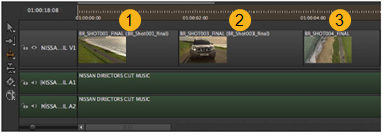
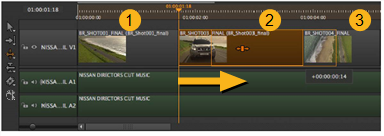
For example, if you slide the target clip instance (2) five frames to the right, the preceding item (1) ends five frames later and the next item (3) starts five frames later.
The first image shows a timeline containing three clip instance, and the second shows the same clip instances with the target (2) sliding to the right.
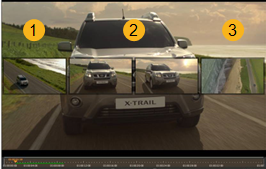
The Viewer displays the new end point of the previous clip instance on the left and the new start point of the next clip instance on the right, allowing you to accurately gauge the slide.
The two center images (2) represent the start and end frames of the target clip instance, which don’t change.
|
|
 Topics In This Section