Search Tips
Lighting
The nodes under the Lights menu let you control the lighting in your scene. Using these nodes, you can bring objects out or push them back, create an illusion of depth, simulate the conditions in the real world, or simply alter the feeling of the scene.
Nuke features four types of light you can use in your 3D scenes: direct light, point light, spot light, and environment light. You can add these using the DirectLight, Point, Spotlight, and Environment nodes. In addition to these, there is a Light node, which lets you create direct, point, and spot lights, as well as read in lights from .fbx files. For more information, see Working with Lights.
The Light, DirectLight, Point, and Spotlight nodes all have controls that you can use to adjust how the lights cast shadows in your 3D scene. See Casting Shadows.
Lighting is also affected by the 3D object normals, which are used to determine how the light should bounce off a surface at any particular point. In Nuke, the Normals node allows you to manipulate object normals in order to control the diffuse and specular light contributions. See Manipulating Object Normals.
There’s also a Relight node, which takes a 2D image containing normal and point position passes and lets you relight it using 3D lights. See Relighting a 2D Image Using 3D Lights.
Choosing the 3D Viewer Type
Nuke 13.0 onwards includes a new Hydra 3D viewport, which uses hdStorm as a new renderer. The Hydra Viewer is more consistent with other applications in your pipeline, such as Katana, Solaris, or USDView, and the represents the output of the ScanlineRender node.
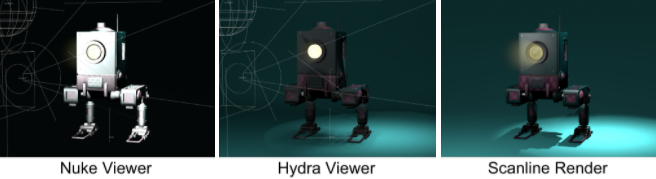
Nuke's New 3D System uses a Hydra renderer, and nodes in the Classic 3D System use a "Nuke" renderer.
As such, the Viewer's renderer knob only has one option: GL, which is both the Hydra and Nuke renderers, depending on if you are viewing New or Classic 3D nodes.
Note: Learn more about the New 3D System and USD at 3D Compositing with the New 3D System.
You can also select whether or not to display geometry, lights, materials and/or shadows in the 3D Viewer by toggling the relevant checkboxes.
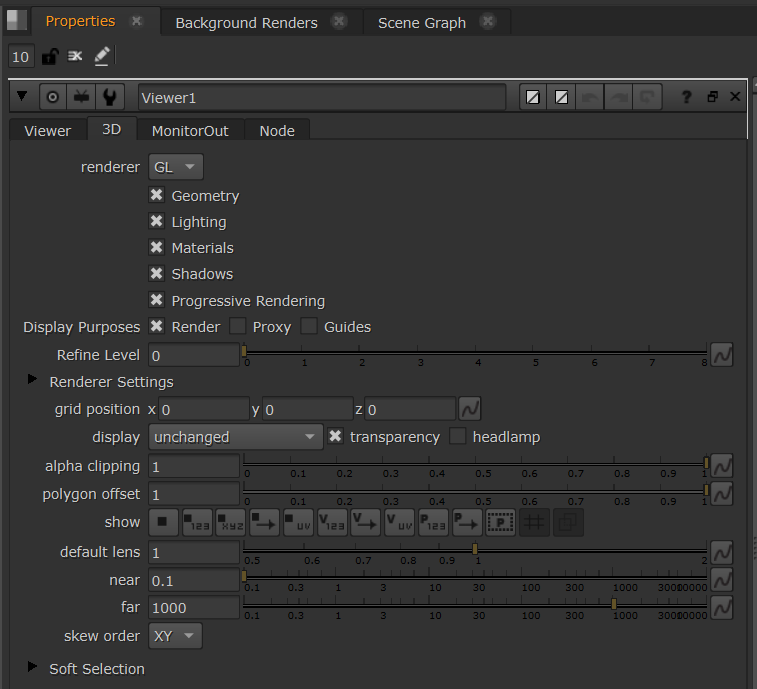
The Viewer renderer option is also included in the Preferences under Panels > Viewer > default renderer. Changing the preference only affects new Viewer nodes.