Search Tips
Using Graph Scope Variables in the New 3D System
With Graph Scope Variables now able to support 3D nodes, you can set up Variables in your 3D scene to swap out geometry, textures, cameras, really anything you can think of. This means you could set up a 3D scene once and use Variables to swap it between a day and night setup, or swap geometry complexity out based on your needs, loading in a more performant version, while navigating the 3D Viewer and a higher resolution one for rendering.
Simple Workflow Example of Graph Scope Variables in 3D
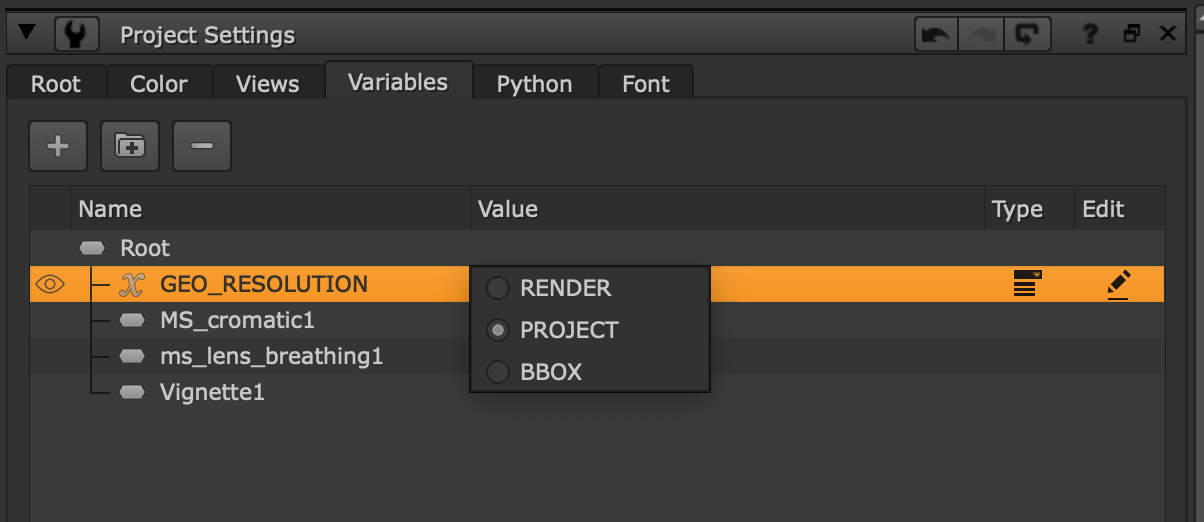
To work with Graph Scope Variables, simply set up a Variable in your Project Settings. In the example below, we are setting a Variable to change the resolution of the geometry of our 3D scene and have given three different values.
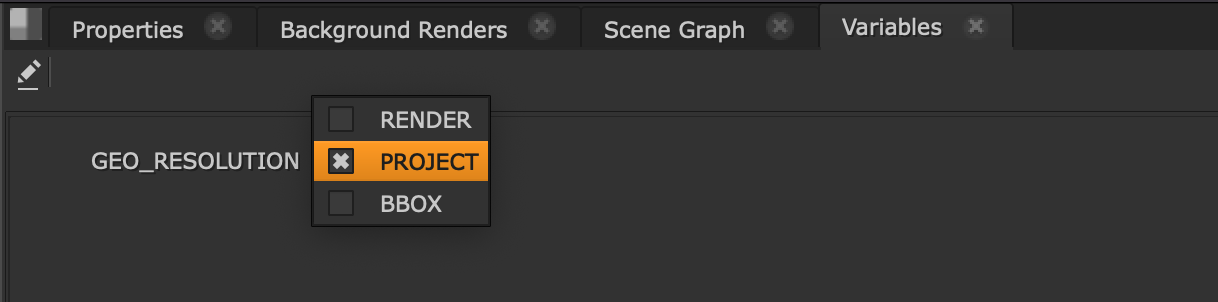
This will show up in the Variables Panel as shown here.
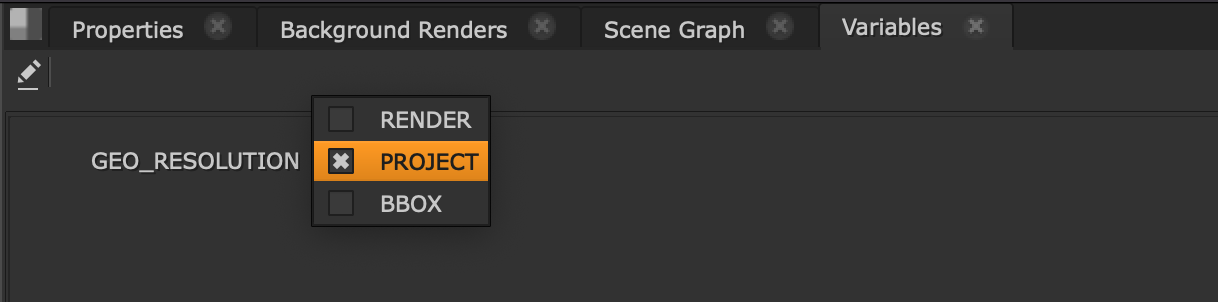
Note: You can learn more about the Variables Panel at Configuring Visibility with the Variables Panel.
We then import the different usd files containing the different geometry details and use a VariableSwitch node to switch the inputs between each import when the Variable is changed in the Variables Panel.
Note: You can learn more about VariableSwitch workflows at Using the VariableSwitch Node.
Note: See more about importing geometry at Importing with GeoImport.
This will result in different geometry being displayed in our 3D Viewer depending on our needs and can be connected to our ScanlineRender output.
There are many ways to use Variables as you could also use Variables in the GeoImport file path, so that you can have just one import node and swap between each usd file there.
Note: Currently the New 3D System does not work with VariableGroup with multiple differing Variable values in the same Node Graph. As a workaround, you can have your ScanlineRender2 and 3D scene completely inside each VariableGroup, or you could avoid using VariableGroup when working with 3D workflows.
Note: Learn more about the New 3D System at 3D Compositing with the New 3D System.