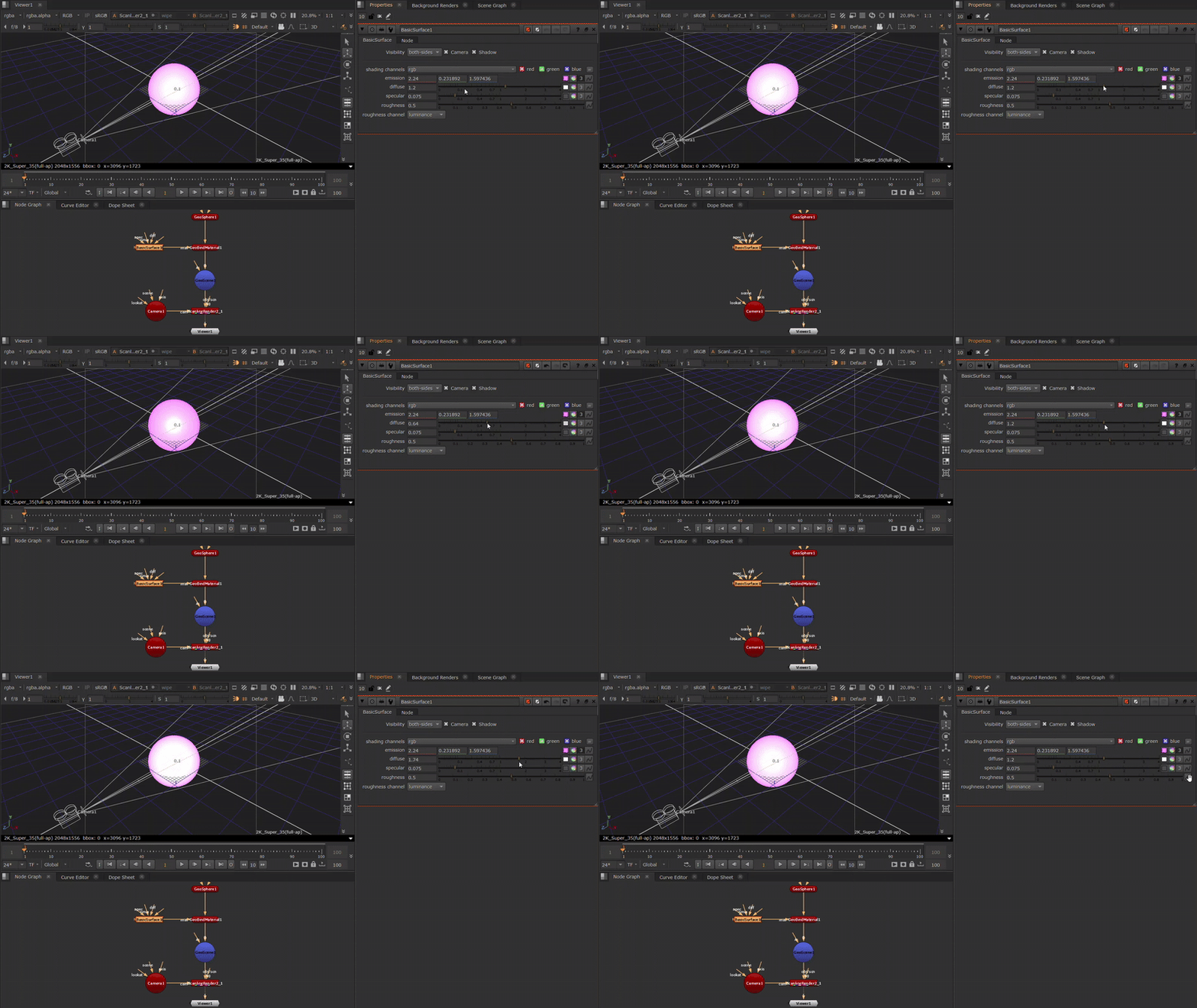
BasicSurface: Shader Usage
The BasicSurface node combines diffuse, specular, and emission controls, allowing you to adjust all three aspects of the material from a single properties panel.
|
2.
|
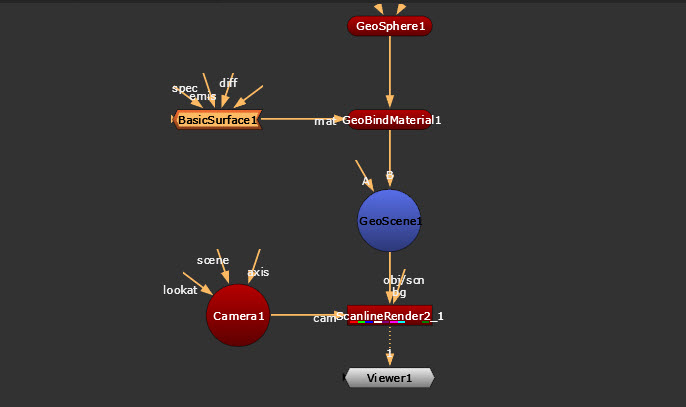
Place the BasicSurface node between your 2D texture image and your 3D object node, or connect it to a GeoBindMaterial node’s mat input. |
|
3.
|
The Visibility knobs allow you to set if the material is visible to each of the respective knobs, so enabling camera means the material will be visible to the render camera and disabling it would make the material invisible to the render camera which could be useful if setting up a HDR dome that you want in reflections, but not in the background. |
|
4.
|
The BasicSurface node has several map inputs you can use to mask the effect of the node. Use: |
• diff to modulate the diffuse component,
• spec to modulate the specular component,
• emis to modulate the emission component,
• rough to module roughness. Note that this input is hidden on the left side of the node.
|
5.
|
In the BasicSurface properties, use the shading channels dropdown menu to select the channels you wish to process. |
|
6.
|
Adjust emission to change the color of the light the material emits. Note that when you have an image connected to the unlabeled input of the BasicSurface node and adjust this value, you need to look at the rendered 2D image to see the effect of your changes. |
|
7.
|
Adjust diffuse to control the color of the material when illuminated. |
|
8.
|
Use specular to control how bright the highlights on the material seem, and roughness to adjust roughness. |
 Search Tips