Search Tips
Lights and Shadows
All light nodes in Nuke contain shadowing controls under ScanlineRender Options:
• Illumination Mask sets which objects will be illuminated by the light.
• Use Cast Shadow checkbox to turn shadows on or off.
• Receive Shadow Mask sets which objects will receive shadowing from this light.
• Shadow Channels specifies the channel to output the shadowing.
Shadow Example
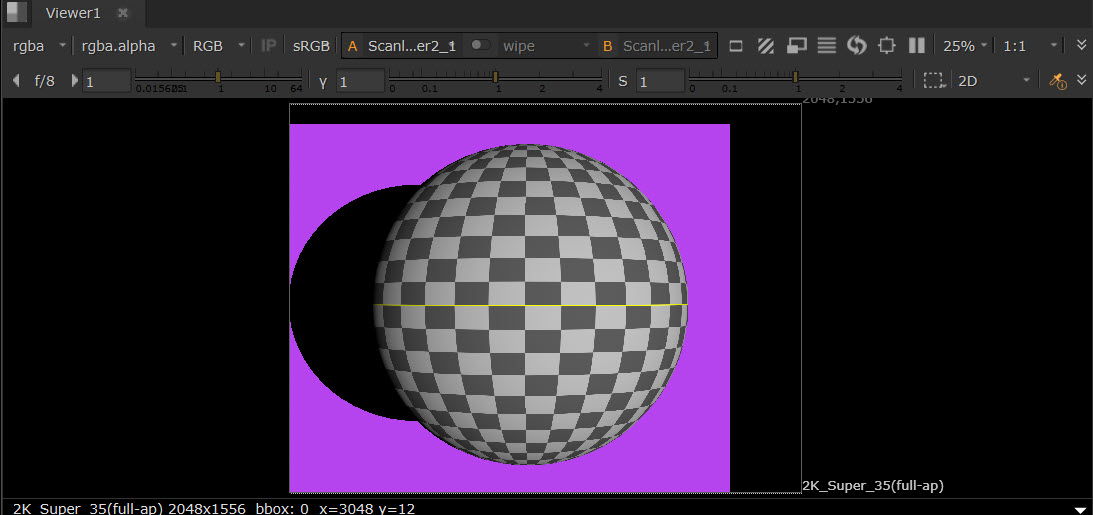
In this example, we have set up a DirectLight which is shining onto a sphere (GeoSphere1) and a card (GeoCard1).
To affect the shadows created by the DirectLight, this can be controlled within the DirectLight's Properties.
By targeting All Meshes in the DirectLight's Illumination Mask, the sphere and the card are both illuminated by the DirectLight.
Then, by targeting the card's prim path (GeoCard1) in the Receive Shadow Mask, the sphere's shadow will show on the card behind it. Alternatively, using the All roots or All Meshes options would allow you to target all the objects and avoid the need to set this manually.
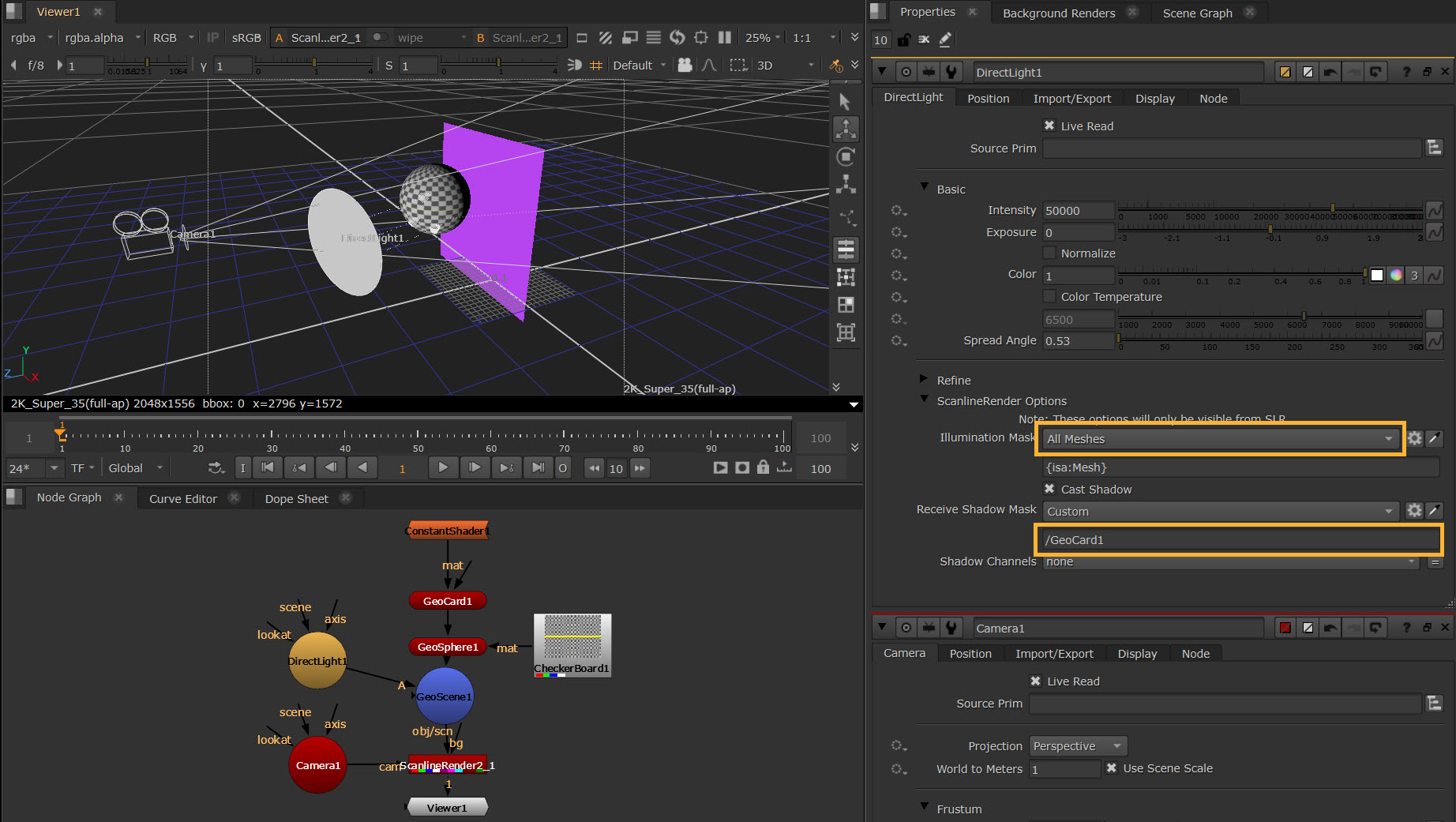
Viewing the ScanlineRender representation in 2D Viewer: