Search Tips
Importing Gaussian Splats
Gaussian Splats (.ply and .splat formats) can be imported into Nuke using the GeoImport and GeoReference nodes.
Note: Learn about the difference between GeoImport and GeoReference at Importing into Your Scene.
In this example, we are importing the Splats with GeoImport.
| 1. | Insert a GeoImport node. In the node properties, select the file icon  to open your file browser. to open your file browser. |
| 2. | Select a .ply or .splat file to import into Nuke. |

| 3. | The Import Scene Graph dialog will appear. Here you can set payloads, activation, and visibility before importing if needed. For more information about these options, see Import Scene Graph Dialog. |
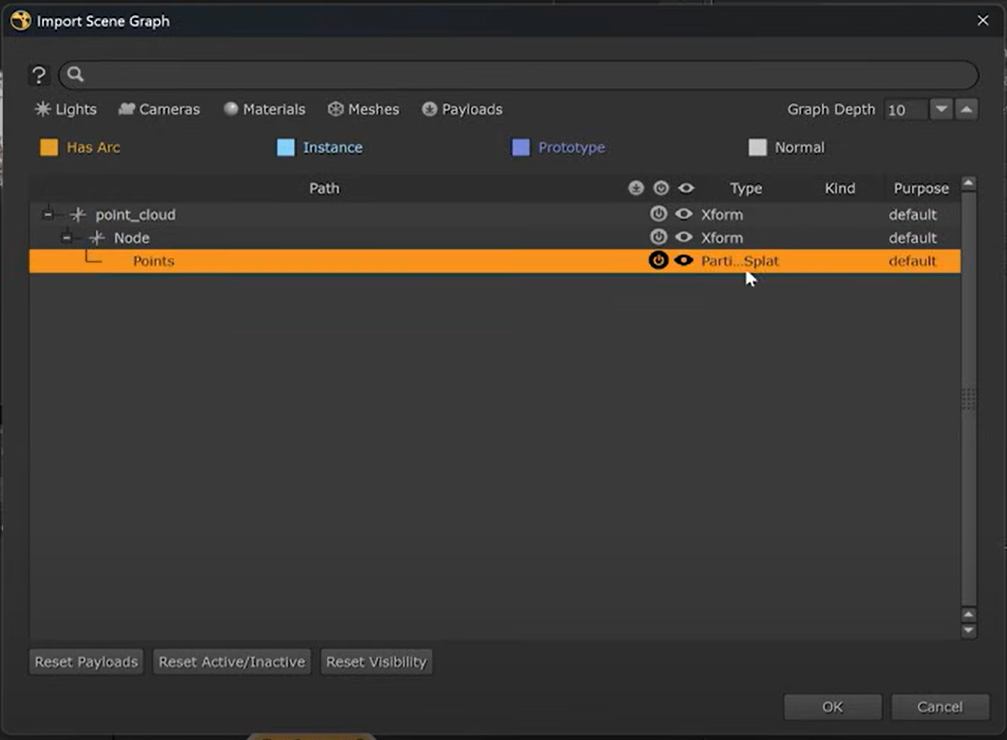
| 4. | Once you have made your selections you can hit OK, and GeoImport will load your splat into Nuke with payloads, activation, or visibility that you have enabled. |
Viewing Gaussian Splats
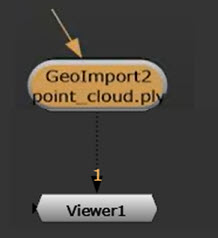
| 1. | Connect a Viewer downstream of your imported splats to view them. |
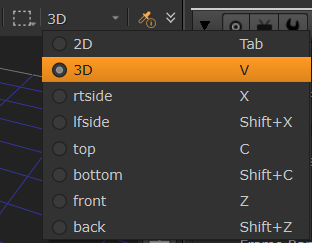
| 2. | Make sure the Viewer is in 3D mode to see this. |
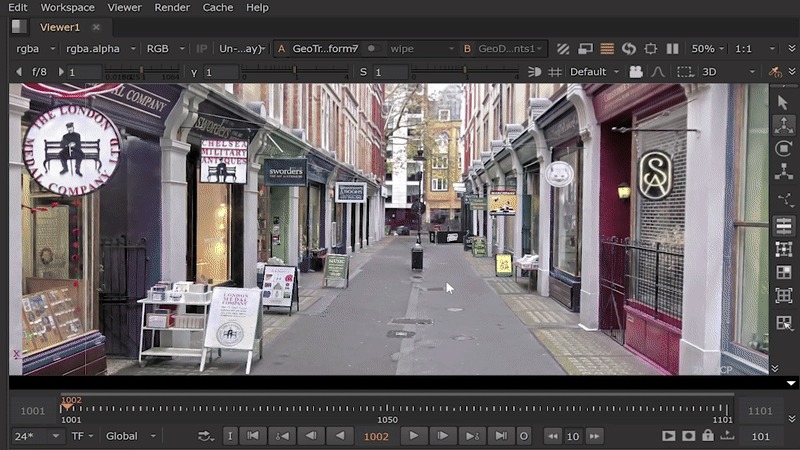
| 3. | You’ll see a performant Hydra based GPU rendering of the Gaussian Splat. |
| 4. | Next, see Manipulating Gaussian Splats to learn more about how to manipulate splats. |