Search Tips
Export From Your Scene
To export your 3D data from the New 3D system, you can use the GeoExport node. This node can export your stage as .usd, .usda, .usdc, .abc, .fbx, .obj, .ply, .splat, and .spz files.
Note: The export of .ply files is intended for the export of Gaussian Splats but it also supports exporting meshes. However, note that the two cannot be combined - i.e. you can't export a scene which is a mix of meshes and splats.
When exporting as USD files (.usd, .usda, or .usdc), you can determine whether your file contains the data for the entire stage or only contains the data of the changes you've made.
In the Export Method dropdown, select Flatten All to export your entire stage as flattened, or select Flatten Sublayers, Keep References, to export scene modifications as "overs". By using the Flatten Sublayers, Keep References option, this preserves existing composition arcs from imported stages and is more lightweight when round-tripping with other departments. You can use this in combination with the GeoBreakLayer node, which acts as a break point in your node graph, to define which changes are written to the sublayer file when you export. An example of this workflow is included below.
Note: For those looking to export geometry to the Classic Nuke 3D System, from the New 3D System, you can export a flattened USD stage and import the USD file via the ReadGeo node.
Exporting USD Changes to Sublayers as "overs"
In USD, an "over" is a way of saving changes to your USD stage, providing override data as a sublayer. Using GeoExport's Flatten Sublayers, Keep References option, you can export only the changes you've made in Nuke, without needing to bake these changes in. This allows you to redistribute this file to other teams as a sublayer USD file.
To determine which layers to export, you can use GeoBreakLayer node to remove parts of the node graph upstream, or the GeoImport Act as Layer Break checkbox to exclude just the imported stage data. Both methods are shown below.
Defining changes to export with GeoBreakLayer
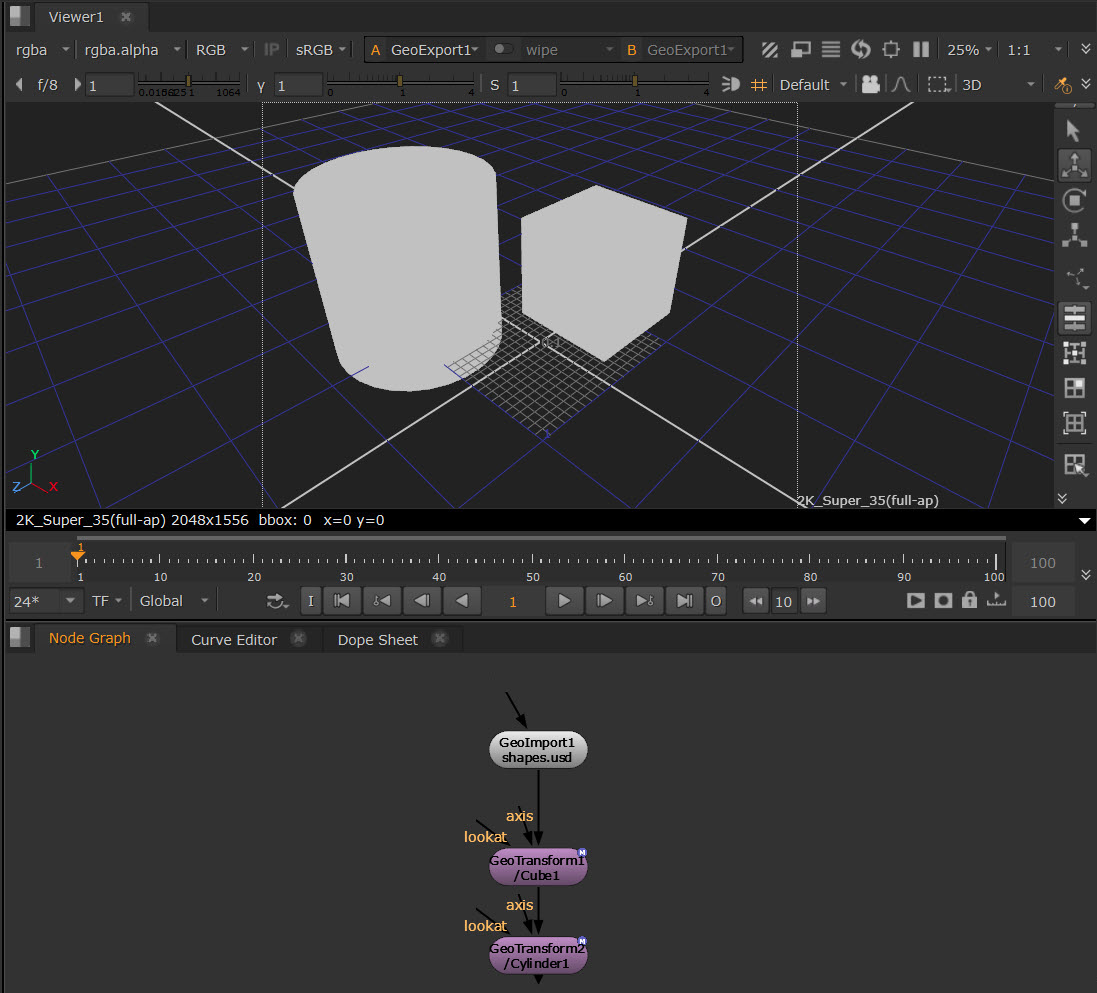
| 1. | We start with a simple .usd file, just containing a cube and a cylinder prim, that has been imported with the GeoImport node. We have then added two GeoTransform nodes: one adds transformation data to the cube, and one adds transformation data to the cylinder. This transformation data is what we will export as an "over" in the sublayer file. |
| 2. | In this case, we only want to export the transformation changes on the Cylinder1 prim. Therefore, we can add a GeoBreakLayer node between the two GeoTransform nodes. This removes upstream changes above this node, eliminating the transformation change on the Cube1. |
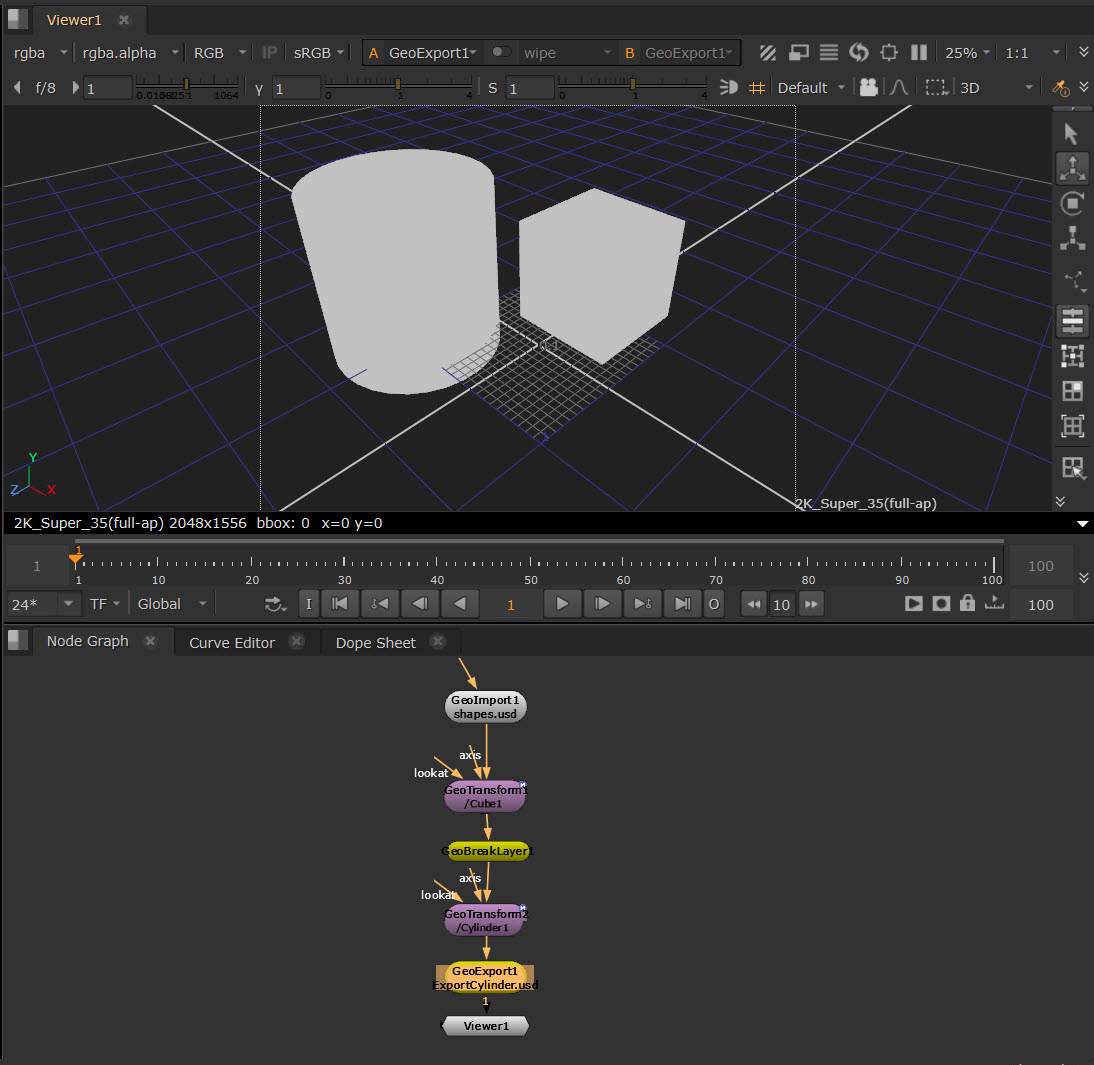
| 3. | To set up the export, add a GeoExport node downstream of your changes in the node graph. In the Properties panel, select the Format as .usd, .usda, or .usdc, depending on what you need. |
| 4. | Set the Export Method to Flatten Sublayers, Keep References. |
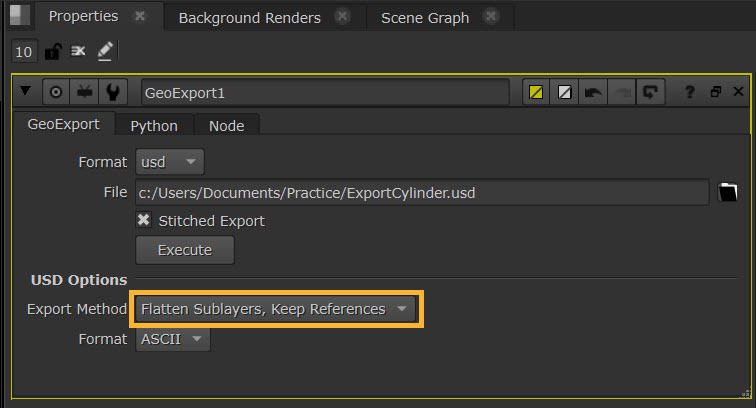
| 5. | Select a File path to export to, and click Execute. The sublayer file will be saved to the location you specified. |
Note: GeoExport defaults to a "stitched export" workflow, where frames are exported individually and then stitched together into a single file. This produces the exact same export as when the stitched feature is turned off (turned off via the Stitched Export checkbox), but has the benefits of allowing you to see your export progress and helps reduce memory usage when exporting large animated scenes. Toggling off the Stitched Export knob may result in faster export times, but does not have the ability to show visibility of progress and has higher memory requirements.
| 6. | You can then inspect the exported USD file and you will see just your change to the cylinder as an "over". |
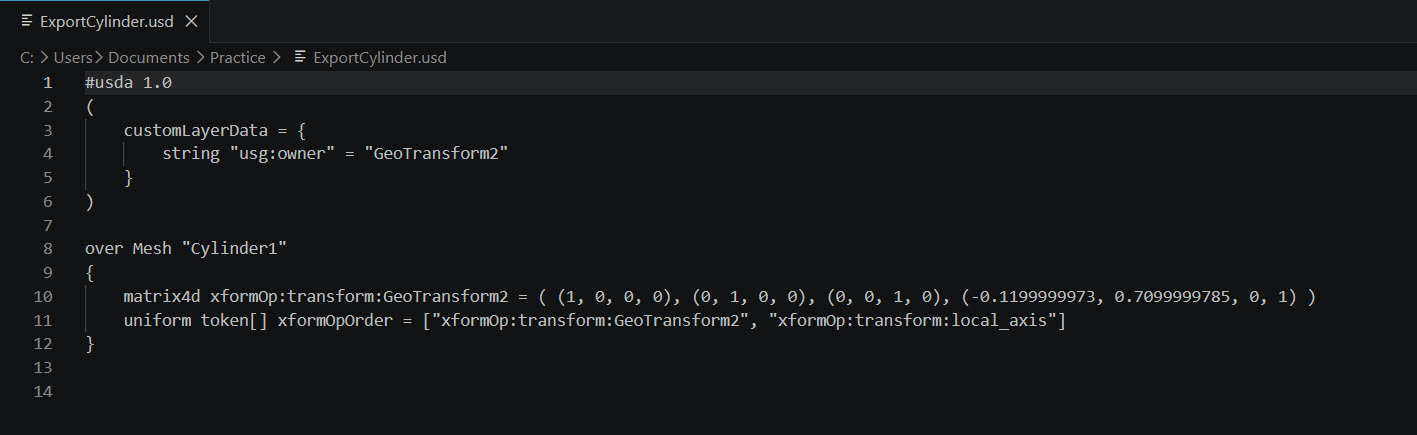
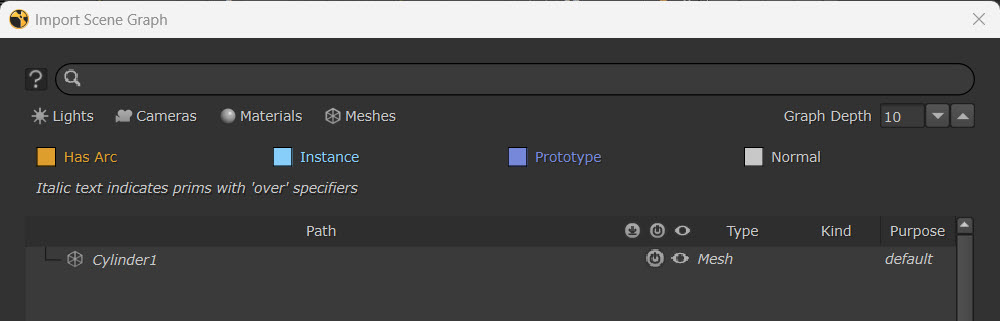
If you were to then re-import that file into your scene using GeoImport node, you would see the Cylinder1 as an over prim (shown by italics) in the Import Scene Graph Dialog.
Exporting many changes
Alternatively if we wanted to export the changes on both the cube and the cylinder, or a larger set of changes in a more complex node graph, while excluding the initial import data from the GeoImport node, we could move the GeoBreakLayer directly below the GeoImport node. This would mean the break point acts before both of the transformations, or any other changes downstream.
However, a quicker way to do this would be instead to remove the GeoBreakLayer node and use the Act as Layer Break checkbox on the GeoImport node. This option adds a break point as part of the GeoImport node, so only any changes downstream of GeoImport are added to the sublayer file and means that you don't need to add additional nodes for this.
Note: If you use neither GeoBreakLayer or the Act as Layer Break checkbox, you'll find that the full flattened stage will be included in the exported file.
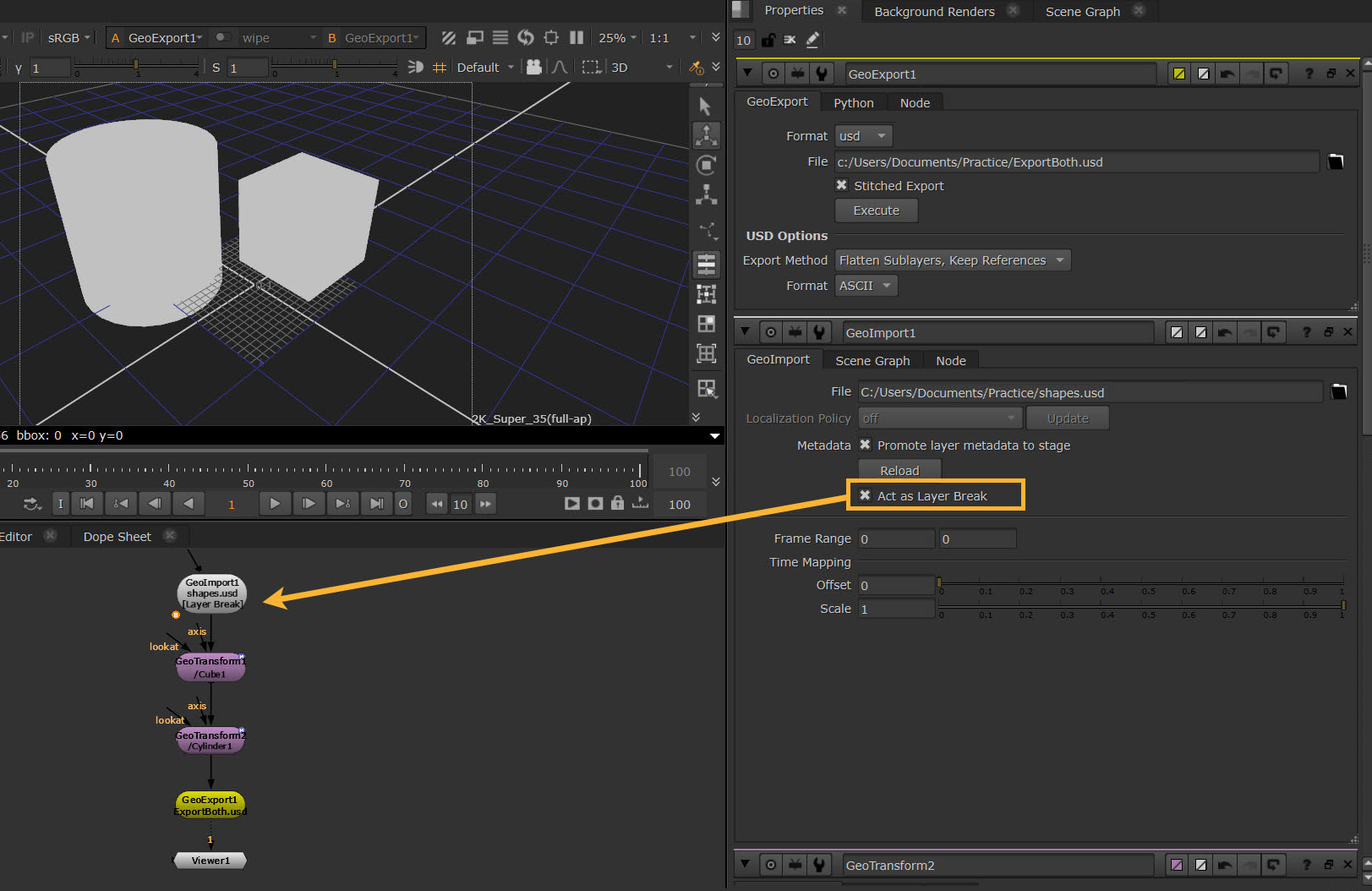
When the Act as Layer Break option is enabled, the  icon appears on the GeoImport node in the Node Graph.
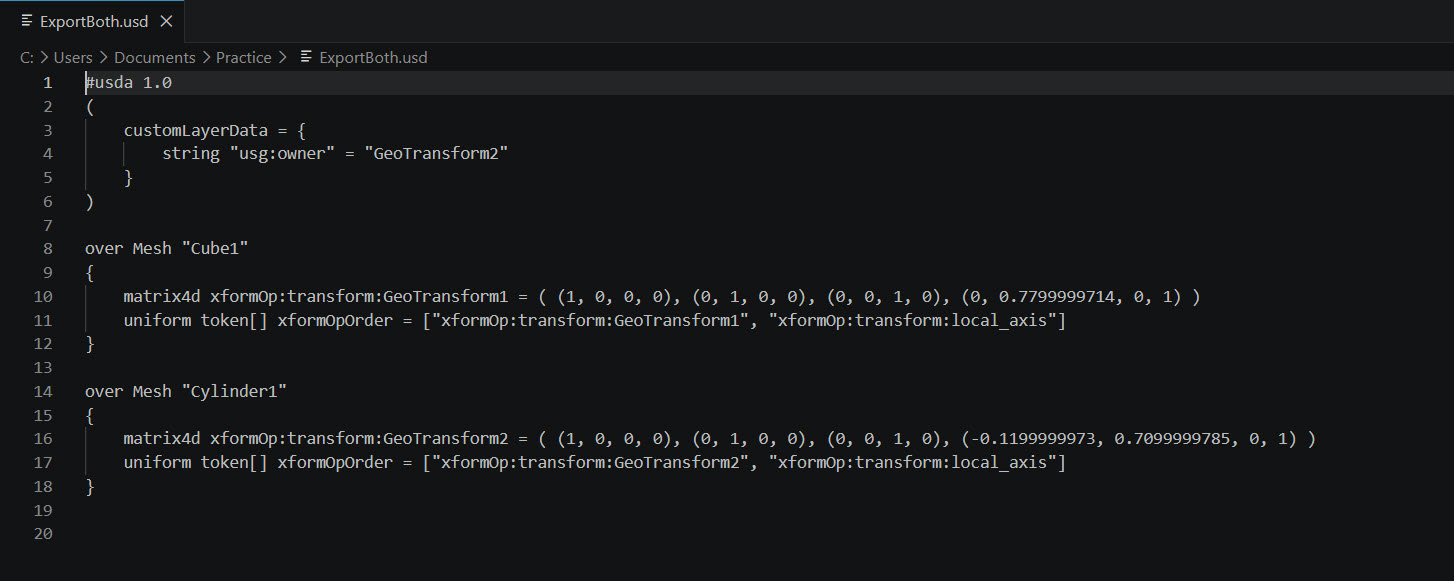
Inspecting the USD file exported through GeoExport would then show both of the "overs", without the rest of the stage data.
Exporting Full USD Stages
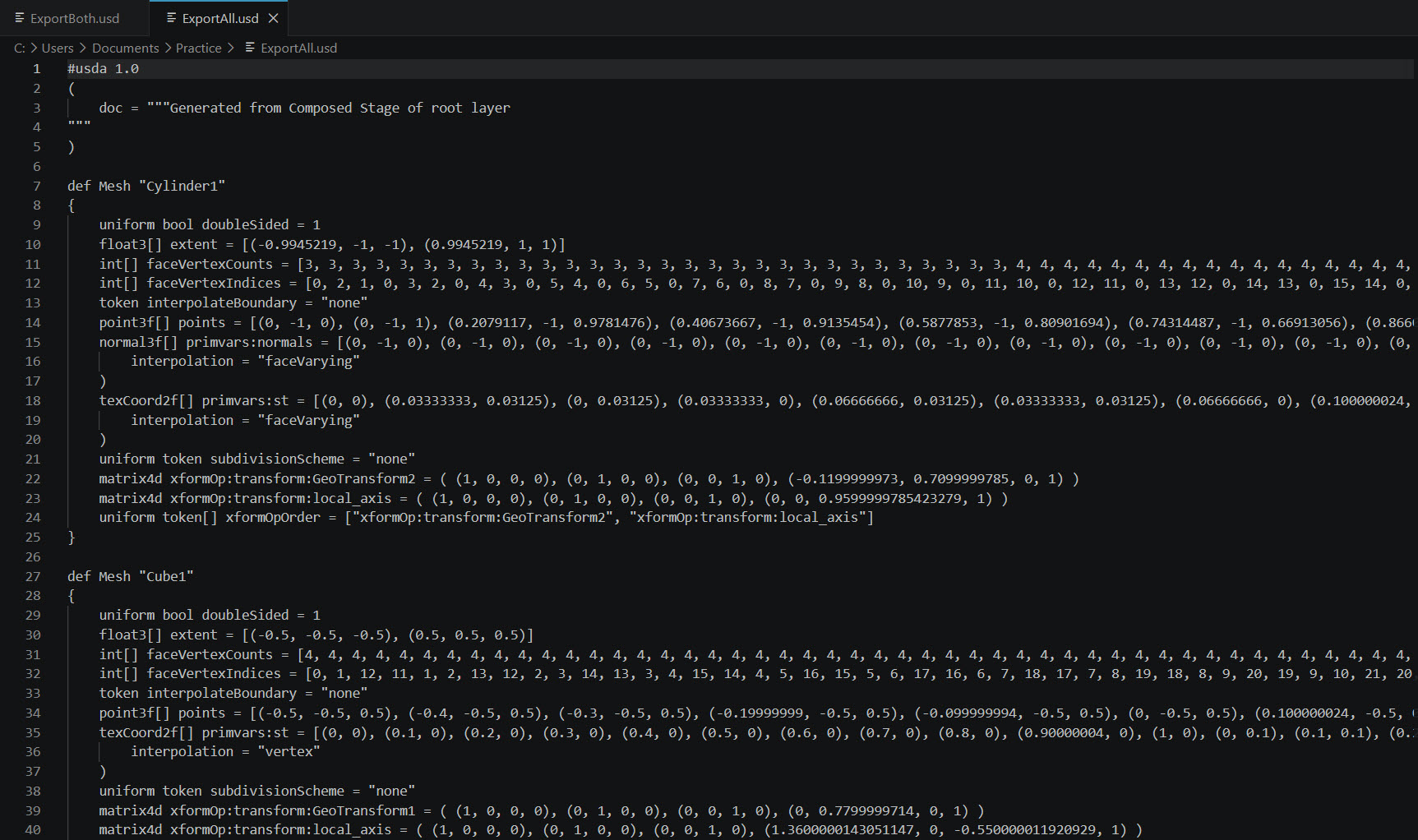
If you need to export the full USD stage, rather than only the changes, you can instead export using the Flatten All option.
Note: Adding GeoBreakLayer nodes or using the Act as Layer Break checkbox will have no effect while using Flatten All. This allows you to switch between Flatten All and Flatten Sublayers, Keep References easily.
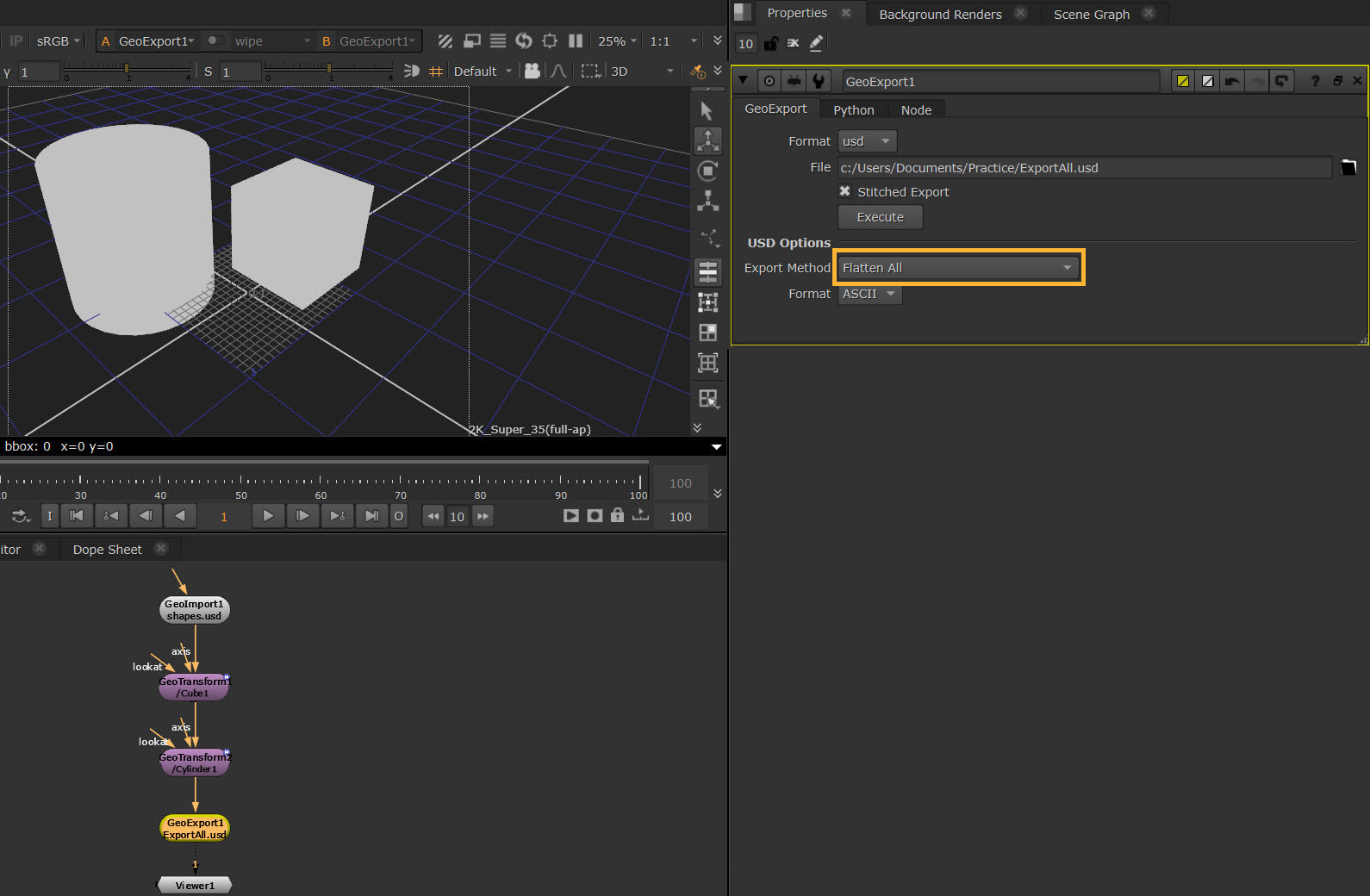
By inspecting the exported USD file, you can see that the whole stage data is included, rather than just the "overs".
Exporting Gaussian Splats
Splats can be exported using .ply, .splat and .spz formats, in addition to .usd, .usdc, and .usda, with the GeoExport node.
Note that skew and non-uniform scales applied to Gaussian Splats will introduce artifacts into higher-order spherical harmonic data when exported.
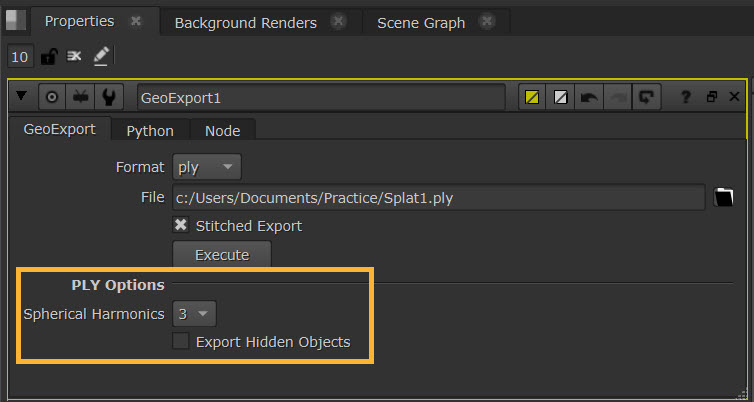
To help with this, for .ply and .spz, there is an option to adjust the number of Spherical Harmonics, and to enable or disable Export Hidden Objects when exporting.
Note: The export of .ply files is intended for the export of Gaussian Splats but it also supports exporting meshes. However, note that the two cannot be combined - i.e. you can't export a scene which is a mix of meshes and splats.
Export Node
Exports stage to a USD, Alembic, or Splat file.
Removes upstream USD changes when exporting.