Search Tips
Viewing Your Scene
The Viewer’s 3D Mode
Open a Viewer and use V to switch to 3D mode - or select the view you want from the dropdown menu at the top right corner of the Viewer window.
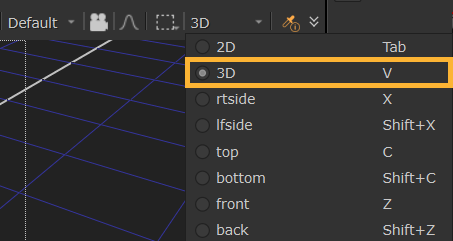
The “built-in” views give you different perspectives on your 3D scene. You can quickly switch between the views by pressing the keyboard shortcuts for right view (X), left view (Shift+X), top view (C), bottom (Shift+C), front (Z), back (Shift+Z), and three-quarter perspective (V).
3D Viewer Toolbars
The 3D Viewer toolbars allow quick access to various viewport options.
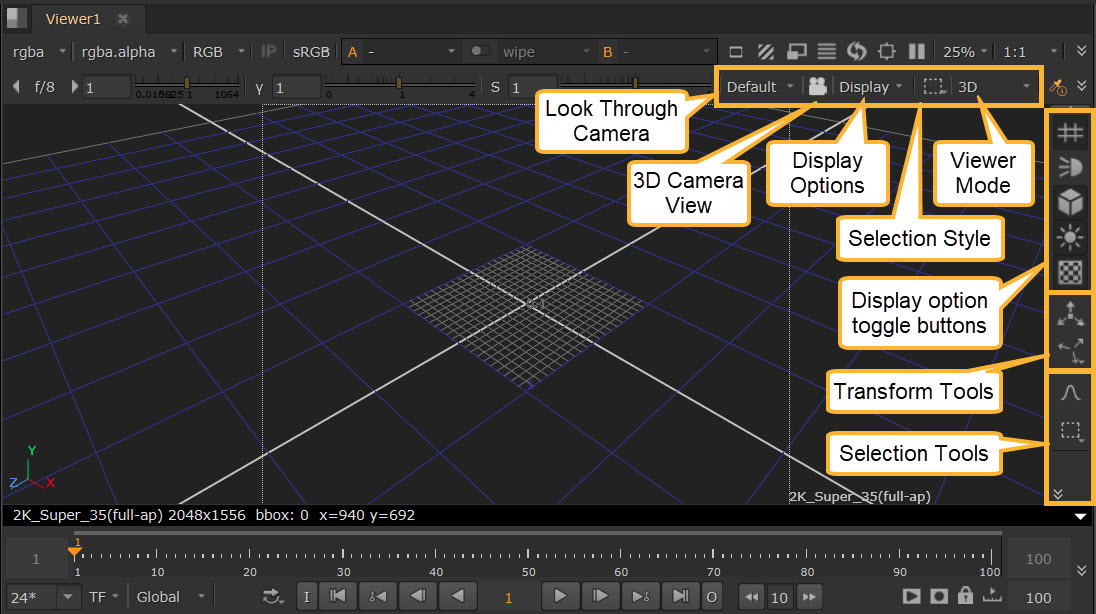
• Look Through Camera / 3D Camera View
You can look through Cameras and Lights in your stage to be able to see their angles and reposition them. See Look Through Camera to learn more.
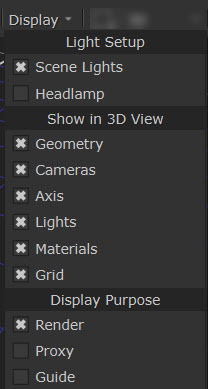
• Display Options
This dropdown allows you to customize what you see in the Viewer.
• Selection Style / Selection Tools
These tools are for selecting objects in the Viewer. See Selection in the 3D Viewer.
• Transform Tools
These tools are for transforming objects in the Viewer. See Using Transform Tools.
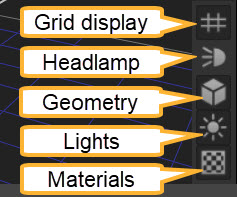
• Display option toggle buttons
These buttons are for quickly turning on and off different elements in the Viewer.
Viewer Node
The Viewer node Properties 3D View tab also has a variety of settings to determine how 3D scenes are shown in the viewport.
This includes:
• Display: Toggle the display of grids, headlamp, geometry, lights, and materials on and off, as well as change the geometry surface display, purposes, subdiv, and grid positions.
• Advanced 3D View Settings: Settings related to clipping and skew.
• Soft Selection: Enable Soft Select and use the graph to do face and vertex selection in an organic way.
• Renderer Settings: To learn more about render delegates and Hydra, see Hydra in the 3D Viewer.
See the Viewer node page to see all the controls in detail.
Navigate in the 3D Viewer
• Dolly: Press Alt and middle-mouse-button drag.
• Pan: Press Alt and left-mouse-button drag.
• Tilt: Press Ctrl/Cmd and left-mouse-button drag.
• Spin: Press Ctrl/Cmd and left-mouse-button drag.
• Roll: Press Ctrl/Cmd+Shift and left-mouse-button drag.
• Fit the scene: Press F to fit the entire 3D scene within the Viewer.
Change 3D Viewer Navigation Preferences
| 1. | Open the Preferences dialog (Shift+S), and select Panels > Viewer Handles. |
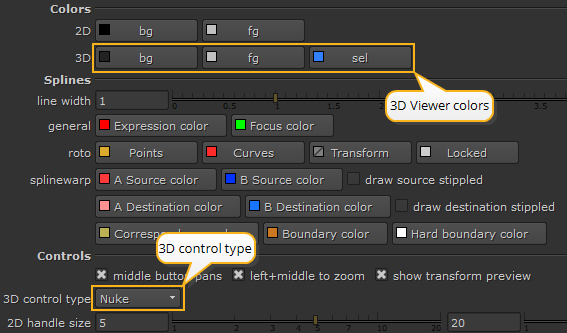
| 2. | Make the desired changes to the 3D bg and fg colors. |
| 3. | From the 3D control type dropdown menu, select the navigation control scheme you want to use (Nuke, Maya, Houdini, Lightwave, or Modo). |
| 4. | Click OK. |
Note: The 3D control type also affects the mouse button assignments for panning and zooming in the node graph and 2D Viewers.