Search Tips
Relighting Gaussian Splats
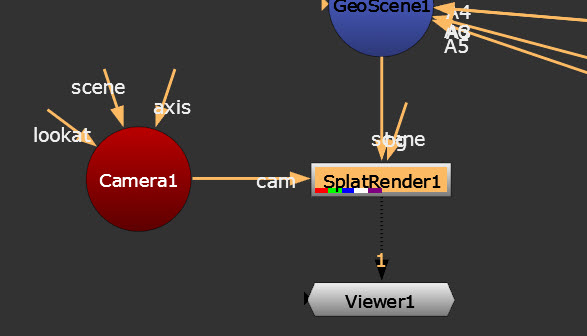
The Gaussian Splat toolset in Nuke supports relighting. You can use Nuke's light nodes DirectLight, PointLight, and SpotLight, and USD light nodes GeoDiskLight, GeoDistantLight, and GeoSphereLight, to add lights to your scene and render them out using SplatRender.
| 1. | Add lights to an imported splat scene. |
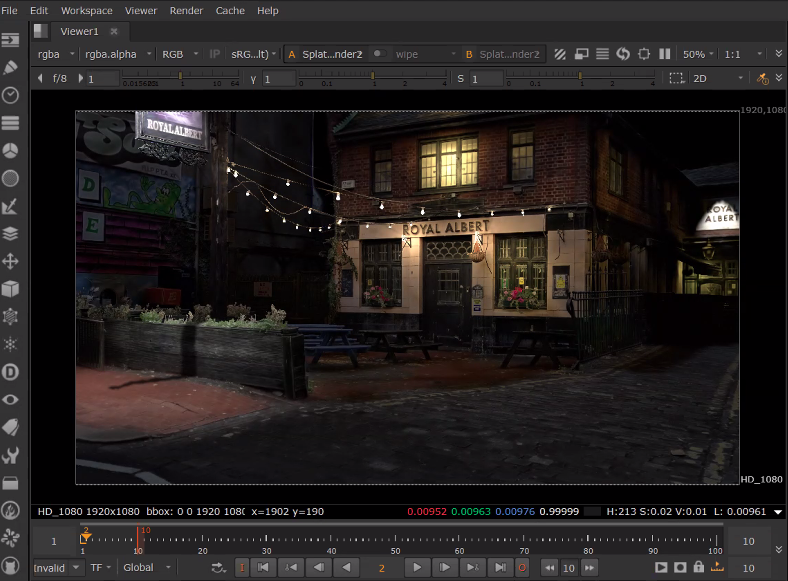
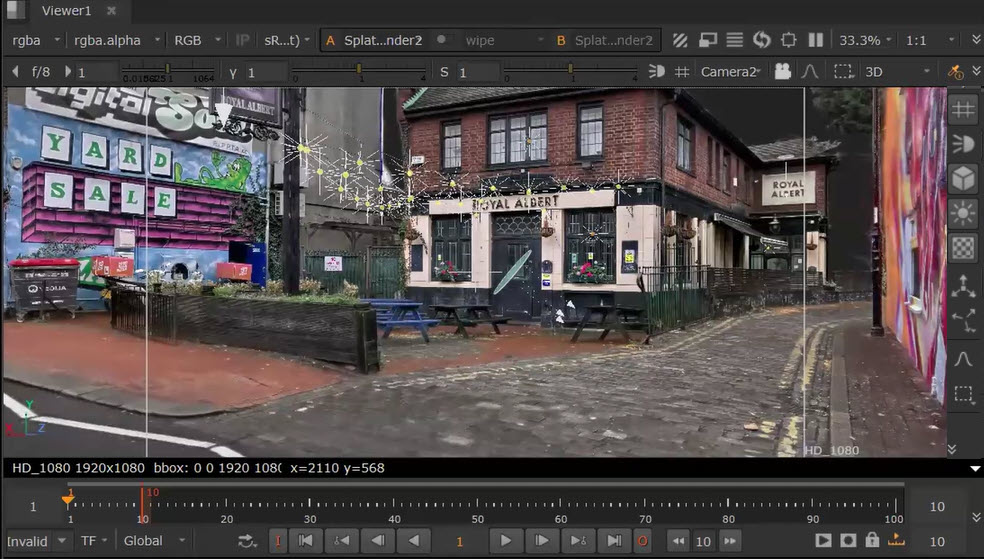
In this example, we've added 32 PointLight nodes and positioned them to make a set of string lights outside the pub facade and inside the pub windows.
Tip: Each light node can be transformed using the transformation tools on the right-side of the 3D Viewer.
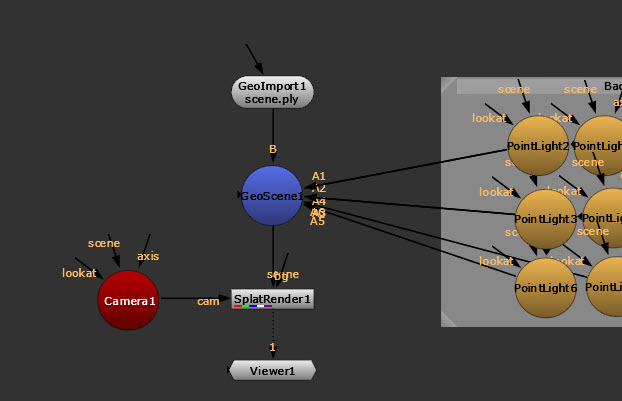
Tip: Connect your light nodes to a GeoScene node. GeoScene can then be connected to SplatRender.
Use the light node Properties to adjust settings such as Color, Intensity and Diffuse Amount.
In the light node's SplatRender Options, you can then make adjustments to how the shadows will render.
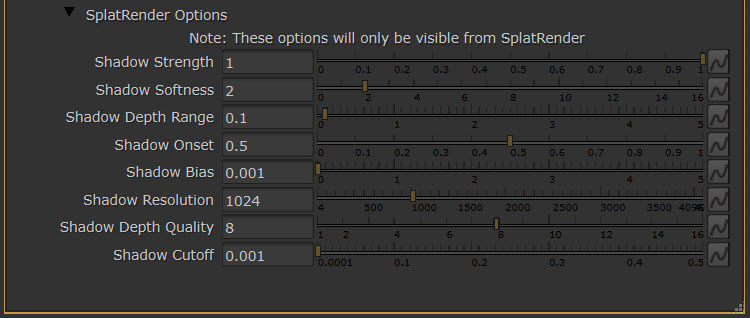
Tip: See the individual light node reference guide pages to learn more about each of these options: DirectLight, PointLight, SpotLight, GeoDiskLight, GeoDistantLight, and GeoSphereLight.
| 2. | Then use the SplatRender node to adjust further lighting settings in your render. |
Inside the SplatRender node properties, check Enable Relighting to apply lighting and shadows from scene lights to the splats.
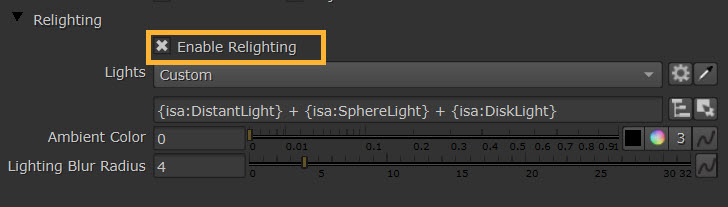
The SplatRender node picks up any supported lights in your scene using the default Custom expression the Lights mask knob: {isa:DistantLight} + {isa:SphereLight} + {isa:DiskLight}. You can adjust this mask if you only want to render certain lights.
Tip: Use the SplatRender Outputs tab to control output data. On the Outputs tab, Deep section, you can also enable Multi-Sample Relighting to keep objects as individually-lit deep samples.
Change the Viewer to 2D to see the result.