Search Tips
Comparing Versions
It is easy to compare different versions of media using the A/B buffer, without affecting the edit.
Note: If you don't already have versions in your project, set up versions by using the correct file name conventions as outlined in Using Versions, and ingesting the version files into your project.
When both Viewer buffers are assigned to the same video track, the Viewer enters version compare mode. A dotted outline is drawn around the B buffer, overlaying the edge pixel, to indicate it operates independently from the edit.
Note: Learn more about using the A/B buffer at Comparing Media.
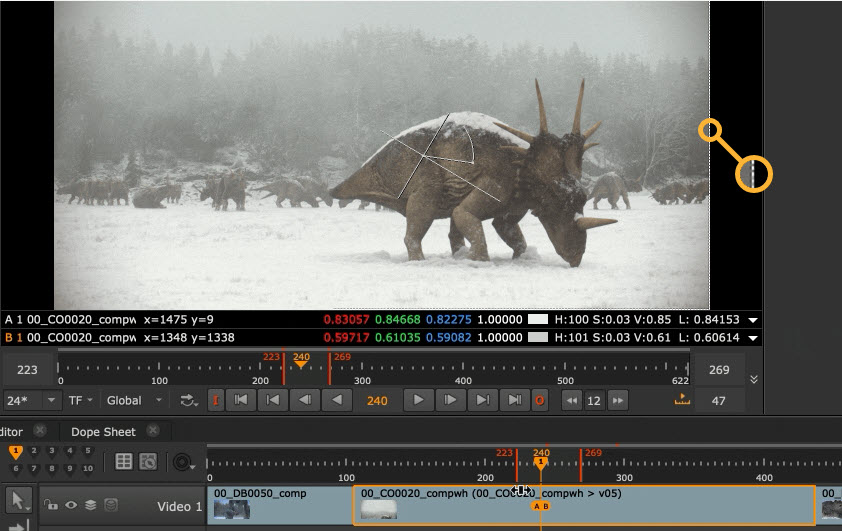
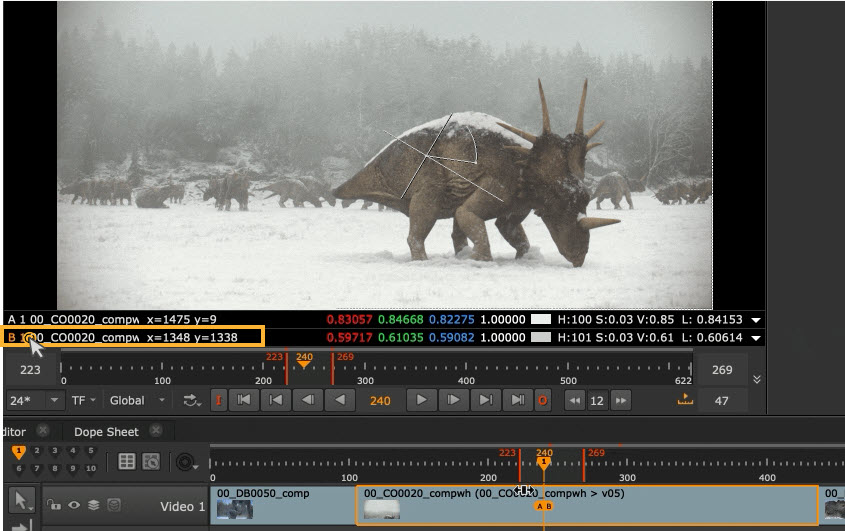
Select a buffer using the A/ B controls at bottom of the Viewer, or by clicking on the relevant side of the image in the Viewer. In this case, we have chosen B buffer.
Press V after selecting a buffer to open the version selector panel.
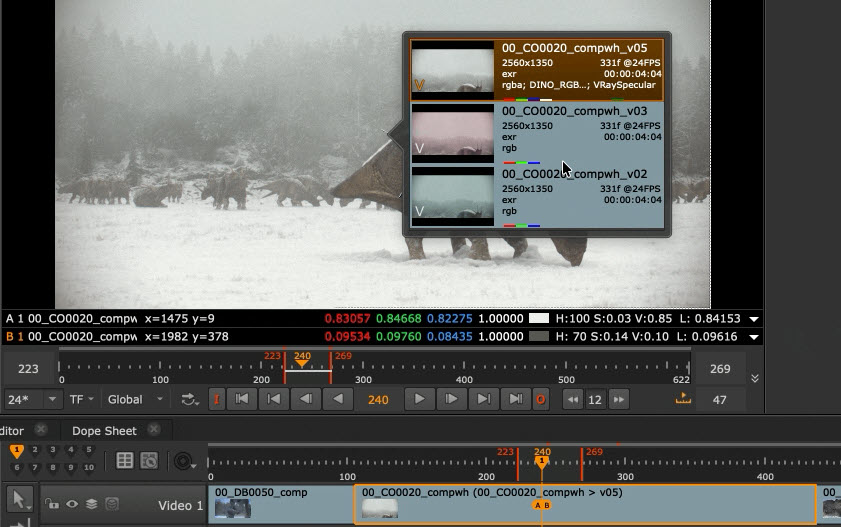
Select a version to open in the Viewer.
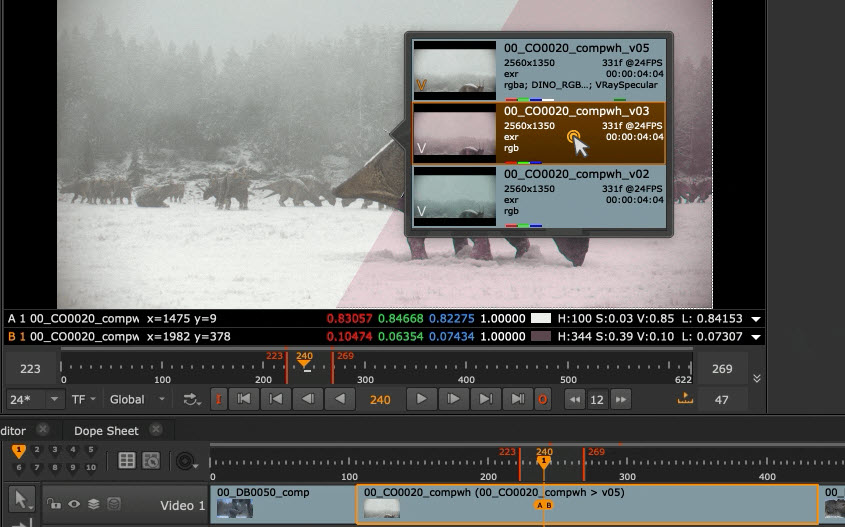
• The A buffer behaves as always: selecting a version here updates the version in the sequence.
• The B buffer is independent: selecting a version here does not affect the sequence.
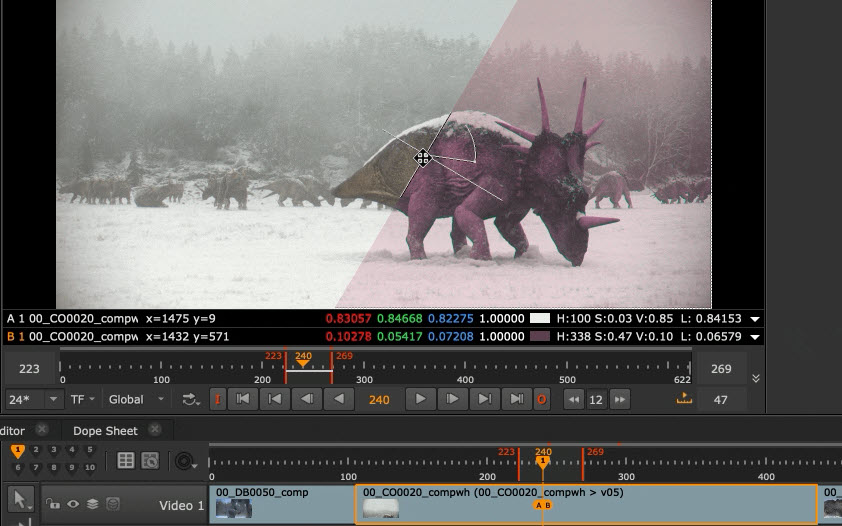
Note: All existing A/B compare operations — wipe, difference, blend, stack — are available with no additional setup.