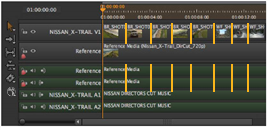
The Copy Cuts function allows you to quickly apply cuts from one track to other tracks on the timeline. For example, in the timeline shown, you could copy the cuts from the second video track to the Reference audio tracks.
To copy cuts:
| 1. | Select the track items containing the cuts to copy, or if you intend to copy all the cuts from a track you don’t need to make a selection. |
| 2. | Right-click in the timeline and select Editorial > Copy Cuts. |
The Copy Cuts dialog displays.
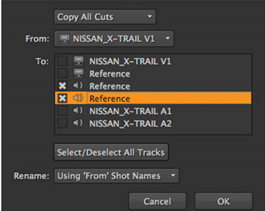
| 3. | If you made a selection on the timeline, use the dropdown to select Copy All Cuts or Copy Selected Cuts as required. |
This dropdown is not displayed if no track items were selected.
| 4. | Click the From dropdown to select the source track. |
| 5. | Check all the destination tracks in the To field to which you want to copy the cuts. |
| 6. | Choose whether or not the resulting track items are named identically to the source track. |
Selecting None retains the destination clip name.
| 7. | Click OK to copy the cuts to the destination track(s). |
|
|