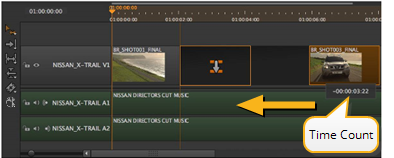
Click and drag the selected track item(s) to the required position on the timeline. A time count popup, in conjunction with the snap to edit function, helps you to reposition the track item(s) accurately.
You can also move track items up and down the track hierarchy using drag-and-drop or the Alt+, (comma) and Alt+. (period) keyboard shortcuts.
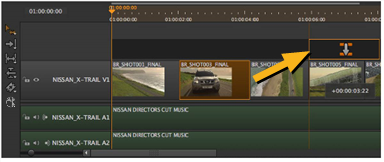
The following table describes the Move/Trim tool’s modifiers and actions:
|
Mode |
Method |
Indicator |
Description |
|
Overwrite |
drag-and-drop |
|
The default move mode. The dragged track item overwrites any items that are present in the move location. |
|
Ripple |
drag then hold Alt and drop |
|
Drag-and-drop track items on top of other items without overwriting content - items are pushed down the timeline to accommodate the move. |
|
Duplicate |
hold Alt and drag then release Alt and drop |
|
Copy the track item, then drag-and-drop on top of other items overwriting existing content - items are not pushed down the timeline to accommodate the move. |
|
Ripple and Duplicate |
hold Alt then drag and drop while holding Alt |
|
Copy the track item, then drag-and-drop items on top of others without overwriting content - items are pushed down the timeline to accommodate the move. |
|
NOTE: On Linux, hold Ctrl+Alt for Duplicate and Ripple Duplicate modifiers. |
|||
|
Action |
Keyboard Shortcut |
Description |
|
Delete |
Backspace |
Delete the selected track item(s) or gap(s). |
|
Ripple Delete |
Shift + Backspace |
Remove the selected track item(s) and ripple items down stream to close gaps in the timeline. NOTE: The ripple effect may not close gaps entirely, because Nuke Studio does not allow linked tracks to become desynchronized during rippling. |
If you need to nudge track items horizontally by just a frame or two, you can select the items on the timeline and press , (comma) to nudge it left or . (period) to nudge it right. Press Shift+, (comma) or . (period) to nudge the track item horizontally by the Frame Increment set under the Viewer.
NOTE: You cannot overwrite other track items on the timeline horizontally using the nudge keys. However, vertical nudging (Alt+, and Alt+.) overwrites other tracks.
| 1. | Select the required events in the spreadsheet view. |
| 2. | Click the cog icon and select the required Time Edit Behaviors: |
|
Modify |
Using |
Result |
|
Dst In |
Move |
Adjusts the event’s Dst In and Out by the same amount, moving the track item’s position on the timeline by the specified amount, while maintaining Speed. Before and after a 2 second Dst In increase:
|
|
Dst Out |
Move |
Adjusts the event’s Dst Out and In by the same amount, moving the track item’s position on the timeline by the specified amount, while maintaining Speed. Before and after a 2 second Dst Out increase:
|
| 3. | Adjust the Dst In or Dst Out to move the track item(s) by the specified amount. |
|
|





