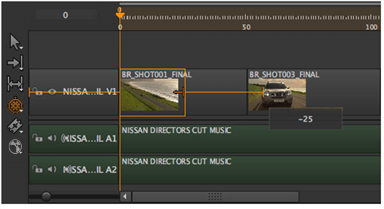
The Retime Clip tool allows you to trim a track item’s In or Out point and automatically retime the clip to fill the new track item duration. Activate the Retime Clip tool by clicking the tool or pressing R three times.
Click-and-drag the edit point to the new position and release to complete the trim and retime. For example, trimming a 50 frame track item to 25 frames retimes the clip to 200%.
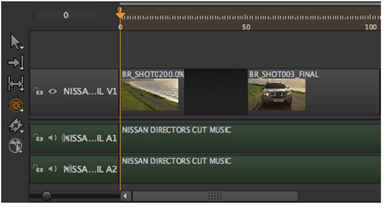
Alternatively, click an edit point and nudge the edit using the , (comma) or . (period) keys or hold Shift to nudge by the Frame Increment set under the Viewer.
TIP: By holding Ctrl/Cmd and dragging an edit, you can retime past the end of the track item’s handles.
|
|