Search Tips
O_ColourMatcher Controls
Use GPU
Open the O_ColourMatcher controls. O_ColourMatcher renders using the Local GPU specified, if available, rather than the CPU. The GPU may significantly improve processing performance.
If there is no suitable GPU, or the required NVIDIA CUDA drivers are unavailable, O_ColourMatcher defaults to using the CPU. You can select a different GPU Device, if available, by opening Nuke's Preferences and selecting an alternative card from the GPU Device dropdown.
Note: Selecting a different GPU requires you to restart Nuke before the change takes effect.
Views to Use
From the views that exist in your project settings, select the two views you want to use to generate an occlusion mask. These views are mapped for the left and right eye.
Match
The Match control allows you specify the direction in which to perform the color match.
|
Left to Right |
Adjust the colors of the left view to match with those of the right. |
|
Right to Left |
Adjust the colors of the right view to match with those of the left. |
Mode
You can use two different modes to perform a color match:
|
Basic |
This mode takes the color distribution of one entire view and modifies that to match the distribution of the other view. |
|
Local Matching |
This mode first divides the two images into square blocks according to the Block Size control. Then, it matches the color distribution from the view that want to modify to a reconstructed version of the same view, which has been constructed using the pixels of the source view. This can be useful if there are local color differences between the views, such as highlights that are brighter in one view than the other. |
Note: Both modes require an O_DisparityGenerator node and an O_OcclusionDetector node upstream of the O_ColourMatcher node.
Mask
If there are areas in the image that you want to ignore when calculating the color transformation, you can use the Mask control to supply a mask. In the O_ColourMatcher controls, set Mask to the component you want to use as the mask. The following Mask settings are available:
|
None |
Use the entire image area. |
|
Source Alpha |
Use the alpha channel of the Source clip as a mask. |
|
Source Inverted Alpha |
Use the inverted alpha channel of the Source clip as a mask. |
|
Mask Luminance |
Use the luminance of the Mask input as a mask. |
|
Mask Inverted Luminance |
Use the inverted luminance of the Mask input as a mask. |
|
Mask Alpha |
Use the alpha channel of the Mask input as a mask. |
|
Mask Inverted Alpha |
Use the inverted alpha channel of the Mask input as a mask. |
Note: You can also use the alpha channel of the Source input to supply a mask.
View Menu Button 
The View menu button allows you to select different settings for the left and right view. It is displayed to the right of a control that it can be applied to. See Block Size further in this section for an example of how to use it.
Local Matching
Note: These settings are only available with the Local Matching mode selected.
Preview colour correction
Enable this control to preview the areas of color correction applied to the original image as a difference overlay.
Block Size
This control defines the width and height (in pixels) of the square blocks that the images are divided into when calculating the color match. You can set different block sizes for each view by doing the following:
| 1. | Click the View menu button to the right of the block size. |
| 2. | Select Split off left. |

This displays two fields for Box Size, one for the left view and one for the right view.
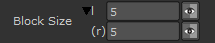
| 3. | To revert back to using the same size for both views, click the View menu button again and select Unsplit left. |
Scale
Set the image scale for local color matching. You can increase the Scale to broaden the color update and preserve the image structure, helping to prevent image shift and wobble. Decrease the Scale to pick up highlights and detailed color changes.
Limit
Sets a limit on local color matching against the average correction in a region. If you notice excessive color changes in areas of highlight, try reducing the Limit.
Noise
The Noise control allows you to set how much noise to retain from the original image. If the color matching smooths the input noise, increase the Noise value. If the value is too high, color differences at very fine details are retained.
Occlusions
Note: These settings are only available with the Local Matching mode selected.
Output corrected area to alpha
Select the Output corrected area to alpha checkbox to output the corrected area to the alpha channel. The corrected area can consist of the occlusion mask and the disparity edge mask set using the Adjust Edges control, depending on what the Correction control is set to (Occlusions, Occlusions and Edges, or None).
Correction
Defines which areas receive the color correction when local color matching is not valid.
|
Occlusions |
Fill occluded pixels only, where color is missing from the other view. |
|
Occlusions and Edges |
Fill occluded pixels, where color is missing from the other view, and compensate for disparity changes at edges where matching and/or reconstruction can fail. |
|
None |
Apply no occlusion or edge correction. |
Adjust Edges
The Adjust Edges control allows you to set the threshold for treating image edges as occlusions to reduce haloing and edge flicker. The higher the value, the more image edges are considered occlusions even if they are not marked as such in the upstream occlusion mask.
Colour Tolerance
The Colour Tolerance control allows you to set the amount of blurring across edges in the color match at occluded regions. Decrease this to restrict the color correction in occluded regions to similar colors. Increase the value to blur the color correction.
Support Size
Use the Support Size control to set the size of the region (in pixels) of unoccluded pixels used to calculate the color correction at an occluded pixel. O_ColourMatcher first finds the closest unoccluded pixel and then expands that distance by this number of pixels to determine the amount of unoccluded pixels to use.
Stabilise occlusions
Enabling this control can reduce flicker in occluded areas by using data from multiple frames.