Search Tips
O_MultiSample Controls
Use GPU
Open the O_MultiSample controls. O_MultiSample renders using the Local GPU specified, if available, rather than the CPU. The GPU may significantly improve processing performance.
If there is no suitable GPU, or the required NVIDIA CUDA drivers are unavailable, O_MultiSample defaults to using the CPU. You can select a different GPU Device, if available, by opening Nuke's Preferences and selecting an alternative card from the GPU Device dropdown.
Note: Selecting a different GPU requires you to restart Nuke before the change takes effect.
Channels
You can use the Channels control to select the channels you want to sample from the Source input. For example, you can select disparity to sample the disparity vector data only in the selected area. The sample data can then be applied to the whole image, or the selected area can be filled (replaced) using the surrounding channel data. When you select a channel set, the individual channels within that set are displayed to the right as checkboxes. You can toggle these on and off to view selected channels.

When you select an additional channel from the second channel dropdown, the checkbox beside it is automatically enabled. You can then toggle this on and off to use the additional channel.

Sample
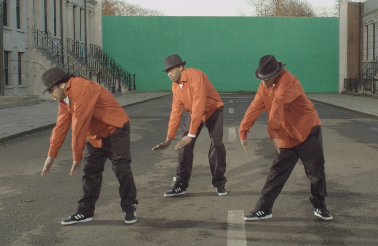
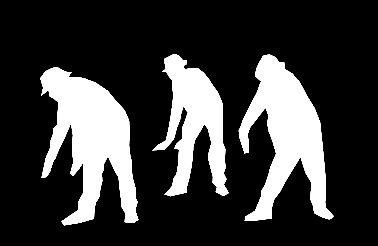
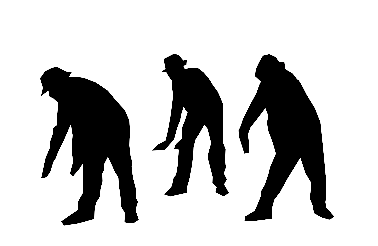
The Sample control defines the area to sample. You can connect a RotoPaint or Roto node to define an area, and connect it to the Sample input, or you can use the source alpha channel.
Note: Areas with non-zero values in the Sample input are sampled. Pixels with higher values are given more weight when they are expanded.
Select one of the following options:
|
None |
Use the entire image area. |
||||
|
Source Alpha |
Use the alpha channel of the Source input to define the area of the Source input that is sampled and expanded. The selected area is embedded in the image sequence.
|
||||
|
Source Inverted Alpha |
Use the inverted alpha channel of the Source input to define the area of the Source input that is sampled and expanded. The selected area is embedded in the image sequence.
|
||||
|
Sample Luminance |
Use the luminance of the Sample input to define the area of the Source input that is sampled and expanded. |
||||
|
Sample Inverted Luminance |
Use the inverted luminance of the Sample input to define the area of the Source input that is sampled and expanded. |
||||
|
Sample Alpha |
Use the alpha channel of the Sample input to define the area of the Source input that is sampled and expanded. |
||||
|
Sample Inverted Alpha |
Use the inverted alpha channel of the Sample input to define the area of the Source input that is sampled and expanded. |
Mask
The Mask control defines the area in which to expand the sample data. You can connect a RotoPaint or Roto node to define an area, and connect it to the Mask input, or you can use the source alpha channel.
Note: The Mask input is used to perform a keymix between the Source input and the expanded result.
Select one of the following options:
|
None |
The Mask input is not used, and therefore the sample data is expanded to fill the whole image. |
||||
|
Source Alpha |
Use the alpha channel of the Source input to define the area that is replaced by the expanded data. The selected area is embedded in the image sequence.
|
||||
|
Source Inverted Alpha |
Use the inverted alpha channel of the Source input to define the area that is replaced by the expanded data. The selected area is embedded in the image sequence.
|
||||
|
Mask Luminance |
Use the luminance of the Mask input to define the area that is replaced by the expanded data. |
||||
|
Mask Inverted Luminance |
Use the inverted luminance of the Mask input to define the area that is replaced by the expanded data. |
||||
|
Mask Alpha |
Use the alpha channel of the Mask input to define the area that is replaced by the expanded data. |
||||
|
Mask Inverted Alpha |
Use the inverted alpha channel of the Mask input to define the area that is replaced by the expanded data. |