Search Tips
Creating a New View
Note: O_NewView requires disparity vectors and an occlusion mask to operate correctly.
To create a new view, complete the following steps:
| 1. | If disparity vectors don’t yet exist in the script, you can insert an O_DisparityGenerator node to calculate the disparity vectors. |
| 2. | Select Ocula > Ocula 4.0 > O_OcclusionDetector to insert an O_OcclusionDetector node. Insert the O_OcclusionDetector node after either the O_DisparityGenerator node (if you added one in the previous step) or the stereo image sequence. |
| 3. | Select Ocula > Ocula 4.0 > O_NewView to insert an O_NewView node after the O_OcclusionDetector node. |
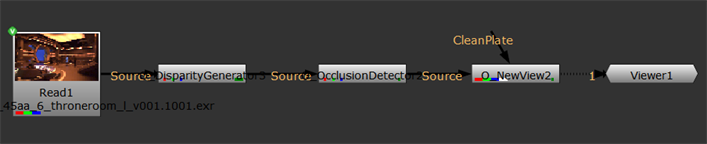
| 4. | Attach a Viewer to the O_NewView node. Your node tree should now look something like this: |
|
|
| 5. | In the O_NewView controls, select the two views you want to use under View to Use. The two views you select are mapped for the left and right eye. |
| 6. | From the View to build dropdown menu, select either Left from Right or Right from Left, depending on which view you want to rebuild. |
| 7. | Adjust the required controls to get the best possible result. See O_NewView Controls for more information. |