Search Tips
Solving the Camera Relationship
| 1. | Launch Nuke and press S on the Node Graph to open the project settings. Go to the Views tab and click the Set up views for stereo button. |
| 2. | From the Toolbar, select Image > Read to load your stereo clip into Nuke. This can either be the clip you want to work on, or another clip shot with the same camera setup. |
If you don’t have both views in the same file, select Views > JoinViews to combine them, or use a variable in the Read node’s file field to replace the name of the view (use the variable %V to replace an entire view name, such as left or right, and %v to replace an initial letter, such as l or r). For more information, refer to the Nuke User Guide.
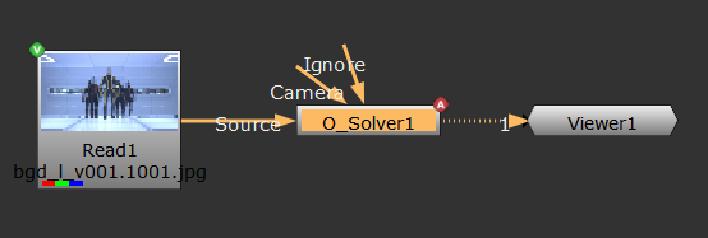
| 3. | Select Ocula > Ocula 4.0 > O_Solver to insert an O_Solver node after either the stereo clip or the JoinViews node (if you inserted one in the previous step). |
| 4. | Connect a Viewer to the O_Solver node. |
|
|
|
The node tree with O_Solver. |
| 5. | Open the O_Solver controls. Under Views to Use, you can see all the views that exist in your project settings. Select the two views you want to use for the left and right eye when calculating the camera relationship. |
The two views you selected are mapped for the left and right eye.
| 6. | If you have a pre-tracked Nuke stereo camera that describes the camera setup used to shoot the Source image, connect that to O_Solver’s Camera input. O_Solver uses the camera information to calculate the relationship between the two views. |
| 7. | Set keyframes on your sequence for O_Solver to analyze: |
• Key Frame - if the camera rig doesn't change, you can set analysis keys only on one or two frames (for example, on the first and last frames). If you do set a few analysis keys, you can also check Single Solve From All Keys in the O_Solver controls. This tells O_Solver to calculate a single solve using all keyframes, which can improve the results.
• Key Sequence - click to analyze the whole sequence automatically. This adds analysis keys where a change in camera alignment is detected.
• Key Nominated - click to analyze the frames specified in the Render dialog. You can specify frames using Nuke's regular frame expressions. For example, if you enter "1-5 8 10 15 22-25", only those 12 frames are keyed.
If you know there is a zoom or change in the camera setup on certain frames, you need to add more keyframes in between. Leave Single Solve From All Keys unchecked to use a separate solve for each analysis key, and place keyframes where the camera alignment changes.
Note: You can remove analysis keys one at a time by scrubbing the playhead to the required frame and clicking Delete Key or remove all the analysis keys from the sequence by clicking Delete All.
O_Solver analyzes the frames you added and, if it finds more than one analysis key, it interpolates the results between them. Interpolating between analysis keys ensures that the calculated camera relationship varies smoothly across the sequence.
To visualize the analysis in the Curve Editor or Dope Sheet, right-click on the Analysis Key field and select Curve editor or Dope sheet. Note, however, that you cannot edit the curve in either.
| 8. | Proceed to Reviewing and Editing the Results. |
Note: Once O_Solver has detected feature matches, they are fixed and do not update in response to changes in the node tree. You can edit them manually, however, or click Re-analyse Frame to force O_Solver to recalculate the current frame.