Search Tips
Backdrop Nodes
You can use Backdrop nodes to help document your recipes, making them easier to read and navigate. They can be placed at the side of important nodes to explain their use for future users, around a collection of nodes that perform a particular function, or just as a title for your entire recipe. How you use them is up to you!
Creating a Backdrop Node
A Backdrop node is created in the same way as any other node, through the Tab menu, the right-click menu, or with the New menu within the Node Graph.
To fit a Backdrop node around the currently selected node(s):
| 1. | Select the node(s) that the Backdrop node is to encompass. |
| 2. | Press Tab, start typing 'backdrop', and add the Backdrop node. |
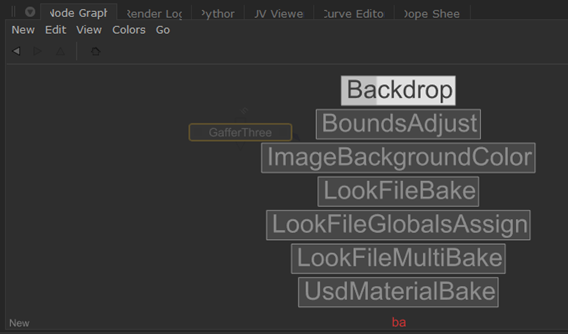
The Backdrop will automatically wrap around the selected node(s).
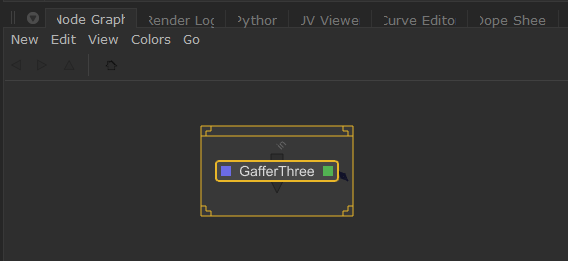
Or you can use the Node Graph's Edit menu:
| 1. | Select the nodes the Backdrop node is to encompass. A minimum of two nodes must be selected. |
| 2. | Select the Edit menu within the Node Graph, then Fit Backdrop Node to Selected Nodes. |
If you select a Backdrop node with the selected nodes, Katana uses that Backdrop node, otherwise a new Backdrop node is created.
Editing a Backdrop Node
To change the parameters of a Backdrop node:
| 1. | Double-click within the horizontal lines at the top of the node. |
This brings up the Edit Backdrop Node dialog.
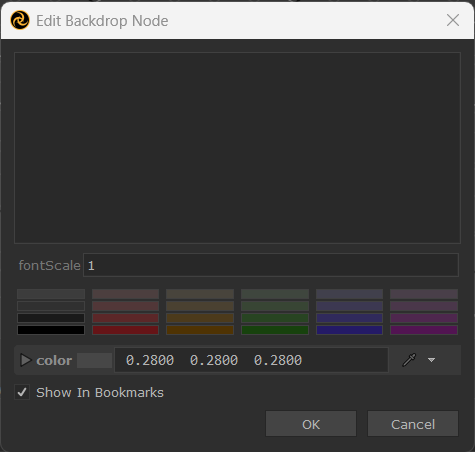
| 2. | In the dialog you can: |
• Enter or edit the text in the main text box.
• Change the size of the text with fontScale.
• Change the background color.
• Toggle whether this Backdrop node should be part of the jump-to menu with Show In Bookmarks (See Navigating with Backdrop Nodes for more information).
The Z ordering of Backdrop nodes can now be controlled by the [ and ] keyboard shortcuts, to bring Backdrop nodes to the back and front respectively. As part of this feature, the Send to Back checkbox has been removed from the Edit Backdrop Node dialog.
| 3. | Click Ok to save changes. |
Tip: When using the main Node Graph, you can also resize a Backdrop node by clicking and dragging any of its corners. When inside a Network Material context node network, use the bottom-right corner to resize.
Navigating with Backdrop Nodes
One extremely useful function of Backdrop nodes is their ability to act as jump to points throughout a project.
| 1. | In the Node Graph, select Go > Jump to Bookmark (or press the Backdrop node's jump to menu). |
Katana displays all the Backdrop nodes that have the bookmark flag enabled with their background color displayed to the left.
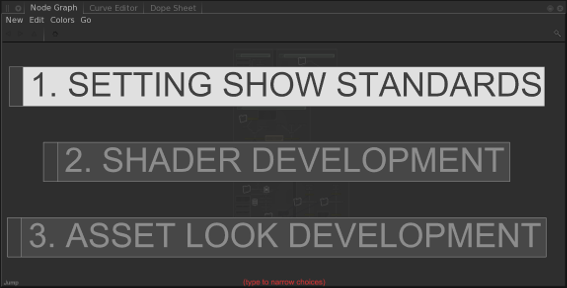
Tip: The first line of a Backdrop node is used as its title for the Jump to Bookmark menu.
| 2. | Start typing the name of the node you wish to navigate to. |
This narrows down the displayed list.
| 3. | To select the Backdrop node to navigate to, either: |
• click on it, or
• scroll to it with the Up and Down arrow keys and press Return.
If you want to select all nodes within the bounds of a Backdrop node (as well as the node itself), you can Ctrl+click within the two horizontal bars at the top of the node.
Locking and Unlocking Backdrop Nodes
To lock Backdrop nodes so they can’t be edited or selected, select Edit > Lock All Backdrop Nodes. All Backdrop nodes are locked, but if you create a new Backdrop nodeit is not locked.
To unlock all Backdrop nodes, select Edit > Unlock All Backdrop Nodes.