 Search Tips
Search is based on keyword.
Ex: "Procedures"
Do not search with natural language
Ex: "How do I write a new procedure?"
Contact Support
Shaders
Shaders control how Mari displays the model on the canvas. Mari's default shaders show the paint in either the Current Channel, Current Layer and Below, Current Layer, or Current Paint Target. You can also create your own custom shaders, called 'User Shaders', by combining diffuse and specular shader types then setting up channels in the shader component inputs to specify how they appear in the shader.
Video: Watch Understanding Shaders and Channels for a brief overview about Shaders.
This video shows the workflow using Mari 3. Even though the Mari 4 workspace is different, the workflow remains the same. To have a look at the main UI differences, see Mari 3.3 vs 4.0.
Creating a Shader
| 1. | Do one of the following: |
|
Select from the Shading menu |
or from the Shaders palette, click |
or right-click on the Shaders palette and select |
|
Add New Shader > any shader from the dropdown menu |
|
any shader from the dropdown menu |

The new shader displays in the list, with shader components shown at the bottom of the palette.

| 2. | Instead of selecting shader types from the menu (Phong or Blinn, for example) you can specify the diffuse and specular by selecting Choose Diffuse and Specular from the menu. |
The Create Shader dialog appears.
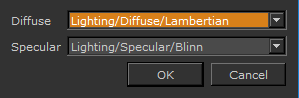
Select your Diffuse and Specular shader options and click OK.
| 3. | All shaders are created with the Current Channel in the Diffuse Color shader component. You can change this, and set the other components by clicking on the dropdown menu next to the component name and selecting the channel. |
| 4. | If you haven’t yet created a channel to use in a specific shader component, click the add channel icon  next to the shader component. next to the shader component. |
The Add Channel dialog box appears. Select the options for your channel from the dialog and click Ok.
| 5. | Once you’ve set a channel to the shader component, adjust the value or level of the component, using the sliders. |
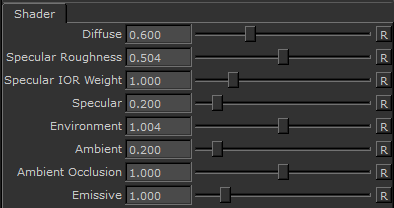
You can add as many shaders as you need and compare them or switch back to the default shaders at any time.
Tip: Shaders don’t affect the contents of the channels. For example, if you have a shader with channels set in both the diffuse and specular color inputs, the model on-screen displays the effects of both channels. However, the channels are still separate and contain different data.
Tip: If you build a shader that takes data from multiple channels, it can be hard to remember which channel you're currently editing. In this case, you can switch back to one of the default shaders, which just shows the contents of the current channel, layer and below, layer, or paint target.