Search Tips
Search is based on keyword.
Ex: "Procedures"
Do not search with natural language
Ex: "How do I write a new procedure?"
Contact Support
Connecting Nodes
When you add or paste nodes into the Node Graph, Mari automatically generates pipes between the currently-selected node and the new nodes. As you build up a node tree, you need to move these pipes, or run new pipes between nodes. In Mari, you make such modifications by dragging either end of the pipe to the new location.
Disconnecting and Reconnecting Nodes
You can disconnect nodes by dragging the head or tail of the connecting arrow to an empty area of the Node Graph. You can reconnect a node by dragging the head or tail of the connecting arrow and dropping it over the input or output of the node that you want to connect.
Note: You can detach a node from all of its connections. To do so, select the node and either press Ctrl/Cmd+Shift+X or right-click and select Edit > Extract.
Note: You can switch the first two inputs of a node by pressing Shift+X. For this to work, the node must have at least one connection.
Nodes in Mari have different inputs depending on their function. Some are simply labeled A and B, as in the Add and Divide nodes. Some nodes, such as Ambient Occlusion and Color, require no inputs at all. The following table lists some common inputs and example nodes that employ them:
|
Input |
Function |
Example Nodes |
|---|---|---|
|
Input |
A standard input with no particular requirements. |
Brightness |
|
Mask |
Passes masking information into the associated node. |
Merge |
|
Normal |
Passes surface normals into the associated node. |
Beckman Specular, Displacement |
|
Position |
Passes positional coordinates into the associated node. |
Cube Map Projector, Oil |
|
ToView |
Connect this input to any point in the node tree to view the output up to that point. |
Viewer |
|
UV |
Passes UV coordinates into the associated node. |
Tiled Texture |
|
Vector |
Passes vector information into the associated node. |
Set Vector |
Note: You can also connect a node by dragging it over an existing pipe, Mari then auto-inserts the node between nodes. You can enable or disable this option in the Mari Preferences dialog under Node Graph > General > Auto Insert Node.
Bending Connecting Arrows
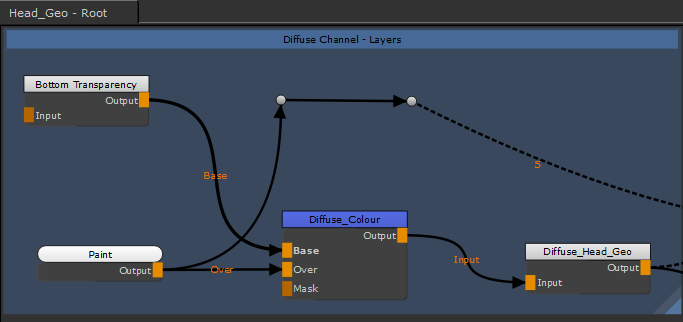
Complex Node Graphs can become difficult to read with pipe overlaps, but Mari allows you to bend pipes using a specialized node called Dot. The Dot node doesn't have any special controls like regular nodes, but it can be used to direct pipes away from congested areas of the Node Graph.
To add a Dot node, select the node before the connector you want to bend and then, either:
• press Tab and type Dot to add a Dot node,
• right-click and select Nodes > Misc > Dot, or
• hold Ctrl/Cmd and click the yellow highlight on the required pipe.
A Dot is placed after the selected node, allowing you to bend the pipe as required by dragging the Dot to a new position in the Node Graph.