 Search Tips
Search is based on keyword.
Ex: "Procedures"
Do not search with natural language
Ex: "How do I write a new procedure?"
Contact Support
Setting Shader Details
For all of the custom shaders (those not mentioned in the Default Shaders list), the lower pane in the Shaders palette consists of inputs and sliders for the selected shader. The inputs you have available depend entirely on which of the shaders you have selected. The input fields allow you to specify which channel corresponds to which shader component. For example, if you're using the Current Channel shader, you don't need to specify a channel, because you are viewing only the selected channel on the model. However, if you have a Phong shader selected, you are viewing whatever channels you have chosen for each component, such as Diffuse Color or Bump.
Once you've assigned a channel to the shader input, you can adjust the effect of that channel by adjusting the corresponding slider under the inputs.
Note: This does not apply to all shaders. In the case of the Principled BRDF shader, its slider values are overridden by the values of the users active shader inputs.
Following on from the example above, if you have assigned a channel to the Bump input of the Phong shader, you can then adjust the Bump Weight slider to control how heavily the bump affects the texture.
| 1. | Select the shader you want to customize from the Inputs list at the top of the Shaders palette. |
The bottom of the palette displays that shader's details.
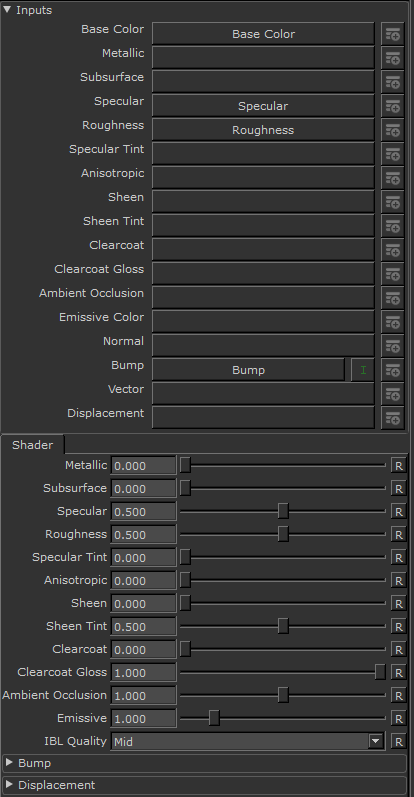
| 2. | You can build up your shader by assigning channels to the various shader component inputs in the bottom pane of the palette. |
To assign a channel to an input, click on the dropdown menu and select a channel from the list.
| 3. | If you haven’t created a channel for a designated input yet, you can create channels from the Shaders palette. |
To create a new channel, click the  icon next to the input for which you want to use the channel.
The Add Channel dialog box displays.
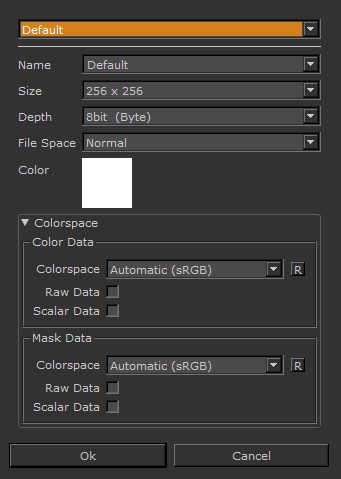
| 4. | Enter a Name for the channel (recent names are available in the dropdown list). Select the size, depth, colorspace, and file space settings for your channel and click OK. |
Mari adds the channel to your shader and automatically makes it the active channel for the designated input.
Tip: To learn more about each of the settings in the Add Channel dialog, refer to Add Channel Dialog section.
| 5. | With some shaders, once you’ve set up the inputs of each of the shader components you want to use, you can fine-tune these settings using the sliders in the bottom pane of the palette. This does not apply to the Principled BRDF. |
If you prefer, you can fine-tune the slider settings using the entry box instead.
Experiment: Since most shaders don't affect the content of the channels, you can safely play around without worrying about overwriting anything. Try building the example below. Download the tutorial assets from Foundry's website: https://www.foundry.com/products/mari/tutorials/
Try the following:
• Creating a new BRDF shader.
• Setting the Diffuse Color shader component to the Base Skin (Diffuse) channel and adjusting the Diffuse and Specular sliders.
• Creating another, different shader and set the Diffuse Color shader component to Base Skin (Diffuse) again.
• How does changing the Diffuse and Specular sliders affect the model on this shader type. This currently only works with the BRDF shader.