Search Tips
Multi-Paint Palette
The Multi-Paint palette and the controls that can be found on it are described in the table below. When controls also bring up additional dialogs, these are referenced for more information.
What It Does
The Multi-Paint palette enables you to define the stream settings for a Multi-Channel Paint node.
To learn more, go to Multi-Paint and Multi-Channel Paint Node.
Multi-Paint Palette Fields
|
Control |
Type |
What it does |
Notes |
| Toggle Multi-Paint
|
button | Toggles Multi-paint on or off. | |
| Show all / active streams
|
button |
Toggles visibility between all of the available shader streams and only the active shader streams. Active shader streams are defined by the tick button ( |
|
| Search streams | Text input | Search streams in the currently-selected shader model. | |
| Apply preset
|
button | Apply pre-defined preset for the shader model. See more at Multi-Paint Presets. | Hover over available presets to see details. |
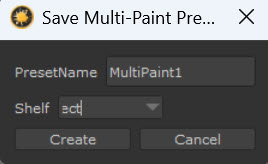
| Save as Preset
|
button | Saves the current settings as a Preset. Opens up pop up window to define the Preset Name and Shelf to store the preset on.
|
|
| Reset Shader
|
button | Resets shader to default values, clearing all inputs. | |
| Active Stream
|
button | Defines whether the stream is active in the Multi-Channel Paint node. When selected, the stream will be painted into when the Multi-Channel Paint node is the active painting target. | |
| Primary Stream
|
button | When selected (icon is white), the primary stream is the only visible stream while multi-painting. Icon is gray when stream is not selected ( ). ).
|
|
| Target | text |
The shader stream to assign an image/ color to. Stream names depend on the shader model chosen when the Multi-Channel pain node is created. |
|
| Image | Image input |
Defines the image for the current stream. When clicked, opens an Image Manager pop up to select the image for the stream. To choose an image for the stream, select it and press Ok. |
|
| Color | Color selector/ button |
Define a foreground and background color for the stream. Swap the colors using the swap button ( |
|
| Blend mode | Drop down |
Define the blend node for the stream. For all available blend options, see Paint Blending Modes. |


 ) selected.



 ).
).