Search Tips
Opening the Image Manager Palette
| 1. | Open the Image Manager palette: |
• right-click on the toolbar, and select Image Manager from the dropdown menu, or
• from the View menu, select Palettes > Image Manager.
The Image Manager palette displays, showing images currently in use in the project.
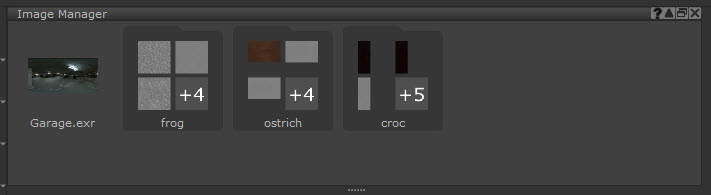
You can organize images in your Image Manager using Image Groups. This enables you to better organize your image without needing to scroll through a long set of thumbnails to find the one you need. Read more at Image Groups.
Video: To display the Image Manager menu when painting, press and hold L. Watch the demo.
This video shows the workflow using Mari 3. Even though the Mari 4 workspace is different, the workflow remains the same. To have a look at the main UI differences, see Mari 3.3 vs 4.0.