Search Tips
Painting Animated Textures
Before you paint the animated textures, make sure you've painted all the non-animated elements of your textures. Any paint you add after you've inserted a keyframe only appears in one part of the animation (see the example above).
Once you've got your initial texture set, you can set keyframes.
Setting Keyframes
To set a keyframe:
| 1. | Move to the frame that you want to set as your keyframe. |
| 2. | Click  or press Ctrl/Cmd+K to set a keyframe. |
The new keyframe displays as a square in the keyframe timeline.
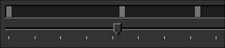
| 3. | You can remove keyframes by selecting the keyframe in the timeline and clicking  . |
Removing a keyframe also removes any paint for that keyframe. Be careful when removing keyframes if you've done any painting!
Painting the Textures
To paint a texture within a section of animation:
| 1. | Move to a frame somewhere within the section of animation you want to paint. |
It doesn't matter which frame within the section you move to - the paint displays until the next keyframe.
| 2. | Paint your textures as normal. |
Bear in mind that:
• Any textures you paint within one section disappear when you reach the next keyframe.
• You can paint, then add another keyframe, to “build up” an animated texture (see the Example in Painting Animated Objects for an explanation).