Search Tips
Using the Quick Project Functions
The Quick Project functions provide a fast and simple way to project and unproject from the current view without having to create a projector first.
Tip: When using quick unproject and quick project, be careful not to change your view! If you need to change your view, create a projector as normal, so you can go back to the view and project correctly.
| 1. | To unproject from the current view (that is, the current camera settings and visible shader), from the Camera menu, select Quick Unproject. |
The Quick Projection dialog box displays, allowing you to set a resolution and file path for the unprojected image.
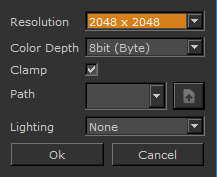
| 2. | Set the details: |
• Path - sets the filename and type. You set the image type by typing the image extension (for example, .tif, .exr, .psd, .png, .tga, and so on).
• Lighting - sets whether the lighting information is output along with the paint when you unproject. If it is, whether it’s stored as a Separate File or - in the case of .psd files - an individual Layer.
If you have already set the quick projection details, Mari just unprojects and updates the file on disk.
| 3. | You can now edit the unprojected image as normal, see Editing the Files Externally. |
Note: Due to the nature of .psd files, the lighting displayed in your external image editor is an approximation of what you see in Mari.
Tip: When unprojecting a separate lighting layer it appears brighter, but when this is multiplied over an unlit pass in an external application, such as Nuke, the lighting appears as expected.
When projecting, you can either:
• project the image only onto the front patches visible in the current view, or
• project through all patches in the current view.
| 1. | To project onto the front of the patches, from the Camera menu, select Quick Project Front. |
|
To project... |
From the Camera menu, select... |
|
onto the front of the patches |
Quick Project Front |
|
through all the patches |
Quick Project Through |
Mari loads the updated image from the location set in the Quick Projection dialog box and projects it back onto the model.
| 2. | If you want to change the quick projection settings, you can open the Quick Projection dialog box - from the Camera menu, select Quick Projection Settings. |