 Search Tips
Action Centers
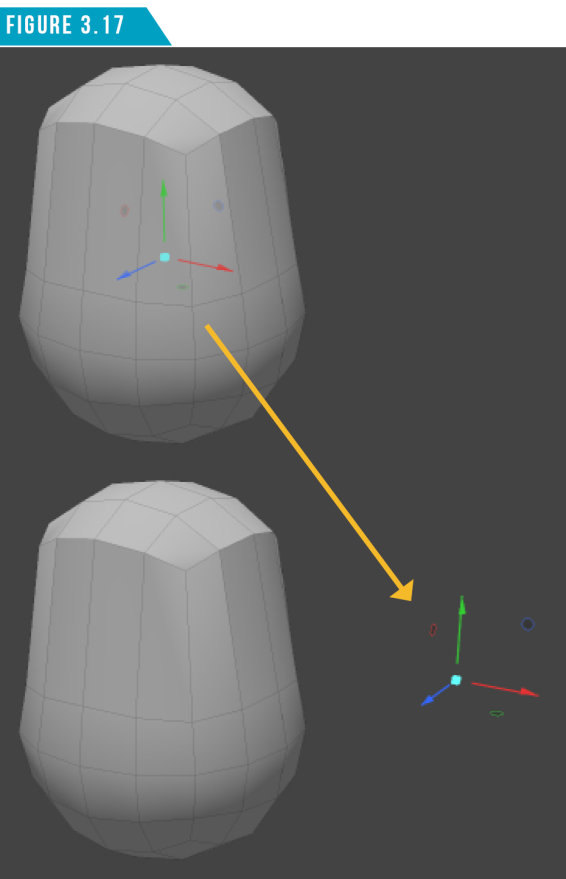
By default, the placement of the handle is centered at the bounding box of the current selection. The location of the handle is referred to as the Action Center, and it’s the origin of the tool handle itself.
Left-clicking anywhere in the 3D viewport will change the tool handle’s location, which changes it’s action center. (Figure 3.17) shows the Move Tool’s action center moved away from the mesh item.
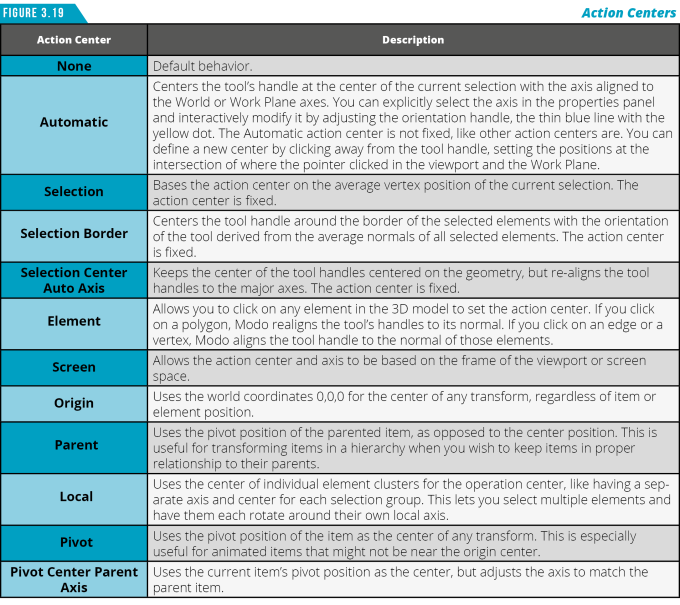
Action Centers are a combination of center positions and axis directions for tools. There are a variety of action centers to choose from, and they can be accessed from the Modo Modes bar by clicking the Action Centers Button (Figure 3.18).

Action Centers are a feature that I take full advantage of, and I believe they are key to truly unlocking the power of working in Modo. Use the table in (Figure 3.19) to get a brief description of the available Action Center presets.
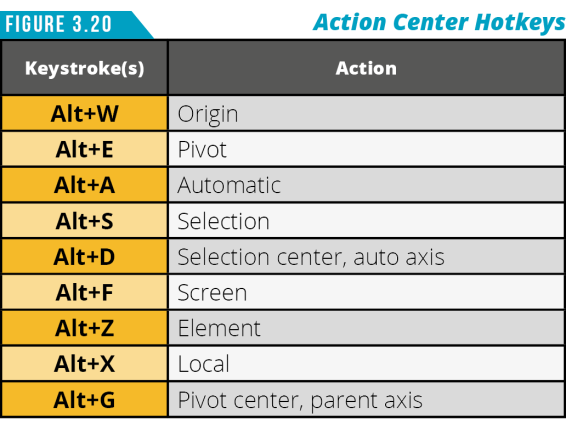
You can also use the keyboard shortcuts in (Figure 3.20).
Spend some time experimenting with the various action centers and when you’re ready to move on, we’ll look at the Rotate Tool Handle.
The Rotate Tool
Activate the Rotate Tool (E). The Rotate Tool Gizmo (Figure 3.21) consists of four handles. By using the various handles, you can easily constrain the movement to a single axis.
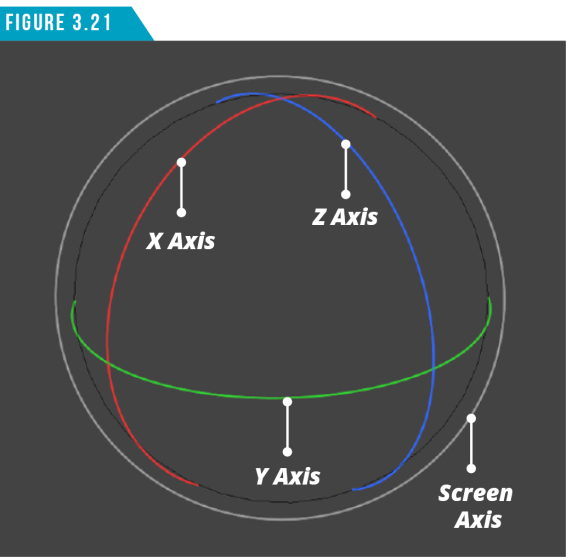
Left-clicking and dragging on the X Axis Handle (Red) rotates the current selection around the X axis. Left-clicking and dragging on the Y Axis Handle (Green) rotates the current selection around the Y axis, and left-clicking and dragging on the Z Axis Handle (Blue) rotates the current selection around the Z axis.
The grey handle enables you to rotate around the screen axis. When using this handle, you manipulate all three rotational axes at the same time. Spend a few minutes giving the handles a test drive.
Be sure to activate a few of the action centers to see how they affect the results of rotating the current selection.
The Scale Tool
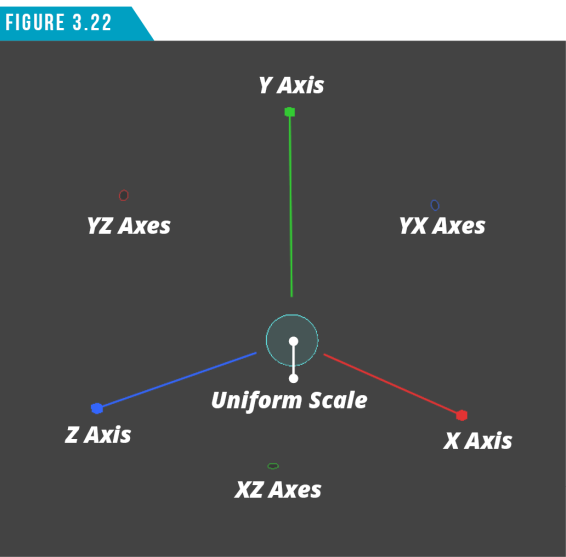
Activate the Scale Tool (R). The Scale Tool Gizmo (Figure 3.22) consists of seven handles like the Move tool. The key difference, besides scaling instead of moving, is that the cyan (light blue) handle in the center scales the current selection uniformly in all three axes.
The Transform Tool
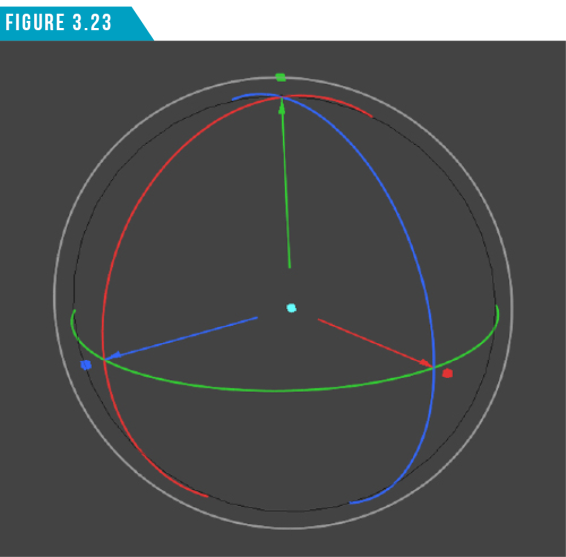
Activate the Transform Tool (Y). The Transform Tool Gizmo (Figure 3.23) consists of nine handles and gives you access to the core Move, Rotate and Scale Tool Handles. By using the various handles, you can quickly position, rotate and scale in one convenient tool.
Modo offers many tools beyond the standard transform tools we’ve discussed. If we are going to make it through this weekend (crash course) we simply don’t have the time to discuss each and every tool.
You should, however, have a good idea about working with tools in Modo. Each tool will have its own set of tool attributes which you can access in the Tool Properties Panel, and you can interactively adjust some of these attributes right in the 3D viewport using the provided handles.
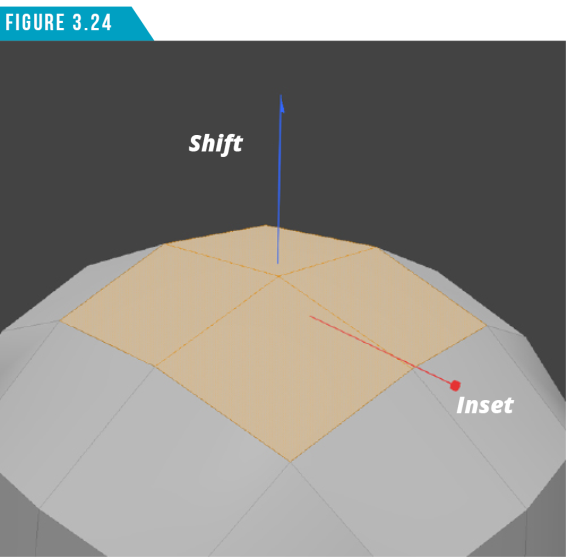
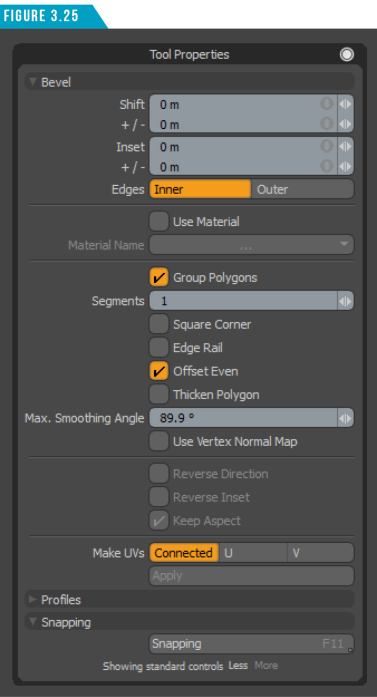
Let’s look at another tool as an example. Select the top polygons of the subdivided cube and activate the Polygon Bevel Tool (B). The Polygon Bevel tool enables you to perform a shift and inset on the selected polygons. Shift pushes the polygons away from their starting positions, and Inset scales the polygons. You’ll notice that there are two handles for the Bevel tool (Figure 3.24) and a variety of attributes available in the Tool Properties Panel (Figure 3.25).
It’s important to investigate the properties panel for each tool you are introduced to in order to take full advantage of what the tool has to offer.
Spend some time exploring the tools available in the Model Toolbar. You’ll want to have a look at the Tool Properties Panel for each as well as test drive the tools in the 3D Viewport to see how it feels to interact with them.
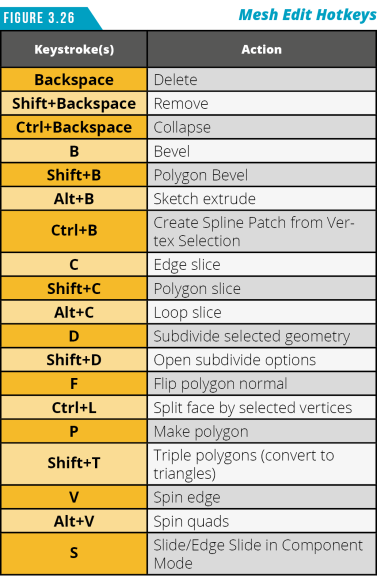
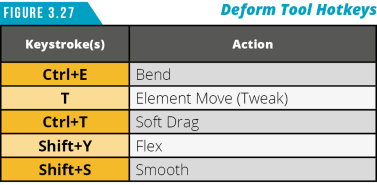
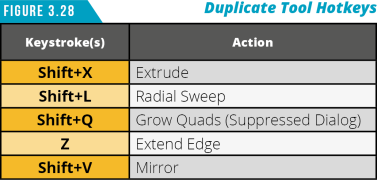
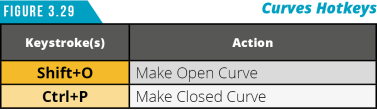
I’ve included some common keyboard shortcuts for common interactive tools and one-shot commands (Figures 3.26 to 3.31). If you’re not sure how a tool should work, don’t forget you can quickly access documentation for the tool by pressing (F1) to start the Activate Help feature, then click on the tool’s button to launch the local documentation for that tool.
|
|
|
|
|
|
|
|
|
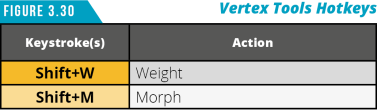
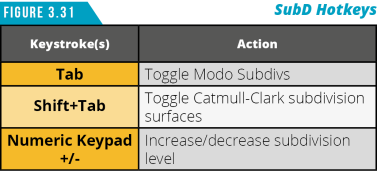
Note: I keep throwing hotkeys at you from all directions. Remember, you don’t have to memorize all of them. Just be aware that they are available and if you find yourself using a tool often, add that tool’s hotkey to your list of things to remember.