 Search Tips
Falloffs
We discussed Falloffs in the interface section of this guide, but since they play an important role in working with tools in Modo, I thought it would be a good idea to bring them back to your attention.
This video takes a quick look at working with tools in Modo.
In Modo, elements are either selected or not selected. This means the effect of a tool happens at a constant rate across the selected range. Using Falloffs, you can attenuate the effect a tool has over a selection, gradually increasing or decreasing a tool’s intensity across a defined range.
Using the Falloff Button in the Modo Modes Bar (Figure 3.32), you can define a falloff by selecting it from the list.

Just like Action Centers, Falloffs are persistent until disabled.
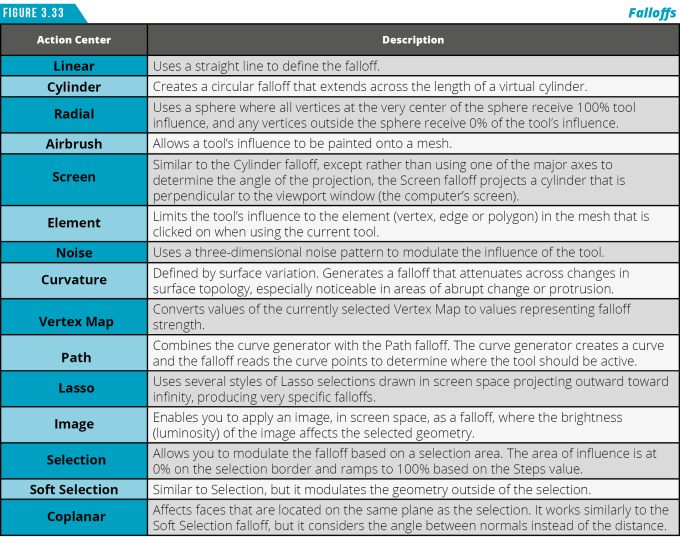
(Figure 3.33) shares a brief description of the different falloff types available. Many tools in Modo are just Tool Presets, which are pre-made combinations of a specific falloff and a transform, such as the Taper, Soft Drag, Element Push and Vortex Tools. There are additional Tool Presets that are a combination of a transform tool, falloff and action center such as Element Move, Twist and Soft Selection Move.
When you activate a Tool Preset such as Element Move, you can view the combination of functions that make it in the Tool Pipe (Figure 3.34).
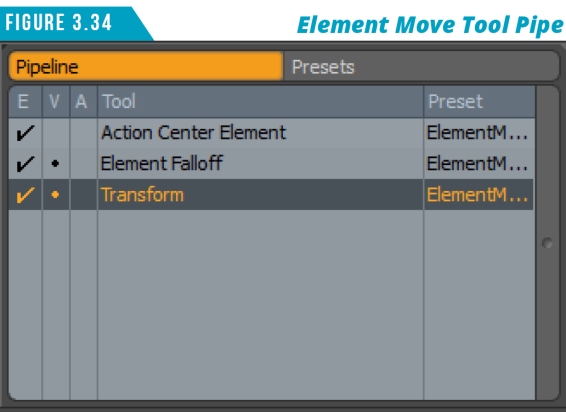
Don’t forget that not only can you see what tools and options are active with the Tool Pipe, you can also create custom tool combinations and save them as Tool Presets for later use.
You’ll also want to keep an eye on the Tool Properties Panel (Figure 3.35) when you activate a falloff to gain access to the falloff’s attributes. I would always recommend keeping the Tool Properties Panel open until you become familiar enough with Modo. This will ensure you don’t miss out on key attributes of a given tool or function.
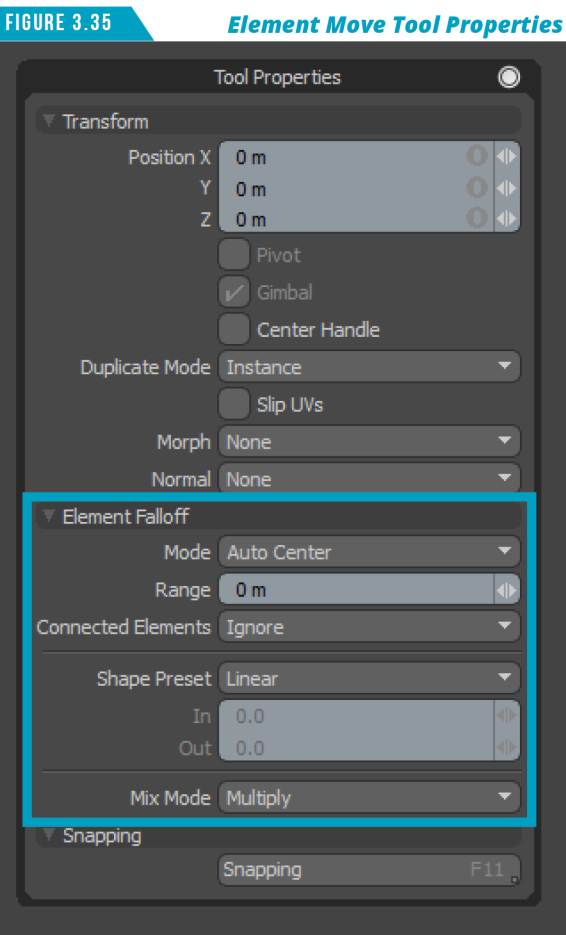
Sometimes just looking at the Tool Properties Panel of a given tool will be all that is needed to grasp the general concept of the tool. I’ve also learned what many attributes of a tool do by simply adjusting the attributes’ value to see what happens.
|
||
|
Spend some time exploring the Model Toolbar and see how many tools you can find that are really just Tool Presets. Not only will this give you an idea of how many Tool Presets there are, it will also help you understand what the tools are actually doing when you use them as well as give you a better understanding of Action Centers and Falloffs. |
